How to Convert PDF to Markdown (And Why It's the Hardest Conversion)
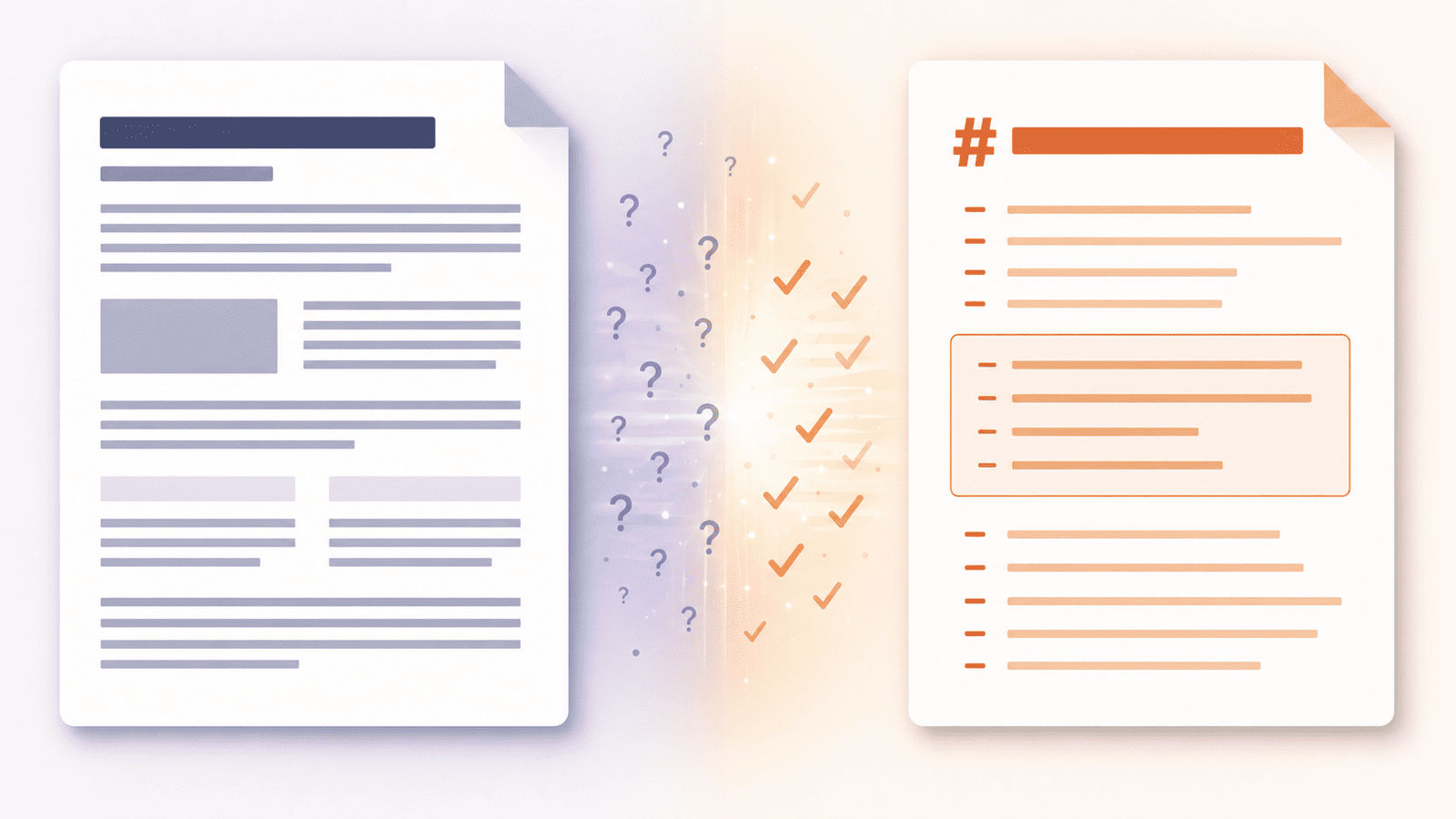
Every other conversion asks the same question: where was this on the page?
Markdown asks a harder one: what is this text for?
A PDF does not know it has headings. It knows it has a line of Helvetica Bold at 18 points sitting 60 millimetres from the top of the page. Markdown has no concept of 18 points — it only has #, ##, ###. So a converter standing between them has to look at the size, the weight, the spacing above and below, and make a judgement call: this was probably a heading, and probably a level two.
That judgement, repeated across every element in your document, is the whole story of PDF to Markdown. It is why results vary so much between files, and why knowing what the converter is guessing at tells you exactly where to look when something comes out wrong.
What the converter has to infer
Six things, each from visual evidence alone.
Headings
The clue: text noticeably larger or bolder than the body, usually with extra space above it.
The output: #, ##, ### depending on relative size.
Where it fails: documents with only one heading size, where everything collapses to a single level. Also decorative title pages, where a large word in the middle of a blank page becomes an # heading it never was. Pull quotes set in large type get promoted to headings for the same reason.
Lists
The clue: a bullet glyph or a number at the start of a line, plus a consistent indent.
The output: - for bullets, 1. for numbered lists, with nested items indented.
Where it fails: custom bullet characters that the converter does not recognise as bullets. Deeply nested lists often flatten to one level. And a list item that wraps onto a second line sometimes becomes its own separate item.
Emphasis
The clue: runs of bold or italic within a paragraph.
The output: **bold** and *italic*.
Where it fails: documents where bold is used for a whole paragraph. It converts faithfully, but a wall of ** is rarely what you wanted.
Tables
The clue: text aligned in consistent columns, sometimes with ruling lines.
The output: a Markdown pipe table.
Where it fails: this is the weakest element in the whole conversion, because Markdown tables are far simpler than PDF tables. Merged cells cannot be represented in standard Markdown at all. Neither can multi-line cells, nested tables, or cells with their own formatting. Complex tables come out either flattened or broken. If a table is the actual reason you are converting, a PDF to CSV conversion will serve you far better and keep the data usable.
Code blocks
The clue: a monospaced font, often with a background panel.
The output: a fenced block with triple backticks.
Where it fails: language detection is a guess, so the fence often has no language tag and your syntax highlighting will not fire until you add one. Inline code in monospace sometimes converts to backticks and sometimes does not.
Reading order
The clue: the position of text blocks on the page.
The output: the sequence your Markdown appears in.
Where it fails: multi-column layouts are the classic problem. Academic papers, newsletters and magazine layouts can produce text that jumps between columns mid-sentence. Headers, footers, page numbers and sidebars also get pulled into the flow, appearing as stray lines every few hundred words.
How to convert a PDF to Markdown
- Open the PDF to Markdown tool.
- Select your PDF file.
- Run the conversion.
- Download the
.mdfile.
Then open the result in any Markdown editor — VS Code, Obsidian, Typora — with a live preview enabled. Reading the rendered version rather than the raw text makes structural mistakes obvious immediately.
How good is good enough? It depends what it's for
This is the part most guides miss. There is no single quality bar for a Markdown conversion, because the four common reasons for doing it have very different tolerances.
Feeding a document to an AI model or a RAG pipeline. This is now the most common reason to convert, and happily the most forgiving. Models handle imperfect Markdown well, and the reason Markdown beats raw text here is that headings and lists give the model structural signal about how the document is organised. A stray page number will not hurt you. What does hurt is broken reading order, because a sentence that jumps between columns produces genuinely misleading input. Check the reading order and ship it.
Notes apps like Obsidian or Logseq. Middling tolerance. Headings matter most, because they drive the outline pane and your linking structure. Tables matter little. Budget a few minutes to fix heading levels and you are done.
A documentation site or static site generator. Low tolerance. This is published output, so everything needs to be right — heading hierarchy, working links, correctly fenced code, tables that render. Expect real editing work, and treat the conversion as a first draft rather than a result.
Version control and diffing. This is a good reason on its own. Two versions of a PDF are almost impossible to compare, but two Markdown files diff cleanly in Git. Consistency matters more than perfection here: convert both versions with the same tool and the same settings, so the diff shows real content changes rather than conversion differences.
Decide which of these you are doing before you start, and you will know how much cleanup to bother with.
If your PDF is a scan
A scanned PDF holds an image of a page, not text, so there is nothing for a converter to read structure from. You need OCR first, which reads characters out of the image.
Set expectations accordingly. OCR can recover the words reasonably well from a clean, straight, high-resolution scan. What it recovers much less reliably is the structure — heading levels and list nesting depend on subtle typographic cues that survive scanning poorly. Assume you will be adding most of the # marks yourself.
A five-minute cleanup pass
Work through in this order, because fixing structure first makes everything else easier to see.
- Strip the page furniture. Search for repeated headers, footers and page numbers and delete them. They appear at regular intervals, so one find-and-replace usually clears the lot.
- Fix the heading hierarchy. Check that levels descend logically and that nothing was promoted by accident. Title pages and pull quotes are the usual culprits.
- Repair the lists. Look for wrapped items that split into separate bullets, and re-nest anything that flattened.
- Tag your code fences with the right language so highlighting works.
- Deal with the tables. Either rebuild them properly or, if they carry data you need to use, pull them out separately as CSV.
- Read the joins between pages. Paragraphs broken across a page boundary sometimes come back with an unwanted line break in the middle.
Going the other way
If you want the reverse — turning Markdown into a formatted PDF — that is a much easier conversion, because Markdown already states its structure explicitly and nothing has to be inferred. The guide to exporting an AI chat as a PDF covers that direction, and it is worth knowing both if you move documents between formats often.
Convert your PDF to Markdown
The conversion is a translation from appearance into meaning, and it is only ever as good as the visual evidence in the file. Clean, consistently styled, single-column PDFs convert beautifully. Dense multi-column layouts with complex tables need real work afterwards. Knowing which one you have — and what you actually need the Markdown for — tells you everything about how much time to spend.