How to Convert HEIC to PDF (The iPhone Photo Format Nobody Can Open)
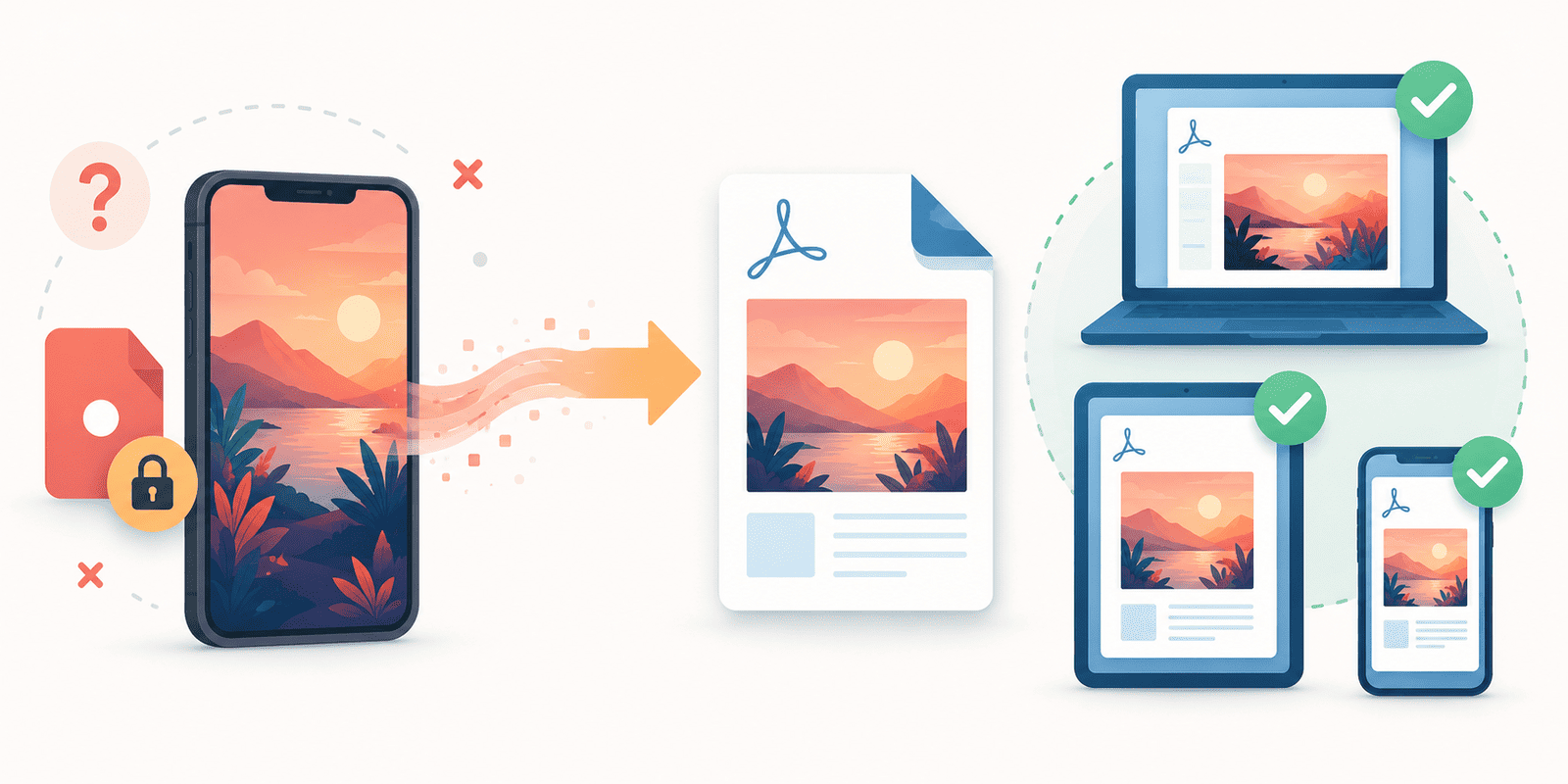
You send a photo from your iPhone, and the person on the other end replies that they can't open it. The file has a strange extension they have never seen: .heic. Nothing on their computer knows what to do with it.
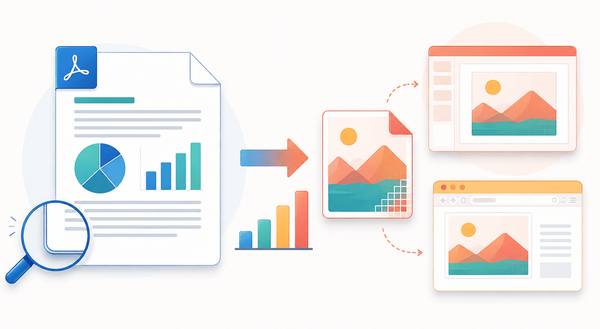
That single moment is why this conversion exists. HEIC is the format modern iPhones save photos in by default, and while it is excellent in some ways, it has one real weakness: plenty of devices and apps still cannot open it. Turning that photo into a PDF solves the problem completely, because a PDF opens anywhere, on anything, with no special software. This guide explains what HEIC actually is, why it causes trouble, and how to convert it so anyone can view your image.
What HEIC and HEIF actually are
HEIF stands for High Efficiency Image Format, and HEIC is Apple's version of it (the "C" is for the codec it uses). They are the same underlying idea, which is why one tool handles both.
Apple switched to this format for a good reason. Compared to an old-fashioned JPG, a HEIC file stores a photo at similar or better quality while taking up roughly half the space. On a phone holding thousands of photos, that saving is enormous. So the format itself is genuinely clever, and if every device understood it, there would be no problem at all.
The trouble is only compatibility. Because HEIC is closely tied to Apple's ecosystem, a lot of the wider world has been slow to support it. Older Windows computers, many Android phones, plenty of web apps, and older software often meet a .heic file and simply refuse it. Your photo is fine. The other device just does not speak the format.
Why PDF is the fix
You could convert the photo to JPG, and sometimes that is what you want. But PDF has a specific advantage when the goal is "make sure anyone can open this."
A PDF is the closest thing there is to a universal document. Every computer, phone, and browser can display one, with no app to install and no format to support. When you turn a HEIC photo into a PDF, you are wrapping your image in the one format that nothing refuses. It is the safe choice for sending a photo to someone when you have no idea what device or software they are using, and it is the natural choice when the image is really a document anyway, like a photographed receipt, form, or page.
How to convert HEIC to PDF
- Open the HEIF/HEIC to PDF tool.
- Select your .heic or .heif image, or several at once.
- Optionally set the page options (covered below).
- Convert and download your PDF.
The tool takes both .heic and .heif files, so whichever your photo happens to be, it is covered. Sensible defaults are already in place, so if you just convert and download, you get a clean result without touching a single setting.
Shaping the page
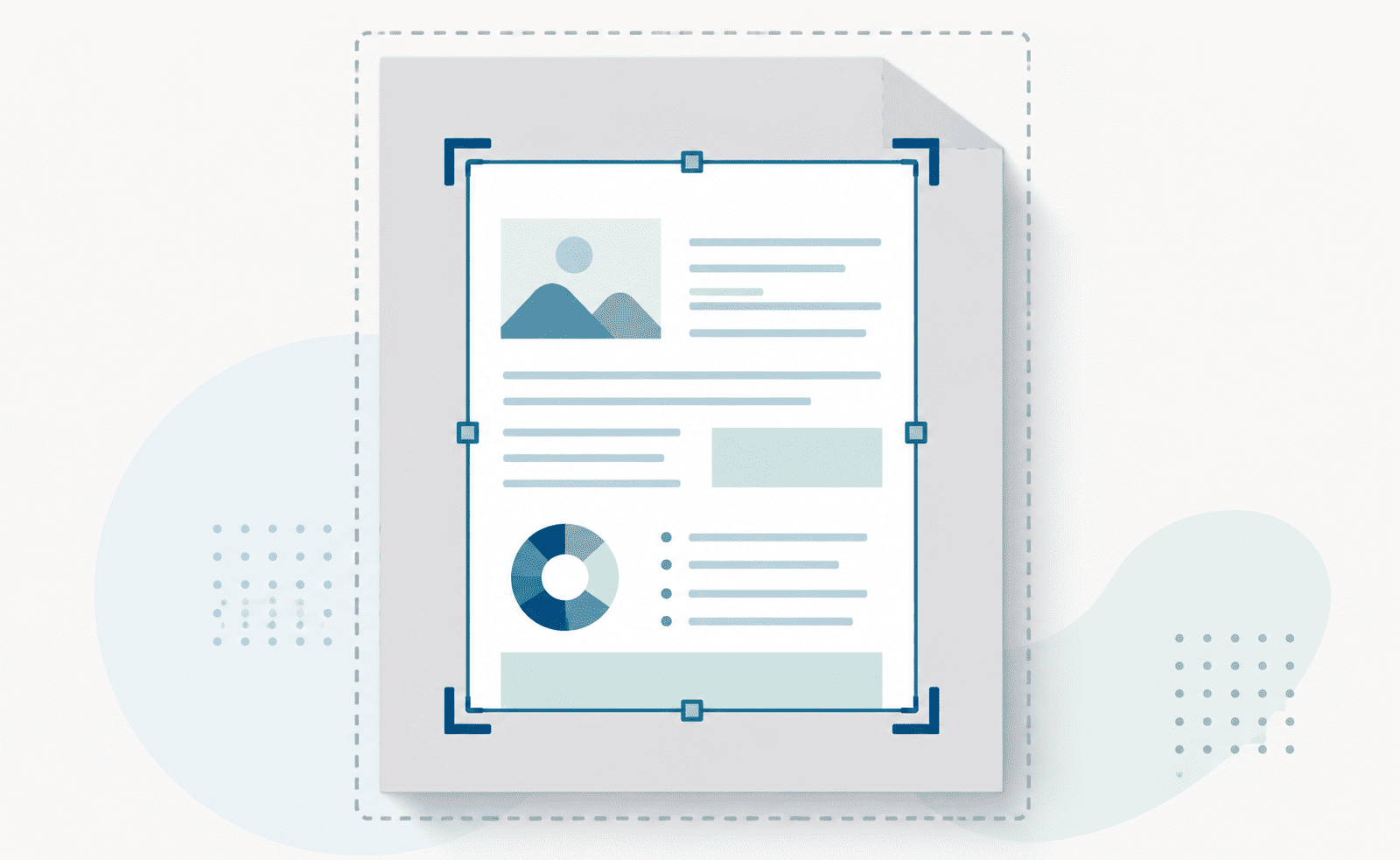
Because a PDF is built around pages and a photo is not, the conversion places your image onto a page, and a few optional settings control how that page looks.
You can set the orientation to portrait or landscape to match the shape of your photo, so a tall shot sits on a tall page and a wide shot on a wide one. You can choose the page size, with A4 as the sensible default for most uses. You can pick a margin (none for an image that fills the sheet edge to edge, or a small border for a cleaner, more deliberate look). And you can give the output a file name so it downloads with a title that makes sense instead of a generic one.
All of these are optional. They exist for when you want the page to come out a particular way, and they stay out of your way when you do not.
Turning several photos into one PDF
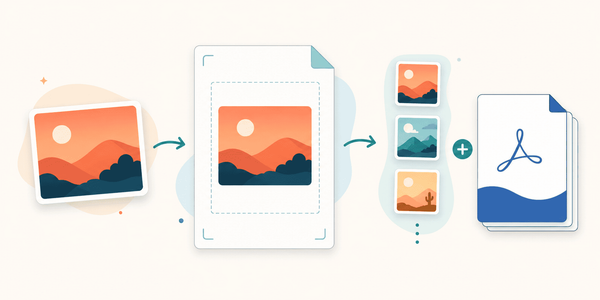
If you are converting more than one image, there is an option to merge all of them into a single PDF rather than getting a separate file for each. Ticked, your photos become one document, one image per page, in order.
This is what turns a handful of separate shots into something tidy: several photographed pages into one readable file, a set of images into a single attachment, a group of receipts into one document to send on. When the photos belong together, merging is almost always what you want.
Going the other way, and other formats
Two related tools are worth knowing about for when this one is not quite the right fit.
If you ever need the reverse, turning a PDF back into a HEIF or HEIC image, the PDF to HEIF/HEIC tool does exactly that, letting you pick which of the two formats you want out.
And if your images are not all HEIC, or you are not certain what format they are, the image to PDF tool accepts every image type the platform supports and handles the page the same way. Reach for it when you have a mix of formats, or when you simply are not sure what you are holding.
A quick run-through: sending an iPhone photo anyone can open
Say you took a photo of a signed form on your iPhone and need to email it to someone on an old Windows laptop.
The photo saved as a .heic file, which that laptop will not open. So open the HEIF/HEIC to PDF tool and select the photo. It is a portrait shot of a document, so portrait and A4 fit it well, with a small margin so it looks like a page rather than a full-bleed photo. Name it something clear. Convert, download, and attach the PDF instead of the original. Now it does not matter what they are opening it on. It just works.
Convert your HEIC photo to PDF
HEIC is a smart format with one everyday problem: not everything can open it. Converting to PDF removes that problem entirely, because a PDF opens on any device with no special software. Match the page to your photo if you like, merge several images when they belong together, and send with the confidence that whoever receives it can actually see it.