How to Crop a PDF (What Actually Happens When You Trim a Page)
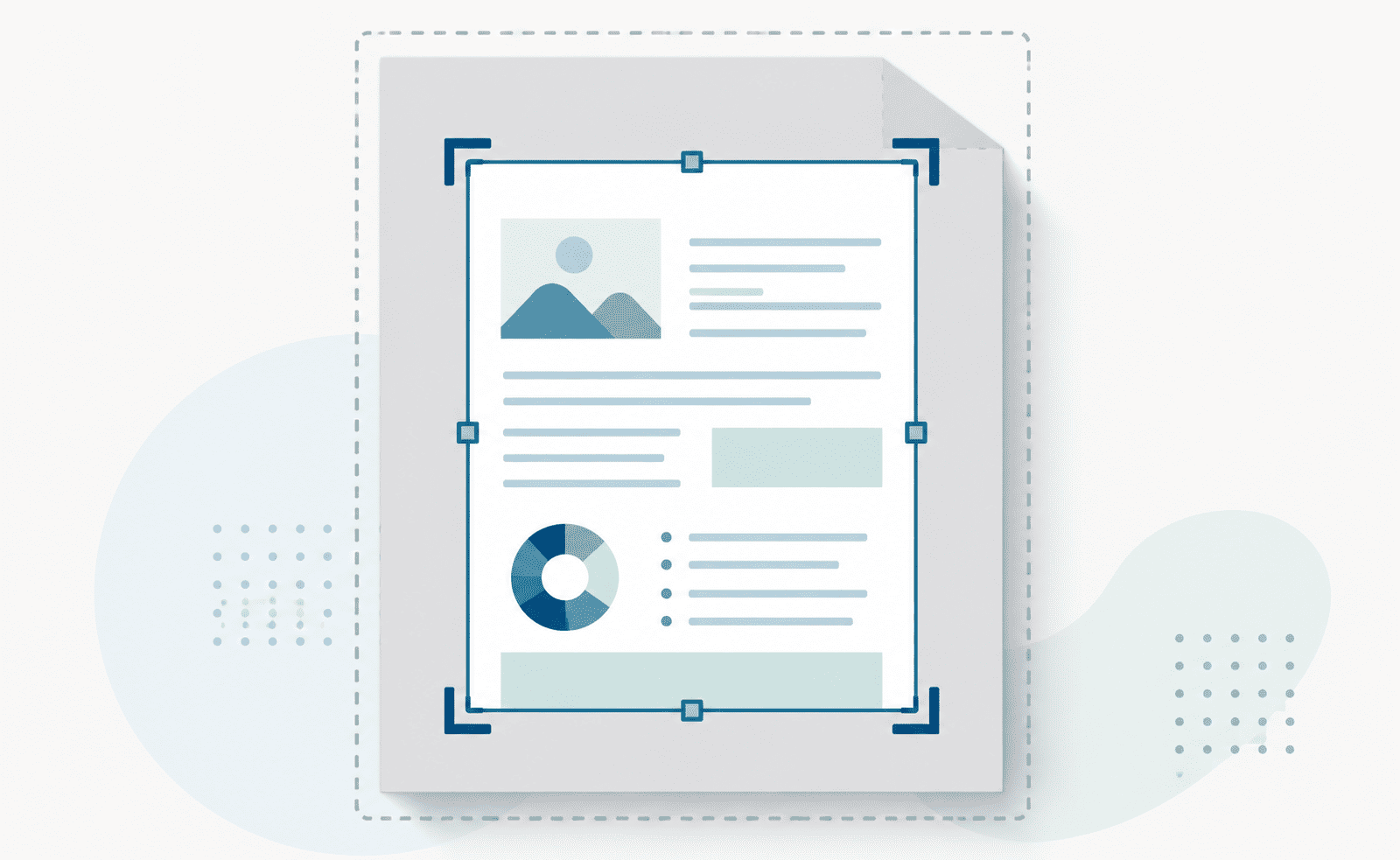
Cropping a photo and cropping a PDF feel like the same action, but underneath they are not. When you crop a photo, the pixels you cut away are gone. When you crop a PDF, something quieter happens, and understanding it is the difference between using the tool well and using it for the wrong job entirely.
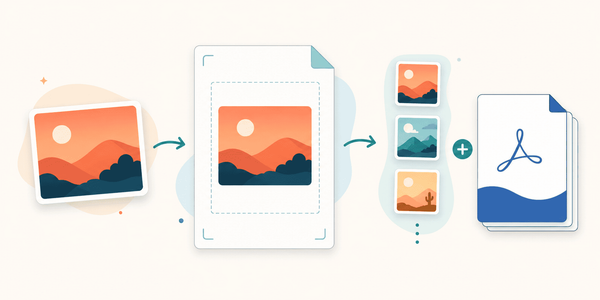
A PDF page has a defined boundary, an edge that says "the page is this big." Cropping moves that edge inward. You are telling the page to show a smaller region than before, trimming the visible area down to the part you actually want. It is a genuinely useful thing to do for several everyday problems, and this guide walks through when to reach for it, how to do it, and the one important thing it does not do.
The jobs cropping is actually for
Most people arrive at a crop tool with one of a handful of specific annoyances. Here is where it earns its place.
Trimming scanner margins. Scanned pages often come out surrounded by a thick border, sometimes a grey or black frame where the scanner lid showed through. Cropping cuts that frame away so the page is just the document.
Removing dead whitespace. A page might hold a small amount of content adrift in a sea of empty space, like a diagram or a receipt sitting in the middle of a full sheet. Cropping tightens the page down to the content itself.
Cutting a repeated header or footer. If every page carries a band across the top or bottom that you do not want, cropping the same region off each page removes it cleanly.
Focusing on one region. Sometimes only part of a page matters: one panel of a poster, one column, one figure. Cropping isolates it so the page shows just that.
Tidying an oversized or off-center scan. A page scanned crooked or at the wrong size can be squared up by trimming it back to where the real content sits.
Crop every page, or each one differently
Cropping does not have to mean the same cut everywhere. There are two ways to work, and picking the right one saves time.
Applying one crop to every page is the fast path when the whole document has the same problem, like a uniform scanner border or a header that repeats identically. You define the region once and it trims across all pages in a single pass.
Cropping pages individually is there for when the document is not consistent, when different pages need different treatment, or when only some pages need trimming at all. You set the crop per page and each one keeps its own boundary.
If you have several PDFs that all need the same treatment, you can crop them together and get the results back in one download, rather than opening each one on its own.
How to crop a PDF
- Open the crop tool.
- Select your PDF, or several PDFs at once.
- Set the crop area, either the same for every page or per page.
- Download the cropped PDF.
The thing to understand: cropping hides, it does not delete
This is the part that matters most, and it catches people out because it is invisible.
When you crop a PDF, the content outside your new boundary is not removed from the file. It is still there, sitting just beyond the visible edge of the page. Cropping changes what the page shows, not what the page contains. The trimmed-away area is hidden from view, but it remains inside the document, and it can be brought back by anyone who resets the boundary.
For most cropping jobs, this does not matter at all. Trimming a scanner margin, tightening whitespace, focusing on a figure: in every one of these cases you do not care that the empty border technically still exists.
But it matters enormously in one situation. If you are cropping a page to hide sensitive information, to cut away a name, an address, an account number, a signature, believing the crop deletes it, you are mistaken, and it is a genuinely risky mistake. The information is still in the file, fully recoverable. Cropping is not a way to remove confidential content. It only moves it out of sight.
When the goal is truly to remove sensitive data so it cannot be recovered, cropping is the wrong tool. You need a method that actually strips the underlying content out of the file rather than one that adjusts the visible boundary. Treat cropping as a layout and tidiness tool, never as a security one.
What to check after cropping
A quick review before you rely on the result saves the small mistakes.
Look along all four edges of the cropped page and confirm you have not clipped anything you meant to keep, since it is easy to trim a little too tight and cut off the edge of real content. If you cropped every page with a single region, page through and check that the crop suits every page, not just the one you were looking at when you set it, because a region that fits page one perfectly can clip page five if the layout shifts. And if you cropped pages individually, confirm each page came out the way you intended.
Crop your PDF
Cropping a PDF trims the visible page down to the part you want, which is the right fix for scanner borders, wasted whitespace, unwanted headers, and pages that need focusing. Crop every page at once when the problem is uniform, or page by page when it is not. Just remember the one rule that keeps you safe: cropping hides content, it does not delete it, so never use it to remove anything that truly needs to be gone.