How to Export an LLM Chat (ChatGPT, Claude, Gemini) as a PDF
You had a great conversation with ChatGPT, Claude, or Gemini — a research breakdown, a study guide, a block of code, a plan you want to keep. Now you want it as a PDF you can save, print, or share. The problem is that the usual methods are clumsy: the browser's Print-to-PDF often clips long chats, breaks the layout, and dumps in the sidebar and buttons, while browser extensions ask you to install software and hand over access to your conversations.
There's a cleaner way. This guide shows two methods on PDFEquips that turn AI chat text into a well-formatted PDF — no extension to install, no print dialog to fight with. One is a fast paste-and-download route; the other preserves full formatting like headings, lists, tables, and code blocks.
Why exporting AI chats to PDF is useful
Saving an AI conversation as a PDF is worth the few seconds it takes:
- Offline access — a PDF opens on any device without an internet connection or a login.
- Easy sharing — send a colleague, classmate, or client a clean document instead of a chat link that may expire or require an account.
- Permanent record — keep research, brainstorms, or important answers even if you delete the chat or lose access.
- Searchable reference — search inside the PDF and jump to the part you need instead of scrolling a long thread.
- Clean formatting — strip out the interface clutter (sidebars, buttons, avatars) and keep just the content.
The problem with browser Print-to-PDF and extensions
Before the two methods, here's why the common approaches frustrate people:
- Browser Print (Ctrl/Cmd + P → Save as PDF) frequently cuts off long conversations, adds awkward page breaks, and captures the whole interface rather than just the text. You often end up adjusting margins and orientation just to get something readable.
- Chrome extensions work, but require installing third-party software that can read your conversations — a privacy trade-off many people don't want, and not an option at all on locked-down work machines.
Both are workarounds. Pasting your text into a dedicated PDF tool sidesteps all of it.
Method 1: Text to PDF (the fast, paste-and-go way)
This is the quickest route and works for any AI chat — ChatGPT, Claude, Gemini, or anything else you can copy text from.
- Copy your text. In your AI chat, select the response (or the whole conversation) and copy it.
- Open the Text to PDF tool. You'll see a large text area labeled "Paste Your Text."
- Paste and add. Paste your copied text into the box, then click the Add Text button. Your text appears neatly formatted in a preview.
- Set your output options. Click the output options button to control how the PDF looks: theme, page size, orientation, text direction, and font size. Text direction is especially handy for right-to-left languages like Arabic or Hebrew.
- Download. Click the Download button and your formatted PDF is saved to your device.
That's the entire process — copy, paste, add, download. No install, no account hoops, and the interface clutter from the chat page never makes it into your file.
When to use Text to PDF
Use this method when you want speed and a clean, readable document, and you don't need to perfectly preserve complex Markdown structure like nested lists or tables. For most saved answers, notes, and shareable summaries, this is all you need.
Method 2: Markdown to PDF (for full formatting)
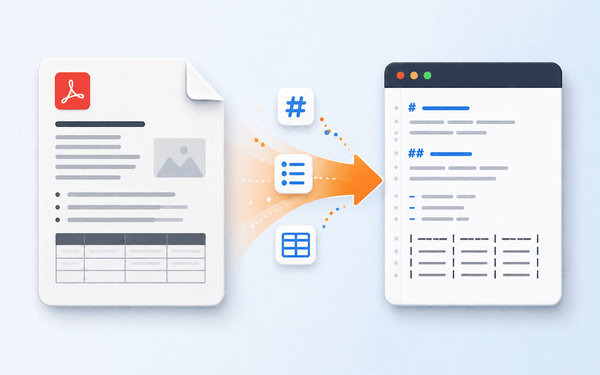
Here's something most people miss: AI chat responses are already written in Markdown. Those headings, bold terms, bulleted and numbered lists, tables, and code blocks you see in ChatGPT or Claude are Markdown under the hood. That makes a dedicated Markdown-to-PDF tool the ideal way to keep an AI answer's structure fully intact.
The Markdown to PDF tool is built specifically for this and gives you more control than the text method:
- Get your Markdown. Copy the response from your AI chat (it's already Markdown), or if you're working with a
.mdfile, use that directly. - Open the Markdown to PDF tool. It accepts Markdown in several ways:
- Paste your Markdown text directly.
- Upload a
.mdfile from your device. - Load from a GitHub repo URL — useful for turning a project's README or documentation straight into a PDF.
- Adjust the options. This tool offers a rich set of formatting options so the output looks exactly how you want.
- Export to PDF. Generate and download your formatted document.
Because it renders true Markdown, headings stay headings, lists stay properly nested, tables render as tables, and code blocks keep their formatting — which the plain text method isn't designed to preserve. If you asked an AI for code, documentation, or a heavily structured answer, this is the method to use.
When to use Markdown to PDF
Reach for this when the response has real structure you want to keep: technical explanations, documentation, tables, or code. It's also the best choice for turning a GitHub README or Markdown notes into a polished, shareable PDF.
Text to PDF vs. Markdown to PDF: which should you use?
| Your situation | Best method |
|---|---|
| A quick answer or summary to save or share | Text to PDF |
| You just want it readable, fast | Text to PDF |
| The response has headings, lists, and tables | Markdown to PDF |
| The answer contains code blocks | Markdown to PDF |
You're converting a .md file or GitHub README | Markdown to PDF |
| You need right-to-left text (Arabic, Hebrew) | Text to PDF (set text direction) |
A simple rule: if you want it fast and clean, use Text to PDF. If you want to preserve structure, use Markdown to PDF.
Tips for a better PDF export
- Copy only what you need. You don't have to export the whole thread — grab the specific answer that matters for a tidier document.
- Remove the "You said / Assistant said" labels if you only want the content, not the back-and-forth.
- Choose the right page size and orientation up front — portrait for text-heavy notes, landscape if the answer has wide tables.
- For code, use Markdown to PDF so indentation and formatting survive.
- Match the text direction to your language so right-to-left content lays out correctly.
Frequently asked questions
Can I export a ChatGPT, Claude, or Gemini chat this way? Yes. Both methods work with any AI chat you can copy text from — the tools don't depend on which chatbot you used.
Do I need a browser extension? No. Both methods work by pasting or uploading your text, so there's nothing to install and no extension that needs access to your conversations.
Will my formatting be preserved? With Text to PDF you get clean, readable formatting. With Markdown to PDF you get full structure — headings, lists, tables, and code blocks — because AI responses are already Markdown.
Can I convert a Markdown file or GitHub README to PDF? Yes. The Markdown to PDF tool accepts pasted Markdown, uploaded .md files, and Markdown loaded directly from a GitHub repo URL.
Does this support right-to-left languages? Yes. The Text to PDF tool includes a text-direction option for right-to-left languages such as Arabic and Hebrew.
Export your AI chat to PDF now
Pick the method that fits: paste-and-go with Text to PDF, or full formatting with Markdown to PDF.
👉 Convert Text to PDF — the fast, paste-and-download route. 👉 Convert Markdown to PDF — keep headings, tables, and code intact.