Best Tools to Convert PDF to Markdown: Free Online Converters Compared
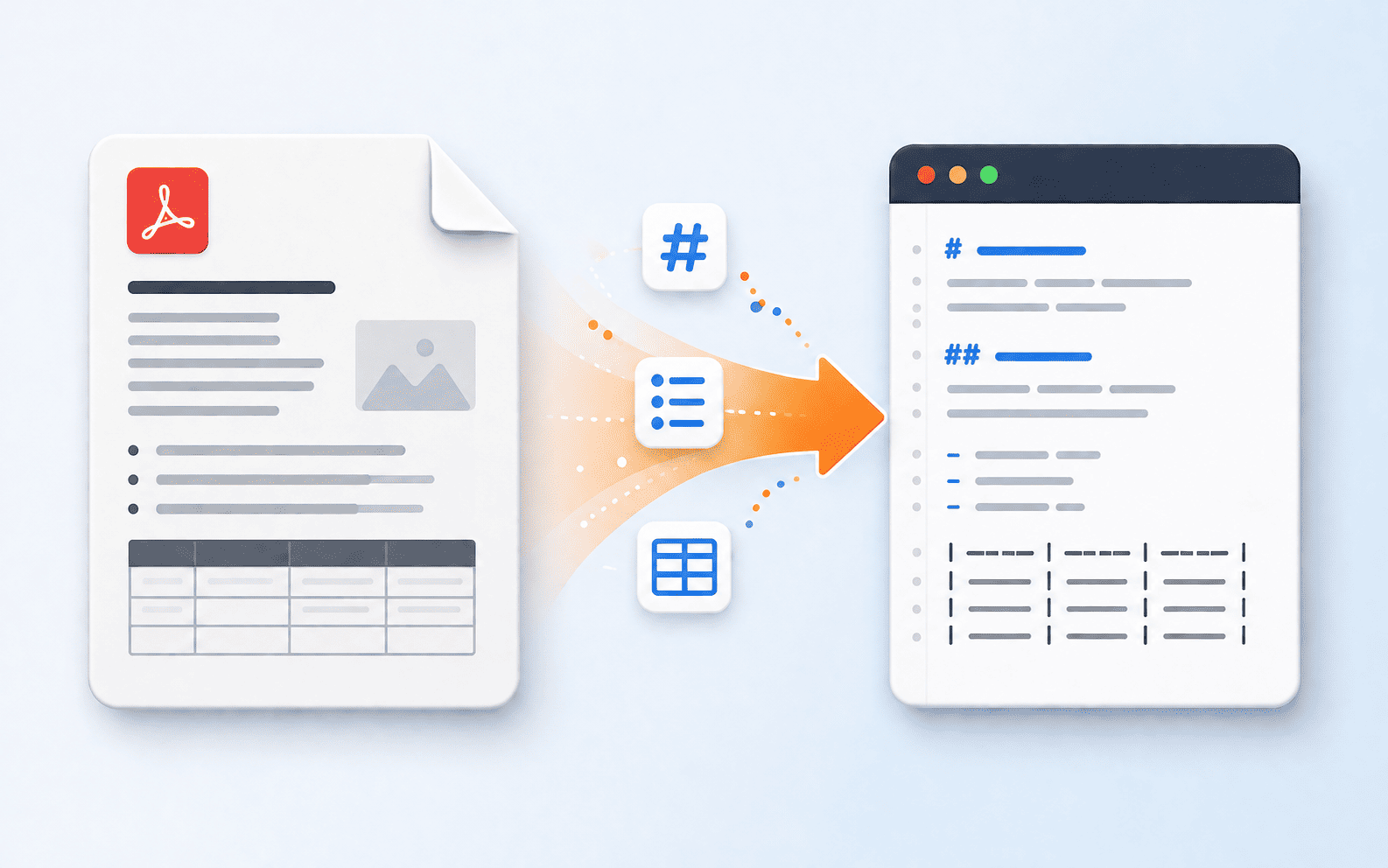
Markdown has become the default format for documentation, README files, technical wikis, static site generators, and AI prompt libraries. The problem is that most source material doesn't start in Markdown—it starts as a PDF. A whitepaper, a research paper, a scanned manual, an exported report. Before that content can live in a GitHub repo, a Notion doc, or an Obsidian vault, it needs to become clean Markdown text.
Converting a PDF to Markdown by hand means copying text, stripping out formatting artifacts, manually adding headers, fixing broken tables, and re-creating bullet lists that got mangled in the copy-paste. For anything longer than a page or two, that's hours of tedious cleanup.
This guide compares the realistic options for converting PDF to Markdown in 2026, walks through the fastest method step-by-step, and covers the edge cases that trip people up—tables, scanned documents, multi-column layouts, and code blocks.
Why Convert PDF to Markdown in the First Place
Documentation and Developer Workflows README files, API docs, and internal wikis are almost universally written in Markdown. Source material that arrives as a PDF needs to be converted before it fits into that workflow.
Static Site Generators Tools like Jekyll, Hugo, Astro, and Docusaurus consume Markdown as their content format. Migrating a PDF-based knowledge base into one of these means converting every document first.
AI and LLM Workflows Feeding documents into language models or building retrieval systems works far better with clean Markdown than with raw PDF text, which often includes broken line breaks, headers mixed into paragraphs, and stripped formatting.
Note-Taking Apps Obsidian, Notion, and similar tools are built around Markdown. Importing a PDF report or paper means converting it first to preserve headings, lists, and structure properly.
Version Control and Git Markdown diffs cleanly in Git. Teams that want to track changes to documentation over time need it in Markdown rather than as a binary PDF.
Content Repurposing Blog posts, help center articles, and internal guides often start life as PDFs (old reports, exported Word docs) and need to become Markdown for republishing on a CMS.
The Realistic Options for Converting PDF to Markdown
Option 1: Manual Copy-Paste
Copying text out of a PDF and manually formatting it as Markdown works for a one-page document. Past that, it falls apart fast—headers get lost, tables collapse into unreadable text blocks, and bullet points need to be rebuilt by hand. Time-consuming and error-prone for anything substantial.
Option 2: Command-Line Tools and Scripts
Developers comfortable with the terminal can use libraries to extract and convert PDF content programmatically. This works well for batch-processing many similar documents, but it requires setup, scripting knowledge, and still often needs manual cleanup for tables and complex layouts.
Option 3: Online PDF to Markdown Converters
Browser-based converters upload your PDF, parse the structure (headings, paragraphs, lists, tables), and output ready-to-use Markdown—no installation, no scripting. For most people converting a handful of documents, this is the fastest and most practical route, and it's what the rest of this guide focuses on.
How to Convert PDF to Markdown Online: Step-by-Step
What You'll Need
- A PDF file you want converted to Markdown
- A web browser (Chrome, Firefox, Safari, or Edge)
- 1-3 minutes depending on document length
No software installation. No account required.
Step 1: Open the PDFEquips PDF to Markdown Tool
- Open your browser
- Go to PDFEquips PDF to Markdown
- The converter loads instantly
Step 2: Upload Your PDF
Drag and Drop (Fastest):
- Drag your PDF file directly into the upload area
Browse Upload:
- Click the upload area
- Select your PDF
- Click "Open"
Step 3: Let the Tool Parse the Document
Once uploaded, the converter analyzes the PDF's structure—identifying headings, body text, lists, and tables—rather than just dumping raw text. This is the step that separates a usable Markdown output from a wall of unformatted text.
Processing time depends on document length: a few seconds for a short document, longer for something with many pages or complex tables.
Step 4: Review the Converted Markdown
After conversion:
- Scan through the output to check that headings are properly marked with
#,##, etc. - Verify bullet points and numbered lists came through correctly
- Check tables—these are the most likely spot to need a manual touch-up
- Confirm code blocks (if your source PDF had any) are wrapped properly
Step 5: Download or Copy the Markdown
- Click "Download" to save as a
.mdfile, or copy the text directly if you're pasting into another tool - Save with a clear filename, like
product-spec.mdorresearch-paper.md
Step 6: Paste Into Your Destination
Drop the converted Markdown into your README, your static site's content folder, your Obsidian vault, or wherever it needs to live. Because the structure (headers, lists, emphasis) is already in place, minimal cleanup is needed compared to a raw copy-paste.
Tips for Cleaner PDF to Markdown Conversion
Tip 1: Start With a Text-Based PDF, Not a Scan
PDFs that contain actual text (exported from Word, Google Docs, or a website) convert far more cleanly than scanned images of paper documents. If your source is a scan, run it through OCR first so there's actual text to extract. Make a scanned PDF searchable here before converting to Markdown.
Tip 2: Watch Tables Closely
Complex tables with merged cells or unusual layouts are the hardest thing for any converter to handle perfectly. After converting, open the output and check that table rows and columns line up. Simple tables usually convert cleanly; intricate ones may need minor manual fixes.
Tip 3: Multi-Column Layouts Need a Second Look
Academic papers and brochures often use two-column layouts. Converters generally read left-to-right, top-to-bottom per column, but it's worth verifying that text from column one doesn't get jumbled with column two in the output.
Tip 4: Clean Up the PDF First If It Has Extra Pages
If your PDF includes a cover page, table of contents, or appendix you don't need in the Markdown version, it's faster to remove those pages before converting, rather than deleting the equivalent Markdown sections afterward.
Tip 5: Convert Long Documents in Sections
For very long PDFs (100+ pages), converting the whole thing at once works, but reviewing the output is easier in chunks. Consider splitting the PDF by chapter or section first, converting each piece, then combining the Markdown files.
Tip 6: Preserve Links Where Possible
If your source PDF has hyperlinks, double-check the converted Markdown keeps them as proper [text](url) links rather than dropping them or leaving plain text behind.
Tip 7: Re-check Heading Hierarchy
PDFs don't always encode heading levels clearly (a bold, larger font might just look like a heading rather than being tagged as one). After conversion, skim through and confirm #, ##, and ### levels make sense for your document's structure—this matters a lot if you're feeding the file into a static site generator that builds navigation from headings.
Common Situations Where PDF to Markdown Conversion Helps
Migrating Documentation to a Static Site
Challenge: Years of product documentation exist as PDFs, but the new site runs on a Markdown-based static site generator.
Solution: Convert each PDF to Markdown, organize into the site's content folders, and adjust heading levels to match the site's navigation structure.
Building a Knowledge Base for an AI Assistant
Challenge: Internal manuals and reports are in PDF format, but they need to be fed into a retrieval system or AI assistant that performs better with clean, structured text.
Solution: Convert PDFs to Markdown to get clean headings and paragraph structure, which improves how well the content chunks and retrieves for AI use cases.
Importing Research Papers into Obsidian or Notion
Challenge: A research library of PDF papers needs to become linked, searchable notes.
Solution: Convert each paper to Markdown, then add internal links and tags inside the note-taking app.
Open-Sourcing Old Documentation
Challenge: A company wants to open-source its docs, but they exist only as internal PDF exports.
Solution: Convert to Markdown so the docs can live in a public GitHub repo with proper version history and community contributions via pull requests.
Repurposing Reports as Blog Content
Challenge: A whitepaper or report needs to become a series of blog posts on a Markdown-based CMS.
Solution: Convert the PDF to Markdown as a starting draft, then edit and split into individual posts.
PDF to Markdown: Manual vs. Online Tool
Manual Copy-Paste
- Works only for very short documents
- Headers, lists, and tables need to be rebuilt entirely by hand
- Time: 20+ minutes for a 5-page document, much longer for anything bigger
- High risk of missed formatting or content
PDFEquips Online Converter
- Structure (headings, lists, tables) is detected and converted automatically
- Time: Under a minute for most documents
- No installation or scripting required
- Minor manual cleanup only needed for complex tables or layouts
For anything beyond a single page, the online converter saves significant time and produces far more usable output than starting from scratch.
Troubleshooting Common Conversion Issues
"The Output Has No Headings, Just Plain Text"
Solutions:
- This usually happens with scanned PDFs that haven't been OCR'd—run OCR first, then convert
- If the source PDF used styled text without real "heading" tags, you may need to manually add
#markers after conversion
"Tables Look Broken in the Markdown Output"
Solutions:
- Simple tables convert cleanly; complex merged-cell tables often need manual adjustment
- Consider re-creating particularly complex tables directly in Markdown table syntax after conversion
"Text From Two Columns Got Mixed Together"
Solutions:
- Double-check the source PDF's layout—true multi-column academic papers can occasionally interleave during extraction
- Manually reorder the affected section if needed
"My PDF Won't Upload"
Solutions:
- Confirm the file is a genuine
.pdf - Open it first to make sure it isn't corrupted
- Try a different browser
- Check your internet connection for larger files
"Some Special Characters Look Wrong"
Solutions:
- This can happen with PDFs that use unusual fonts or embedded symbols
- Manually correct affected characters in the output—usually limited to a handful of spots
Why Use PDFEquips to Convert PDF to Markdown
Structure-Aware Conversion — Detects headings, lists, and tables rather than dumping raw text, saving significant cleanup time.
No Software Installation — Runs entirely in your browser on any device.
No Subscription Required — Convert documents as you need them.
Fast Processing — Most documents convert in seconds.
Privacy-Conscious — Files are processed securely and removed automatically afterward.
Works With Multi-Page Documents — Handles everything from a single page to lengthy reports.
Related PDFEquips Tools
After converting your PDF to Markdown, you might also need to:
1. Make a Scanned PDF Searchable First
Converting a scan? Run OCR here before converting to Markdown.
2. Split a Long PDF Before Converting
Converting a long document in sections? Split your PDF here.
3. Remove Unneeded Pages First
Skip the cover page or appendix? Remove pages here before converting.
4. Convert Markdown Back to PDF
Need to go the other direction later? Markdown to PDF here.
5. Merge Multiple PDFs First
Converting several related documents as one? Merge them here before converting to Markdown.
The Bottom Line
Converting PDF to Markdown shouldn't mean hours of manual reformatting. PDFEquips PDF to Markdown detects headings, lists, and tables automatically, turning a messy copy-paste job into a clean, ready-to-use Markdown file in under a minute.
Whether you're migrating documentation, building a knowledge base, or repurposing a report into blog content, this is the fastest practical path from PDF to Markdown.
Ready to convert your PDF? Try the PDF to Markdown converter now—no installation, no account, just clean Markdown in seconds.
FAQs: Converting PDF to Markdown
Q: Will the conversion preserve headings and formatting? A: Yes. The tool detects document structure—headings, lists, and tables—rather than producing plain unformatted text.
Q: Can I convert a scanned PDF to Markdown? A: You'll get better results running OCR on the scan first, then converting the searchable result to Markdown.
Q: Do I need to install anything? A: No. The entire process runs in your web browser.
Q: How long does conversion take? A: Typically a few seconds to a couple of minutes, depending on document length and complexity.
Q: Will tables convert correctly? A: Simple tables generally convert cleanly. Complex tables with merged cells may need minor manual adjustment afterward.
Q: Can I convert long documents, like a 50-page report? A: Yes, though reviewing the output in sections (or splitting the PDF first) makes proofreading easier.
Q: Is my data secure when I upload a PDF? A: Yes. Files are processed securely and removed automatically after a short period.
Q: Do I need an account? A: No. Upload, convert, and download without signing up.
Q: Can I copy the Markdown instead of downloading a file? A: Yes, you can copy the converted text directly if you're pasting it into another tool.
Q: Does the tool support multiple languages? A: Yes, the converter handles documents in various languages, preserving structure regardless of the text language.
Updated: Jun 2026. PDFEquips serves thousands globally for document conversion. Contact us with questions.