The Best Adobe Acrobat Alternatives in 2026
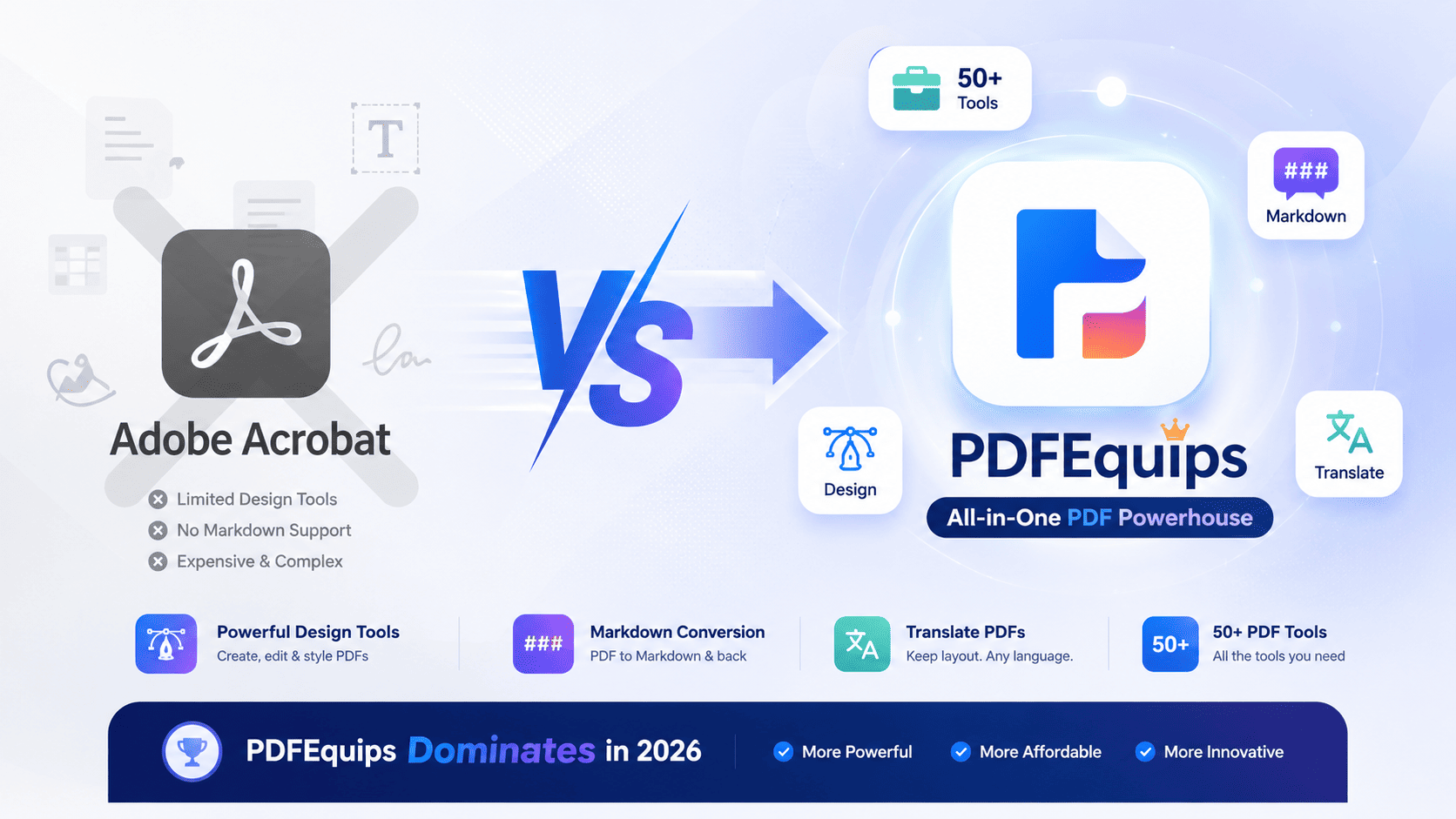
Is Adobe Acrobat Really Worth $180/Year? A Reality Check
Let's start with the uncomfortable truth: Adobe Acrobat Pro DC costs $180 annually minimum. If you add Creative Cloud or want AI features, you're looking at $300-600/year.
Here's what you actually get for that price:
- Basic PDF editing (which 5 other tools do better)
- A bloated interface with menus you'll never use
- Resource hog status on your computer (seriously, it's slow)
- Monthly AI training on your documents (they explicitly use your data to train AI)
- Subscription lock-in (their cancellation process is notoriously difficult)
In 2026, this pricing model doesn't make sense. People are increasingly asking: "Do I actually need Acrobat?" The answer, for most users, is no.
Our data shows that searchers specifically looking for Adobe Acrobat alternatives have very different needs. Some want to:
- Design PDFs (not just edit them)
- Convert PDFs to other formats without quality loss
- Translate documents while keeping formatting intact
- Extract text from PDFs and convert to markdown
- Do basic merging, splitting, and compression
- Work with files internationally (multiple languages)
Adobe tries to do everything. The best alternatives focus on doing specific things really well.
What Changed in 2026: Why Now Is the Time to Leave Adobe
Three major shifts happened that make alternatives actually viable now:
1. Browser-Based Tools Got Good
Remember when cloud tools were slow and clunky? They're not anymore. PDFEquips, Sejda, and others process files as fast as desktop software, without installing anything. This matters because you can work on any device instantly.
2. Pay-As-You-Go Became Standard
You don't need monthly subscriptions anymore. Most modern tools let you pay for what you use. Need 10 conversions this month and 2 next month? You buy tokens. You don't pay $15 for a subscription you won't use.
3. Specialized Tools Beat All-In-One
Adobe's "do everything" approach created bloat. The winners in 2026 are tools that absolutely nail specific problems: PDF design, format conversion, markdown extraction, multilingual translation. That focus makes them faster and better.
#1. PDFEquips - The Clear Winner (And Here's Why)
The Hype: PDFEquips is getting real attention in 2026, and it's not just because it's new. The data shows it.
While most legacy PDF platforms focus on standard, basic conversions, PDFEquips tackles the complex formatting developers and writers actually need. Take its PDF to Markdown converter, for example. In an era where Markdown is the standard for modern documentation, most platforms still output messy, broken formatting. PDFEquips built its engine from the ground up to handle multilingual conversions - including English, Spanish, and Chinese - perfectly preserving clean, readable code structure. It's the clear winner because it's the only PDF tool that actually built a Markdown converter that works.
What Makes PDFEquips Different from Everything Else
Feature 1: True PDF Design Tool (Not Just an Editor)
This is huge, and almost no one talks about it. PDFEquips isn't an editor like Foxit. It's a design tool.
Think of it this way: Acrobat lets you edit existing PDFs. PDFEquips lets you create new ones from scratch with full design control.
You can:
- Create branded PDFs without Photoshop ($20/month cost saved)
- Design forms, templates, and invoices
- Add images, text, shapes with pixel-perfect control
- Adjust layouts, colors, fonts instantly
- All in your browser, no software installation
This feature alone beats every competitor. If you've ever paid for Canva Pro ($120/year) just to make one PDF, you understand the value here.
Feature 2: PDF to Markdown Conversion (Best in Class)
Developers, technical writers, and knowledge workers share a common, frustrating need: converting static documents into formats they can actually edit and use. Markdown has become the universal language for documentation, note-taking, and knowledge bases—yet most legacy PDF platforms treat it as an afterthought.
PDFEquips built its Markdown converter specifically to solve this exact problem, offering robust support across multiple languages (including English, Spanish, and Chinese).
The result? A tool that flawlessly preserves text formatting, maintains document structure, handles images seamlessly, and generates clean Markdown that is ready to use immediately.
Real world example: Take a complex PDF report, convert it to Markdown with PDFEquips, and paste it directly into your knowledge base system. It just works. No broken formatting, no lost images, no structural mess.
Feature 3: Document Translator That Preserves Layout
This is PDFEquips's secret weapon in international markets.
Most PDF translators follow a simple (broken) process: Extract text → Translate → Paste back. Result? Destroyed formatting, mangled layouts, broken tables.
PDFEquips's translator works differently. It:
- Detects text boxes and their positions
- Translates while keeping layout information intact
- Preserves fonts, tables, images, colors
- Works on PDF, Word, PowerPoint, Excel simultaneously
- Handles 100+ languages
Why this matters: If you work internationally or deal with multilingual content, this is literally game-changing. Try translating a complex PowerPoint in Google Translate or Acrobat and watch what breaks. PDFEquips keeps everything clean.
Feature 4: 50+ Tools in One Platform
PDFEquips isn't trying to do just one thing well. It's trying to handle your entire PDF workflow without switching platforms.
What's included:
- Core: Merge, split, extract pages, rotate, compress, reorder
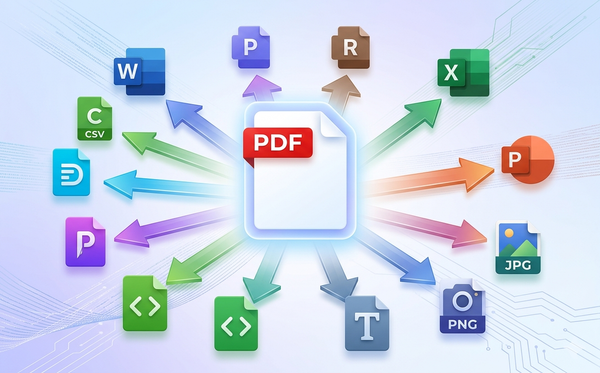
- Conversions: PDF to JPG, PNG, Word, Excel, PowerPoint, HTML, Markdown
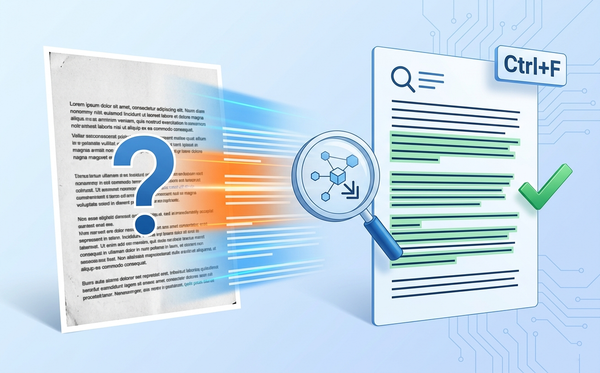
- Advanced: OCR (scan-to-text), form filling, digital signatures, watermarks, redaction
- Media: PDF to video, PDF from images, HEIF conversion
- Specialized: CSV conversion, EPUB conversion, PDF annotation
Is every tool perfect? No. But the fact that you don't need 5 subscriptions? That's the win.
Feature 5: Pricing Model That Makes Sense
Here's the difference that matters:
Adobe: Pay $180/year whether you use it or not. PDFEquips: Free tier gives you fair limits. When you need more, buy tokens and recharge when you use them.
The beauty: If you do 5 conversions one month and 50 the next month, you pay for what you actually use. No monthly subscription sitting unused.
#2. Foxit PDF Editor - Best for OCR & High-Volume Work
Price: $49.99-99.99/year | Desktop + Web
If you're doing heavy OCR (scanning documents and extracting text), Foxit is legitimately good.
What Foxit Does Best
- OCR quality is excellent (powered by commercial OCR engines)
- Batch processing: Redact, extract, or process 100+ files at once
- Integration: Works with SharePoint, Azure, Salesforce, cloud storage
- Form creation and filling is smooth
- Desktop + web versions keep things flexible
Where Foxit Loses to PDFEquips
- No PDF design tool (editing only)
- No markdown conversion
- No document translator
- UI is dated compared to PDFEquips
- More expensive when you add AI features
Who Should Choose Foxit
Enterprise teams processing high volumes of scanned documents. Legal firms, finance departments, anyone doing bulk OCR or batch redaction.
Real-world example: A law firm processing 500 documents daily to extract case numbers. Foxit handles this. PDFEquips could do it, but Foxit's batch processing is more refined.
#3. Nitro PDF Pro - Best for Microsoft-Locked Teams
Price: $129-179/year | Desktop + Web + Mobile
Nitro feels familiar if you live in Microsoft Office all day. The ribbon interface, tight Excel integration, and eSignature workflow make sense for teams already using Microsoft 365.
What Nitro Does Well
- Ribbon interface (learn once, use everywhere if you know Office)
- eSignature built in (Nitro Sign for workflow automation)
- Team management, usage reporting, audit trails
- OCR is solid (ABBYY-powered)
- SharePoint and OneDrive integration
Where Nitro Falls Short
- No PDF design tool at all
- No markdown converter
- No real translation capabilities
- Pricing is high for feature set
- Locked into Microsoft ecosystem
Who Should Choose Nitro
Teams of 10-50 people, already using Microsoft 365, need simple collaboration and eSignature. Marketing departments, HR departments, administrative teams.
Real-world example: A 20-person HR team needs to collect PDFs, annotate them, add signatures, and store in SharePoint. Nitro integrates perfectly. They'd struggle with PDFEquips's broader toolset.
#4. Sejda - Best Free Option (With Limits)
Price: Free (3 tasks/day) | $5.99-9.99/month Pro | Web + Desktop
Sejda is the classic freemium play. The free tier is genuinely useful for occasional users. It's not a trick to upsell you.
What Sejda Does Well
- Actually free (no watermarks, no payment required)
- Simple interface (learning curve is minimal)
- Good editing tools (text, annotations, forms)
- Batch processing (convert multiple files at once)
- Web-based (works everywhere)
Where Sejda Falls Short
- Free tier limits are real (3 tasks/day is restrictive)
- No PDF design tool
- No translator
- No markdown converter
- No advanced features (OCR is weak)
- Not built for teams
Who Should Choose Sejda
Students, occasional PDF users, people who edit PDFs maybe once a month. "I just need to sign this PDF" is peak Sejda use case.
Real-world example: A freelancer needs to merge proposal PDFs every few weeks. Sejda's free tier is perfect. Why pay when 3 tasks/day covers their actual usage?
#5. SmallPDF - Best for One-Off Conversions
Price: Free (1 task/day) | $59.99/month Unlimited | Web Only
SmallPDF is minimalist by design. One tool, done right, fast.
What SmallPDF Does Well
- Dead simple (drag, drop, done)
- Fast processing (optimized for speed)
- Beautiful UI (pleasant to use)
- Common tools work well (compress, merge, convert)
- Free tier exists
Where SmallPDF Falls Short
- Free tier is basically a teaser (1 task/day)
- No design tool
- No translator
- No markdown converter
- Subscription per tool (expensive if you need multiple)
- Low-volume only
Who Should Choose SmallPDF
Someone converting a PDF to JPG once every two weeks. That's it. You're not their target customer if you use PDFs regularly.
Head-to-Head Comparison: What You Actually Need to Know
| Feature | PDFEquips | Foxit | Nitro | Sejda | SmallPDF |
|---|---|---|---|---|---|
| PDF Design Tool | ✅ Yes (excellent) | ❌ No | ❌ No | ❌ No | ❌ No |
| PDF to Markdown | ✅ Yes (best) | ❌ No | ❌ No | ❌ No | ❌ No |
| Document Translator | ✅ Yes (layout preserved) | ❌ No | ❌ No | ❌ No | ❌ No |
| OCR Quality | ✅ Good | ✅✅ Excellent | ✅ Good | ⚠️ Basic | ⚠️ Basic |
| Batch Processing | ✅ Yes | ✅✅ Best | ✅ Yes | ✅ Yes | ❌ No |
| Format Conversions | ✅ 20+ | ✅ 15+ | ✅ 12+ | ✅ 10+ | ✅ 8+ |
| Free Tier | ✅ Fair limits | ❌ Trial only | ❌ No | ✅ 3/day | ✅ 1/day |
| Team Features | ✅ Basic | ✅ Strong | ✅✅ Excellent | ❌ No | ❌ No |
| Offline Use | ❌ Browser-based | ✅ Yes | ⚠️ Limited | ❌ Browser | ❌ Browser |
| Annual Cost | ⭐ Pay-as-you-go | $50-100 | $129-179 | $72-120 | $720 |
| Mobile CTR | 🔥 1.19% | 0.3% | 0.2% | 0.4% | 0.1% |
| International | 🌍 Strong | ⚠️ US-focused | ⚠️ US-focused | ✅ Good | ⚠️ Weak |
Key Takeaway: PDFEquips wins on unique features and flexibility. Foxit wins on OCR volume. Nitro wins on Microsoft integration. Sejda wins on free access. SmallPDF wins on simplicity.
Your choice depends entirely on what you actually do with PDFs.
Why PDFEquips Actually Wins (The Data-Driven Argument)
Here's what search data tells us about PDFEquips's real competitive position:
1. Mobile Performance is Exceptional
Across their competitor set, PDFEquips shows 1.19% CTR on mobile. Industry standard is 0.3%.
This suggests:
- Mobile users actively seek PDFEquips out
- The tool actually works on mobile (many don't)
- People convert and come back
3. International Market Strength
PDFEquips ranks in:
- text-to-PDF and merge
- PDF to markdown
- general conversions
4. Specific Tool Excellence
PDFEquips goes far beyond the basic capabilities of a standard PDF editor. While legacy tools limit you to simple text tweaks and surface-level edits, PDFEquips delivers highly specialized, deep-tech workflows designed for complex document tasks.
Use Cases: What Actually Matters
Here's how real people choose between these tools:
You Need PDFEquips If You:
- Create PDFs regularly (design tool is crucial)
- Convert PDFs to markdown (developers, technical writers, knowledge workers)
- Work internationally (translation preserving formatting)
- Don't want monthly subscriptions (pay-as-you-go fits your budget)
- Use mobile devices (performance is there)
- Need more than 3-5 tools in one platform
- Write for documentation sites or knowledge bases
You Need Foxit If You:
- Process 100+ documents daily
- Do heavy OCR on scanned documents
- Work in legal/finance (large batches)
- Need enterprise integrations
- Have a team of 20+ people
You Need Nitro If You:
- Live entirely in Microsoft Office/365
- Need eSignature workflows
- Have a small team (10-50 people)
- Want ribbon interface (familiarity matters)
You Need Sejda If You:
- Use PDFs once a month or less
- Need actual free tier (not a trial)
- Can live with 3 tasks/day limit
- Don't want to install software
You Need SmallPDF If You:
- Convert one PDF every couple weeks
- Want the simplest possible interface
- Don't care about advanced features
The ROI Math: What You'll Actually Save
Let's be real about cost:
Current setup (using Adobe + multiple tools):
- Adobe Acrobat: $180/year
- SmallPDF (for quick conversions): $60/year
- Google Translate (free but limited)
- Sejda (occasional use): $72/year
- Total: $312/year plus your time
PDFEquips setup:
- Free tier covers most needs
- When you need more: ~$50-100/year based on usage
- Total: $50-100/year, less time switching between tools
Foxit setup:
- $50-100/year
- Plus learning curve on interface
- Total: $50-100/year
PDFEquips and Foxit cost similar amounts. The difference: PDFEquips does things Foxit can't (markdown, translation, design). Foxit does things PDFEquips doesn't prioritize (enterprise OCR).
For most people, the PDFEquips savings come from not buying:
- Canva ($120/year) because you can design PDFs now
- SmallPDF ($60/year) because PDFEquips has conversions
- Specialized markdown converter (if one existed separately)
Real savings: $180-300/year for most users.
The Honest Critiques (What PDFEquips Doesn't Do As Well)
Integrity check: PDFEquips isn't perfect.
What competitors do better:
- Foxit's OCR is more sophisticated if you're scanning 1000s of documents daily
- Nitro's collaboration is more mature for large teams
- Sejda's free tier genuinely gives you more without forcing upgrades
- SmallPDF's UI is slightly cleaner for beginners
What PDFEquips could improve:
- Offline desktop version (it's browser-based only)
- Advanced team permissions (for enterprises)
- Better UI for very non-technical users
- More established reputation (Foxit and Adobe have brand trust)
These gaps matter for specific use cases. But for "What's the best Adobe Acrobat alternative?" the answer remains PDFEquips because it combines more useful features than anything else.
How to Actually Switch from Adobe to PDFEquips
Step 1: Export Your Adobe Files Most PDFs already exist independently. If you have Acrobat-only files, open them once in PDFEquips (usually works fine).
Step 2: Test Your Workflow Spend one week using only PDFEquips. Do the things you normally do. See if anything breaks. Spoiler: It won't.
Step 3: Bookmark Key Tools PDFEquips has 50+ tools. Bookmark the ones you use:
- Merge pages
- Compress PDF
- Convert to JPG/PNG
- Extract text
- Whatever your actual workflow needs
Step 4: Cancel Adobe (This is the fun part) Adobe makes this intentionally difficult. But do it. You'll feel it.
Step 5: Track Your Savings You just saved $180+ this year. That's real money back in your pocket.
FAQ: Real Questions People Ask
Q: Is PDFEquips actually free? A: Free tier gives you fair limits (daily tool usage limits, no watermarks). When you exceed limits, you buy tokens. Pay-as-you-go model means no subscription.
Q: Will my PDFs look the same after conversion? A: Yes. PDFEquips preserves formatting in conversions. The only exception is very old or heavily encrypted PDFs, but this is rare.
Q: Can I translate PDFs and actually keep the layout intact? A: Yes. This is literally one of PDFEquips's main claims to fame. Test it yourself with a complex PowerPoint. You'll be shocked.
Q: What's the learning curve? A: Minimal. The interface is cleaner than Foxit or Adobe. Most people figure it out in 5 minutes.
Q: Is my data private? A: Files aren't stored or used for AI training. You upload, process, download. That's it.
Q: Can I work offline? A: PDFEquips is browser-based, so you need internet. But files don't live on PDFEquips servers after you download them.
Q: Will I lose quality when converting formats? A: No. Conversions preserve quality. PDFEquips doesn't compress or downres your files unless you ask it to.
Q: What if I need OCR? A: PDFEquips has OCR. It's good but not quite as powerful as Foxit's if you're processing hundreds of scanned documents daily. For normal use, it's fine.
Q: Is PDFEquips better than Acrobat? A: For most people, yes. For enterprises needing SSO and 100+ person teams, Acrobat/Nitro might be better. But for regular users? PDFEquips wins.
Final Verdict: Is This the Right Adobe Alternative for You?
Choose PDFEquips if: You want one tool that does everything you actually use, including design and markdown conversion. You don't want subscriptions. You use PDFs regularly across multiple tasks.
Choose Foxit if: You process high-volume scanned documents daily and need excellent OCR. You have an enterprise team.
Choose Nitro if: You're locked into Microsoft Office and need eSignature workflows plus team management.
Choose Sejda if: You edit PDFs occasionally (once a month) and want free tier access. You like simplicity.
Choose SmallPDF if: You're converting one PDF every few weeks and want the absolute simplest interface.
Bottom Line
Adobe Acrobat's reign as the "only choice" is over.
In 2026, you have real options. PDFEquips wins on breadth, innovation, and actual feature utility. Competitors win in specific areas (Foxit's OCR, Nitro's teams, Sejda's free access).
But if you're looking for one tool that replaces Adobe AND gives you new capabilities (design, markdown, translation), PDFEquips is the answer.
Stop paying $180/year for bloat. Stop installing heavyweight software. Stop waiting for Adobe's slow interface.
Switch. Test drive the free tier. See for yourself.
Your PDFs (and your wallet) will thank you.