How to Convert a PDF to Word Without Losing Formatting
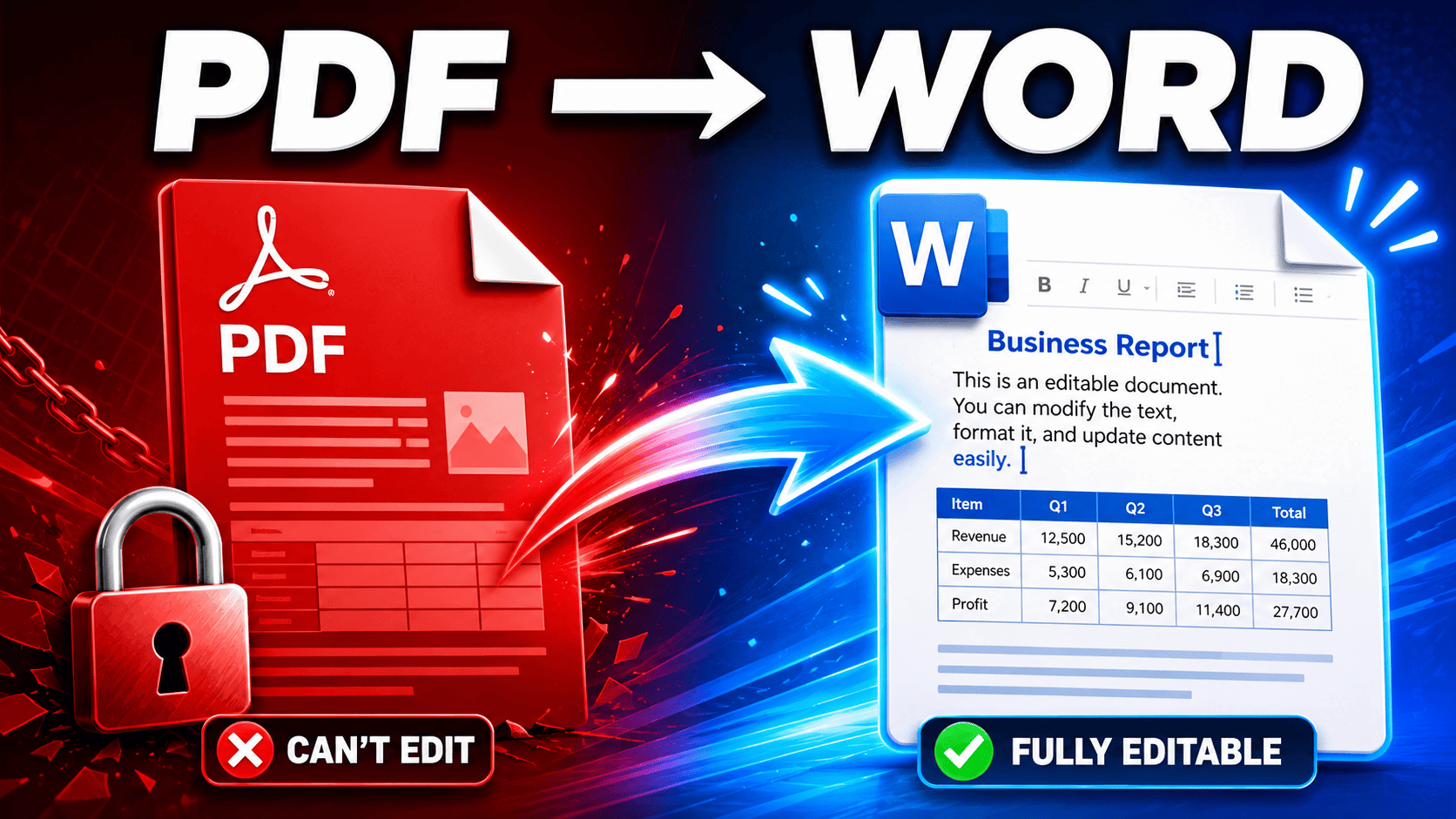
You have a PDF you need to edit — a contract to update, a report to revise, a CV to refresh — and the obvious move is converting it to Word. But anyone who's tried knows the frustration: the converted DOCX opens with shifted text, broken tables, wrong fonts, and images floating in strange places. Fixing it takes longer than retyping.
This guide explains why PDF-to-Word conversion breaks formatting, what actually determines whether your document survives intact, and how to get an editable Word file (DOCX or DOC) that looks like the original.
Why converting PDF to Word breaks formatting
The core issue is that PDF and Word store documents in fundamentally different ways:
- A Word document is structural. It knows "this is a heading, this is a paragraph, this is a table with three columns, this image is anchored here." Everything reflows when you edit.
- A PDF is positional. It stores characters, lines, and images at fixed x/y coordinates on a page. It doesn't know a paragraph is a paragraph — it just knows where each character sits.
Converting PDF to Word means reconstructing structure that the PDF never stored. The converter has to infer paragraphs from line spacing, detect tables from alignment, guess heading levels from font sizes, and decide how images relate to text. Every one of those inferences can go wrong — and that's where broken layouts come from.
Understanding this explains the practical rules below: the simpler and more "standard" your PDF's layout, the more accurately structure can be inferred, and the cleaner your Word file comes out.
Digital vs. scanned PDFs: check this first
Just like with any PDF conversion, the type of PDF you have changes everything:
- Digital (text-based) PDF — exported from Word, Google Docs, InDesign, or similar. Text is selectable. These convert well, because the actual characters and fonts are in the file.
- Scanned PDF — a photo or scan of a paper document. There's no text inside, only an image of text. Converting it to Word requires OCR (Optical Character Recognition) first; without OCR you'll get either nothing or a Word file containing one big picture.
Quick test: try selecting a line of text in your PDF viewer. If it highlights, it's digital. If your cursor draws a box instead, it's scanned and needs OCR.
Note that OCR output is never 100% perfect — accuracy depends on scan quality — so a converted scan always deserves a proofread, especially numbers and names.
How to convert a PDF to Word
- Open the PDF to Word tool and upload your PDF.
- Let the conversion run. The tool reconstructs the document structure — paragraphs, tables, images, and fonts — into an editable DOCX.
- Download the Word file and open it in Microsoft Word, Google Docs, or LibreOffice.
- Review the layout before editing. check tables, headers/footers, and any multi-column sections, since those are the areas where any converter's inferences are most likely to need a touch-up.
What converts well — and what to watch
Knowing where conversions typically succeed and struggle saves you review time:
Usually converts cleanly:
- Standard single-column text documents (letters, contracts, reports)
- Common fonts (Arial, Times New Roman, Calibri and similar)
- Simple tables with clear borders
- Inline images placed between paragraphs
Needs checking after conversion:
- Complex or borderless tables — alignment-based tables are harder to detect than bordered ones.
- Multi-column layouts — magazines, brochures, and academic papers may reflow in the wrong reading order.
- Unusual fonts — if the font isn't available on your system, Word substitutes it, which shifts spacing.
- Text inside graphics — text that's part of an image stays an image; it won't become editable without OCR.
- Headers, footers, and footnotes — sometimes these land in the body text instead of the proper Word sections.
- Forms and text boxes — positioned elements may convert as floating text boxes that behave differently when editing.
DOCX vs. DOC: which format should you choose?
- DOCX is the modern Word format (2007 and later) — smaller files, better compatibility with current versions of Word, Google Docs, and LibreOffice, and support for all modern features. This is the right choice in almost every case.
- DOC is the legacy format for very old versions of Microsoft Word. Only choose it if you must open the file in pre-2007 software.
If you're unsure, use DOCX.
Tips for keeping your formatting intact
- Start from the best source you have. If you can get the original digital PDF instead of a scan of a printout, the conversion will be dramatically cleaner.
- Convert the whole document, then trim — deleting extra pages in Word is easier than stitching separately converted fragments back together.
- Check tables first. They're the most common casualty; verify rows and columns before doing any other editing.
- Fix styles before content. If heading levels came through wrong, correct them with Word's styles first — editing text before fixing structure means redoing work.
- For scanned documents, proofread the OCR output. Pay special attention to numbers: 0/O, 1/l, and 8/3 confusions are the classic OCR errors.
Frequently asked questions
Can I convert a scanned PDF to an editable Word document? Yes, but it requires OCR to recognize the text in the scanned image first. After OCR, the recognized text converts into editable Word content. Accuracy depends on the scan quality, so proofread the result.
Why did my fonts change after converting? If the PDF uses a font that isn't installed on your system, Word substitutes the closest available font, which can shift spacing and line breaks. Using common fonts in the source avoids this.
Why are my tables broken in the Word file? Tables in a PDF are just positioned text and lines — the converter must infer the grid. Bordered, regular tables convert well; borderless or merged-cell tables are harder and may need manual fixes.
Should I convert to DOCX or DOC? DOCX, unless you specifically need compatibility with Word versions older than 2007.
Will my images survive the conversion? Yes — images in the PDF are carried into the Word document. Their exact anchoring may differ slightly, so check that they sit where you expect before finalizing.
Convert your PDF to Word now
Upload your PDF and get an editable Word document with your layout, tables, and images reconstructed.