How to Summarize a PDF (and Keep the Original Layout)
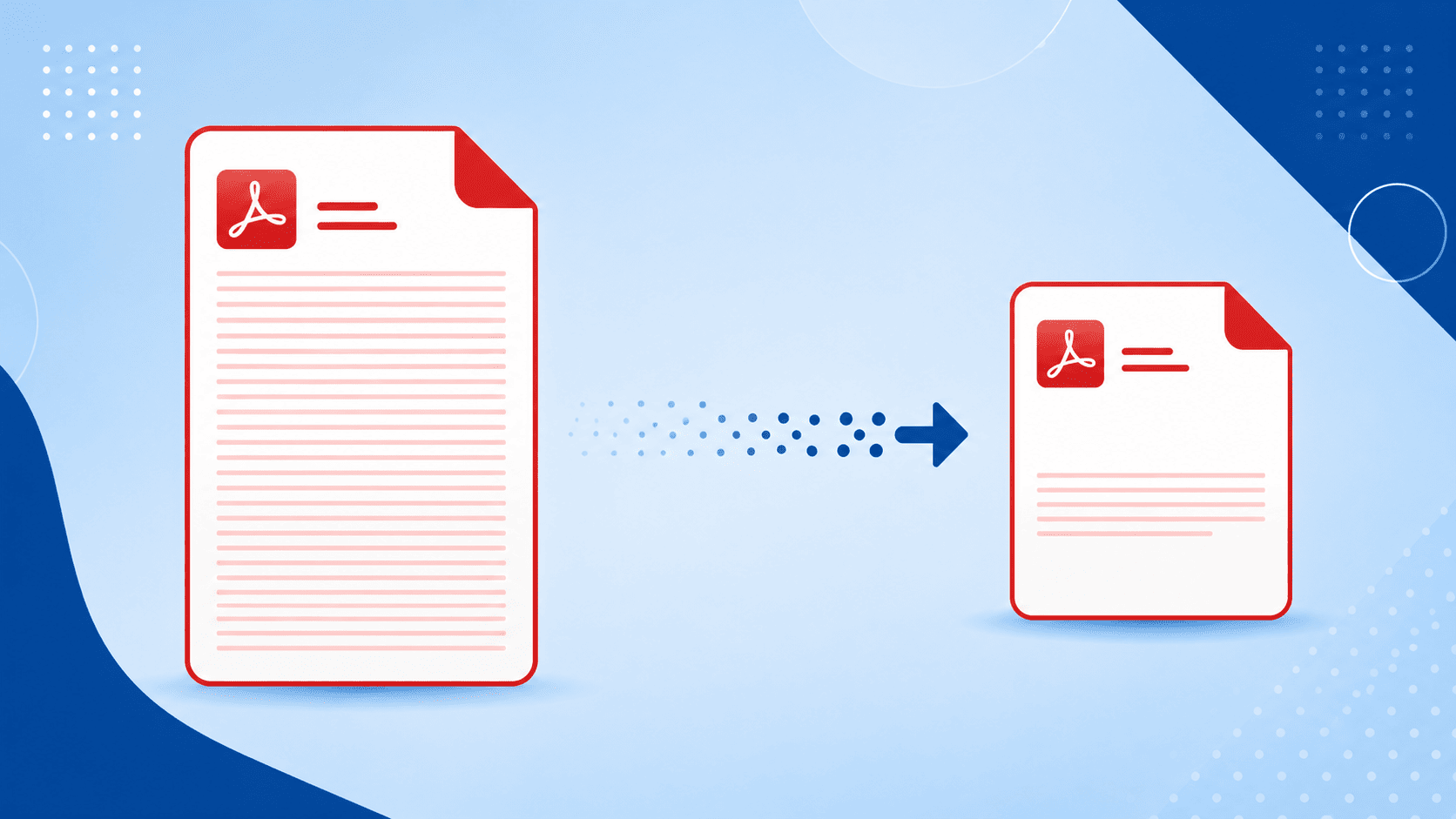
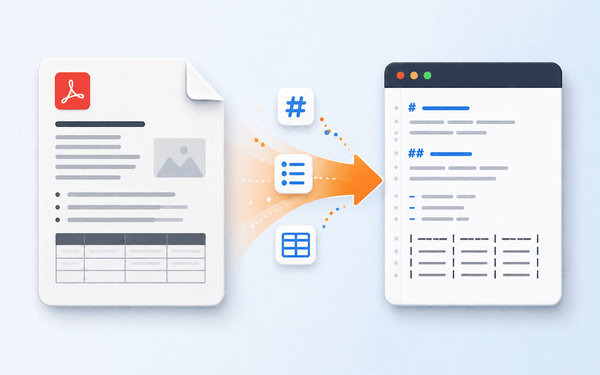
Long PDFs are everywhere — research papers, contracts, reports, manuals — and reading every page to find the important parts wastes time. This guide shows you how to summarize a PDF quickly, and how to do it in a way most tools can't: producing a shorter PDF that keeps the original layout, fonts, and styling, instead of just spitting summary text into a chat box.
Two different meanings of "summarize a PDF"
Before the steps, it helps to know there are two things' people mean by this, because they need different tools:
- "Give me the key points as text." Most online summarizers do this — you upload a file and an AI chat panel describes it, and you copy the text out. Useful for a quick skim.
- "Give me a shorter version of the actual document." Here you want the same PDF — same headings, same layout, same look — just with the content condensed. This is what you want when the summary itself needs to stay a proper document you can share or file.
PDFEquips handles the second case directly, which is what the steps below cover.
How to summarize a PDF with PDFEquips
You'll use the PDF editor's built-in AI, which rewrites the pages you choose while preserving their formatting.
- Open your PDF in the PDF editor. Upload the document you want to shorten.
- Open Manage Pages. In the toolbar, click the Manage Pages button. This lets you pick exactly which pages the AI should work on.
- Select the pages to summarize. Click the page (or pages) you want condensed. You can process up to 25 pages per task — for longer documents, run it in batches.
- Click the AI chip. With your pages selected, click the AI chip button to open the instruction box.
- Tell the AI what to do. You'll see a text area that reads: "Describe what to do with these pages (e.g., 'translate to French', 'make the tone more formal')…" Type an instruction like "summarize these pages" — or be more specific, such as "summarize into short bullet points" or "condense to the key arguments only."
- Click Run and wait. After a moment, the AI returns a summarized version of your pages, and it replaces your current pages in place — same styles, same layout, just less text.
That's it. You now have a shorter PDF that still looks like the original document, not a wall of chat text you have to reformat.
Tips for a better PDF summary
- Be specific in your instruction. "Summarize" works, but "summarize into 5 key points" or "keep only the conclusions" gives you tighter, more useful output. Clear prompts produce clearer summaries.
- Work in batches for long documents. Since each task covers up to 25 pages, split a 100-page report into four runs. This also lets you summarize some sections more aggressively than others.
- Pick your pages deliberately. You don't have to summarize the whole file. Select just the dense sections and leave things like the title page or references alone.
- Check numbers and names. As with any AI summary, verify that figures, dates, and names carried over correctly before you rely on the result.
Frequently asked questions
Can I summarize a scanned PDF? The AI works on the text in your document. If your PDF is a scan (an image with no selectable text), you'll get better results by running OCR first so the text is recognized, then summarizing.
Does it change the layout? No — that's the point. The summarized pages keep the same styling and layout as the original; there's simply less text on them.
How long does it take? A few moments per task, depending on how many of the (up to 25) pages you selected.
Summarize your PDF now
Open your document, select your pages, and let the AI condense them while keeping your formatting intact.