How to Convert a PDF to CSV (Without Scrambling Your Data)
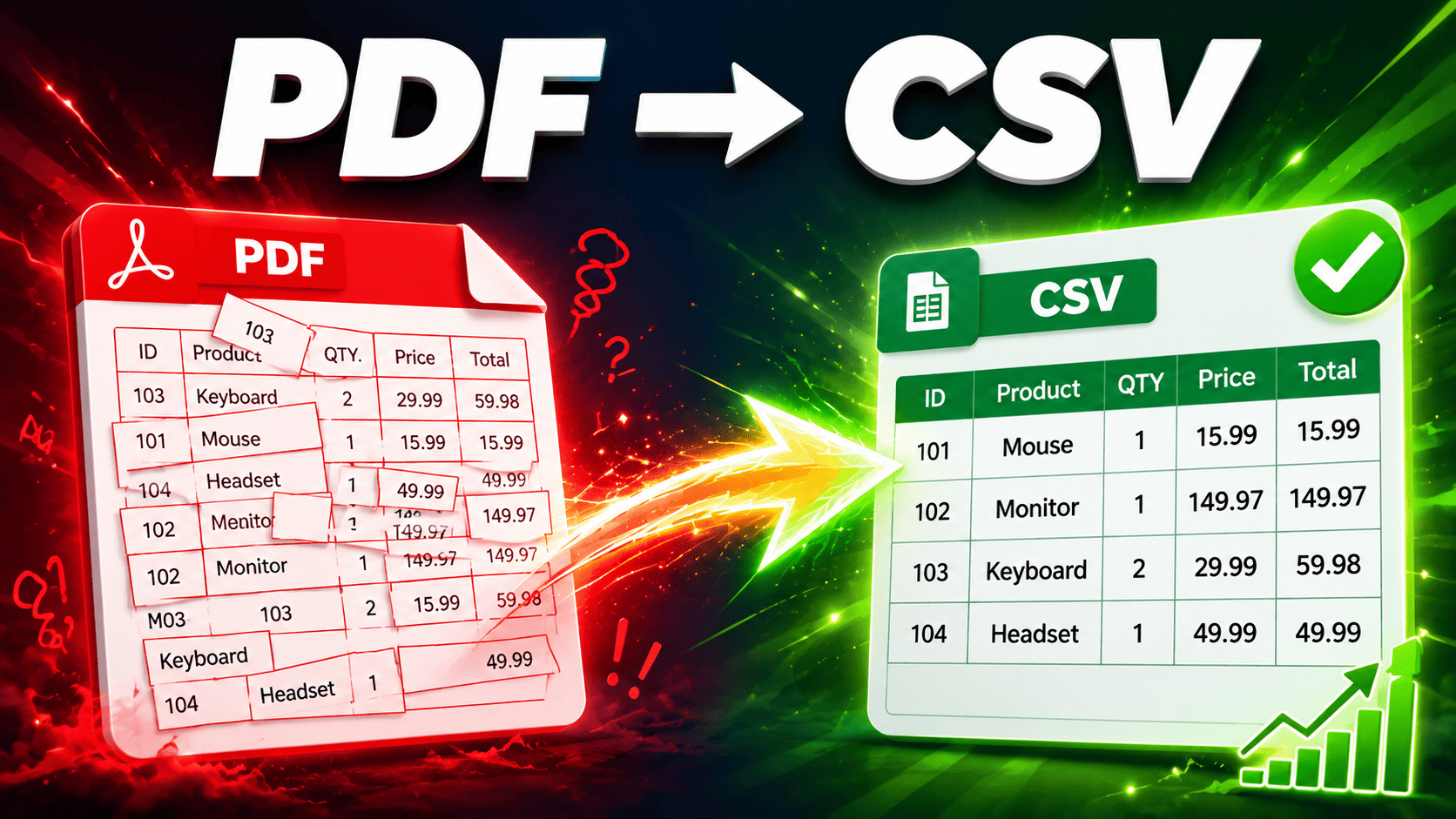
You need the data out of a PDF and into a spreadsheet — but every time you copy a table and paste it into Excel, the columns collapse into one, numbers merge with text, and you end up retyping rows by hand. Converting a PDF to CSV properly solves this, giving you clean, comma-separated rows and columns that open correctly in Excel, Google Sheets, or any data tool.
This guide explains why PDF tables are so hard to extract, how to handle both digital and scanned PDFs, and how to get clean output every time.
What is a CSV, and why convert a PDF to it?
CSV (Comma-Separated Values) is the universal format for tabular data. Each line is a row, and commas separate the columns. Almost every spreadsheet program, database, and analytics tool can read it. Converting a PDF to CSV lets you:
- Edit and sort data in Excel or Google Sheets instead of a locked PDF.
- Import into databases or analytics tools that expect structured data.
- Run calculations on numbers that were previously trapped in a document.
- Merge PDF data with other datasets you already have in spreadsheet form.
Why PDF tables are so hard to extract
Here's the root of the problem: a PDF doesn't store a table as a table. It stores text as characters placed at specific x/y coordinates on the page, along with font and size information. There are no real "columns" or "cells" underneath — just characters positioned to look like a grid.
So, when you copy-paste or convert, the software has to guess where one column ends and the next begins, based purely on spacing. That guess is often wrong, which is why the same PDF can paste cleanly one time and turn to mush the next. Good PDF-to-CSV conversion is really about reconstructing a table structure that was never actually stored in the file.
Digital vs. scanned PDFs (check this first)
Before converting, figure out which kind of PDF you have, because they need different handling:
- Digital (text-based) PDF — created by exporting from Excel, a database, accounting software, or similar. The text is selectable. These convert cleanly.
- Scanned PDF — essentially a photo of a document. The "text" is actually an image, so a normal converter returns nothing usable. It needs OCR (Optical Character Recognition) first to turn the picture of text into real text, then conversion.
Quick test: try to select a row of text with your cursor. If the text highlights, it's a digital PDF. If your cursor just draws a box over it, it's scanned.
How to convert a PDF to CSV
The core process is straightforward:
- Open the PDF to CSV tool and upload your file.
- Choose your extraction method (more on AI vs. Basic below).
- Check the detected table if a preview is shown — make sure the column breaks line up before exporting. This is the step most people skip, and it's the one that saves the cleanup.
- Export and open the CSV in Excel or Google Sheets.
For a scanned PDF, make sure OCR is applied first so the text is recognized, then follow the same steps. Accuracy drops on low-quality scans, so verify number columns afterward — a smudged "8" read as a "3" is a common OCR error.
Basic vs. AI conversion: which to choose
The PDFEquips PDF to CSV tool gives you two extraction methods. After you select your PDF, the options section shows an AI and a Basic choice.
Basic uses rule-based table detection: it analyzes text position and lines to reconstruct the grid. This works well on clean, simple, well-structured tables and is fast.
AI interprets the table more like a human reader would, understanding the layout rather than relying only on spacing rules. This tends to handle the hard cases much better — complex layouts, merged cells, irregular spacing, and tables that Basic struggles to line up correctly.
A simple rule: start with Basic for straightforward tables. If the columns don't come out right — or your table has merged cells, an unusual layout, or inconsistent spacing — switch to AI.
Things that prevent most conversion headaches
- One table per page converts more reliably than several tables crammed onto one page. Split the PDF first if you can.
- Merged cells in the original break the grid. Merged headers usually need manual fixing after export — or use the AI method, which handles them better.
- Watch for delimiter mismatches. If your data itself contains commas (currency values, addresses), a comma-delimited file can misalign. Exporting as tab-separated avoids this when it's an option.
- Regional number formats (1.000,50 vs. 1,000.50) can flip on import — set your spreadsheet's locale to match the source before importing.
- Verify totals. After conversion, check a sum or a few key figures against the original to confirm nothing shifted columns.
Frequently asked questions
Can I convert a scanned PDF to CSV? Yes, but it needs OCR first so the text in the image is recognized. After OCR, it converts like a digital PDF. Double-check numbers, since scan quality affects accuracy.
Why do my columns come out merged or misaligned? Because the PDF never stored real columns — the converter had to infer them from spacing. If Basic extraction misaligns the columns, the AI method usually resolves it by interpreting the layout.
What if my table has merged cells? Merged cells break simple grid detection. The AI extraction method handles these better than rule-based detection; otherwise you'll fix them manually after export.
Can I open the CSV in Excel and Google Sheets? Yes. CSV is a universal format that opens in Excel, Google Sheets, Numbers, and virtually any data tool.
Convert your PDF to CSV now
Upload your file, choose Basic for simple tables or AI for complex ones, and get clean spreadsheet-ready data.