How to Turn Any Text into a PDF (Copy, Paste, Done)
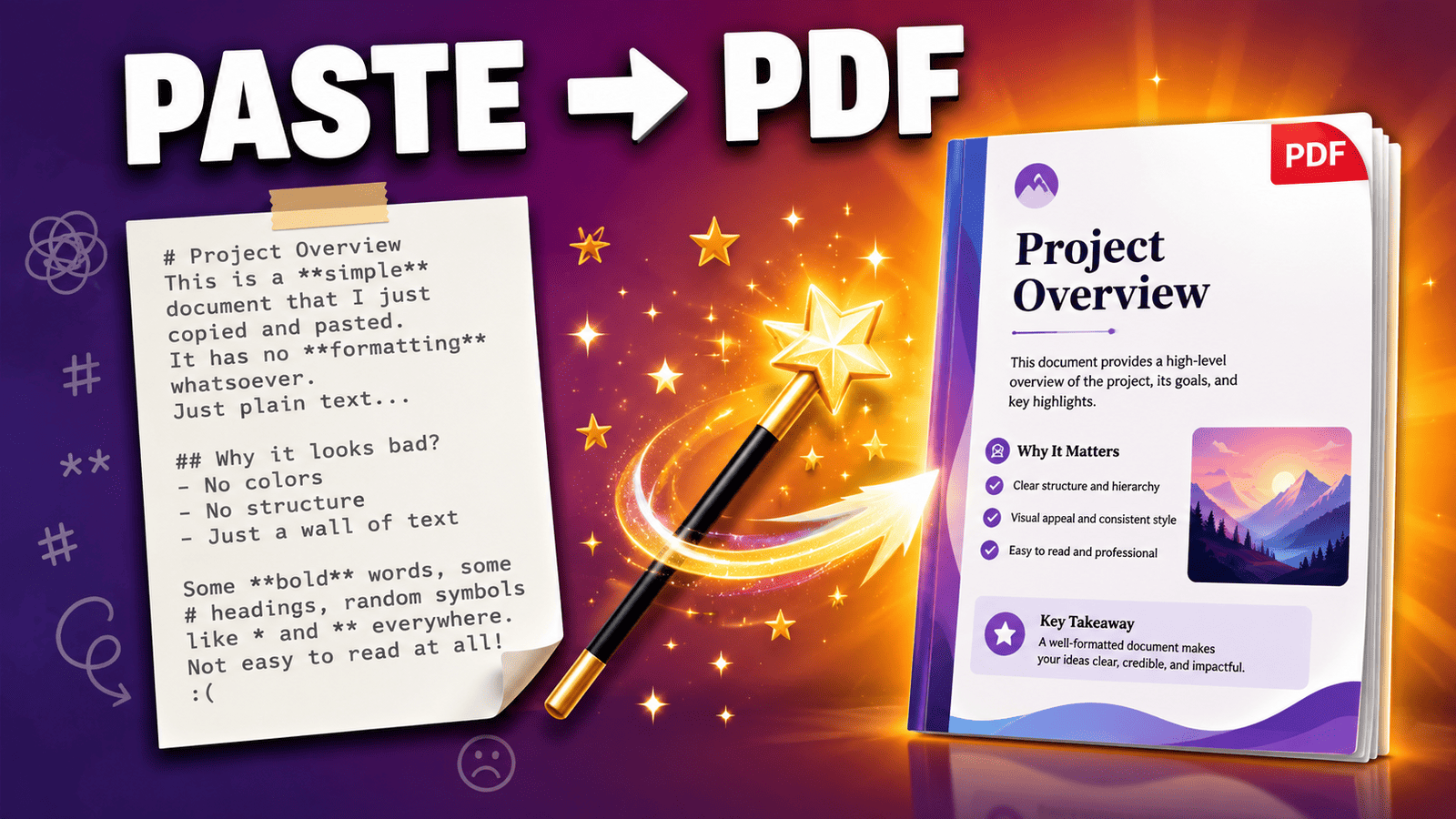
Sometimes you just have text — notes you typed, an article you saved, a .txt file, or an answer you copied from ChatGPT — and you need it as a proper PDF you can save, print, or send. Not a Word document, not a screenshot of your notes app. A clean, good-looking PDF.
Here's the fastest way to do it: paste your text, pick how you want it to look, and download. That's the whole process. This guide walks through it and covers the situations where it comes in handy.
When you'd want to turn text into a PDF
- Sending notes or instructions to someone as a real document instead of a long message.
- Saving a ChatGPT or Claude answer — a study guide, a plan, a recipe — as a file you can keep and print.
- Converting a .txt file into something presentable; plain text files look bare and print poorly.
- Turning an email or article you copied into a readable, shareable document.
- Submitting text as a document when a form or portal only accepts PDF uploads.
- Printing anything cleanly — PDFs print exactly as they look, with proper margins and page breaks.
How to convert text to PDF
- Open the Text to PDF tool. You'll see a big text area that says "Paste Your Text."
- Paste your text — from anywhere: your notes, a .txt file, an email, a chatbot.
- Click the Add Text button. Your text appears neatly formatted in a preview.
- Style your PDF. Open the output options to choose a theme and set the page size, orientation, text direction, and font size. Pick a look you like — the themes turn plain text into a document that actually looks designed.
- Click Download. Your PDF is ready.
That's it — no account gymnastics, no software to install, no fiddling with a word processor just to produce one file.
It understands chatbot text (this is the nice part)
If you've ever pasted a ChatGPT or Claude answer into a plain document, you know what happens: the bold text, headings, and bullet points either vanish or turn into messy symbols like **this** and #.
That's because chatbot answers are written in a format called Markdown — and the Text to PDF tool understands it. Paste an AI answer and the headings become real headings, the lists become proper lists, and the bold stays bold. Combined with a theme, that answer you copied becomes a genuinely nice-looking document — a study guide that looks like a study guide, not a wall of symbols.
The same goes for any Markdown text or .md content you paste it renders properly instead of showing the raw symbols.
Working with full Markdown files or a GitHub README? There's also a dedicated Markdown to PDF tool with more options built specifically for that.
A few tips for a nicer result
- Pick the page setup to match the purpose — portrait for notes and letters, landscape if your text has wide content.
- Adjust the font size for the reader — bigger for something that'll be printed and read on paper, standard for screen reading.
- Writing in Arabic, Hebrew, or another right-to-left language? Set the text direction option and the document lays out correctly — this is something most quick converters get wrong.
- Break long content into sections with headings (or paste chatbot text that already has them) — the PDF becomes much easier to navigate.
Frequently asked questions
Can I convert a .txt file to PDF? Yes — open the file, copy its contents, paste them into the tool, and download your PDF. Your plain text comes out as a properly formatted document.
Can I save a ChatGPT conversation as a PDF? Yes — copy the answer (or the whole conversation), paste it in, and the formatting — headings, lists, bold — renders properly instead of showing raw symbols. Pick a theme and download.
Do I need to install anything? No. Everything runs in the browser: paste, style, download.
Can I choose how the PDF looks? Yes — choose a theme and set the page size, orientation, text direction, and font size before downloading.
Does it work for right-to-left languages like Arabic? Yes — set the text direction option and the PDF lays out your text correctly.
Make your PDF now
Copy your text — from your notes, a file, or a chatbot — paste it in, pick a theme, and download.