How to Extract Images from a PDF (at Full, Original Quality)
You need a picture that's inside a PDF — a chart for your presentation, a product photo you no longer have the original of a logo from a report. The instinct most people follow is to zoom in, take a screenshot, and crop it. It works, but it quietly throws away image quality. This guide explains why, and shows the better way: extracting the original embedded images at full resolution.
Screenshots vs. extraction: what's the difference?
Images embedded in a PDF are stored as complete files inside the document — often at far higher resolution than they're displayed on the page. A photo placed in a report might be a 4000×3000 pixel original, shown at a quarter of that size in the layout.
A screenshot doesn't capture that embedded file. It captures your screen's rendering of it, which means:
- Your monitor becomes the quality ceiling. Zoomed to fit a laptop screen, a 4000-pixel photo becomes a ~1200-pixel screenshot.
- It gets re-compressed on save. Screenshot formats and settings add a second round of quality loss on top of the first.
Extraction, by contrast, pulls the embedded image file out of the PDF as-is — original resolution, original quality. What the document's author put in is exactly what you get out.
For anything you plan to print, edit, enlarge, or reuse, that difference decides whether the result is crisp or blurry.
How to extract images from a PDF
The process is simple:
- Upload your PDF to the image extraction tool.
- Let it scan the document. The tool finds every embedded image in the file.
- Download the images you want — the ones you came for, or everything the PDF contains.
No zooming, no cropping, no quality loss, and no image editor needed afterward.
What you might find (and why it can surprise you)
Extraction reveals what's actually embedded in the file, which doesn't always match what you see on the page:
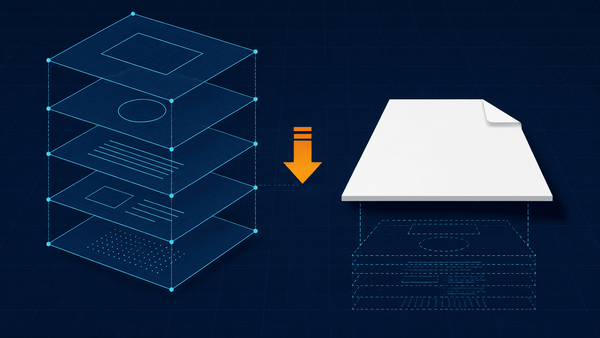
- More images than expected. PDFs often contain images that aren't obvious — background textures, layered design elements, or graphics sitting behind text. Extraction surfaces all of them.
- One visible image, several files. Some design tools slice a single graphic into multiple embedded pieces when exporting. What looks like one image on the page may extract as several files, and you'll need to spot the piece you want.
- Duplicate images. A logo repeated on every page may be embedded once and reused, or embedded many times — so you might get one copy or dozens.
None of this is a malfunction; it's an honest picture of what's inside the document.
Special cases worth knowing
Scanned PDFs. In a scanned document, each page is one big image — the scan itself. Extracting images from a scan gives you full-page images, not the individual photos or figures within them. To isolate a region of a scanned page, extract the page image first and then crop it.
Vector graphics. Logos, icons, and charts drawn as vectors (mathematical lines and shapes rather than pixels) are not embedded image files, so an image extractor can't pull them out. That's a limitation of the format, not the tool — vector content simply isn't an "image" inside the PDF.
Image formats. Embedded images are typically stored as JPEG or PNG-style data. Extraction preserves what's there; it doesn't upscale or enhance. If the author embedded a low-resolution image, extraction gives you that same low-resolution image — faithfully.
Copyright. Extracting an image doesn't change who owns it. Reusing images from documents you didn't create follows the same usage-rights rules as anywhere else.
When extraction is the right tool
- Reusing charts and figures from reports in your own slides or documents.
- Recovering photos when the PDF is the only place a picture still exists.
- Collecting product images from catalogs or spec sheets.
- Pulling logos and brand assets from brand guideline PDFs.
- Archiving graphics from documents before they're revised or lost.
Frequently asked questions
Will the extracted images be the same quality as the originals? Yes — extraction copies the embedded file out of the PDF unchanged. It's the screenshot route that loses quality, not extraction.
Why did I get more images than I can see in the PDF? Because extraction finds everything embedded in the file, including backgrounds, layered elements, and design pieces that aren't visually obvious on the page.
Why didn't a logo or chart extract? It's most likely a vector graphic — drawn as shapes rather than stored as an image file — so there's no embedded image to extract.
Can I extract images from a scanned PDF? Yes, but each page of a scan is itself one large image, so you'll get full-page images rather than the individual pictures within them. Crop the page image to isolate what you need.
Do I need to install anything? No — the extraction runs in your browser: upload, scan, download.
Extract your images now
Skip the screenshots. Upload your PDF and download the embedded images at their original quality.