How to Convert PDF to Excel Without Losing Formatting
There is one PDF-to-Excel problem that catches almost everyone, and it doesn't look like a problem at all.
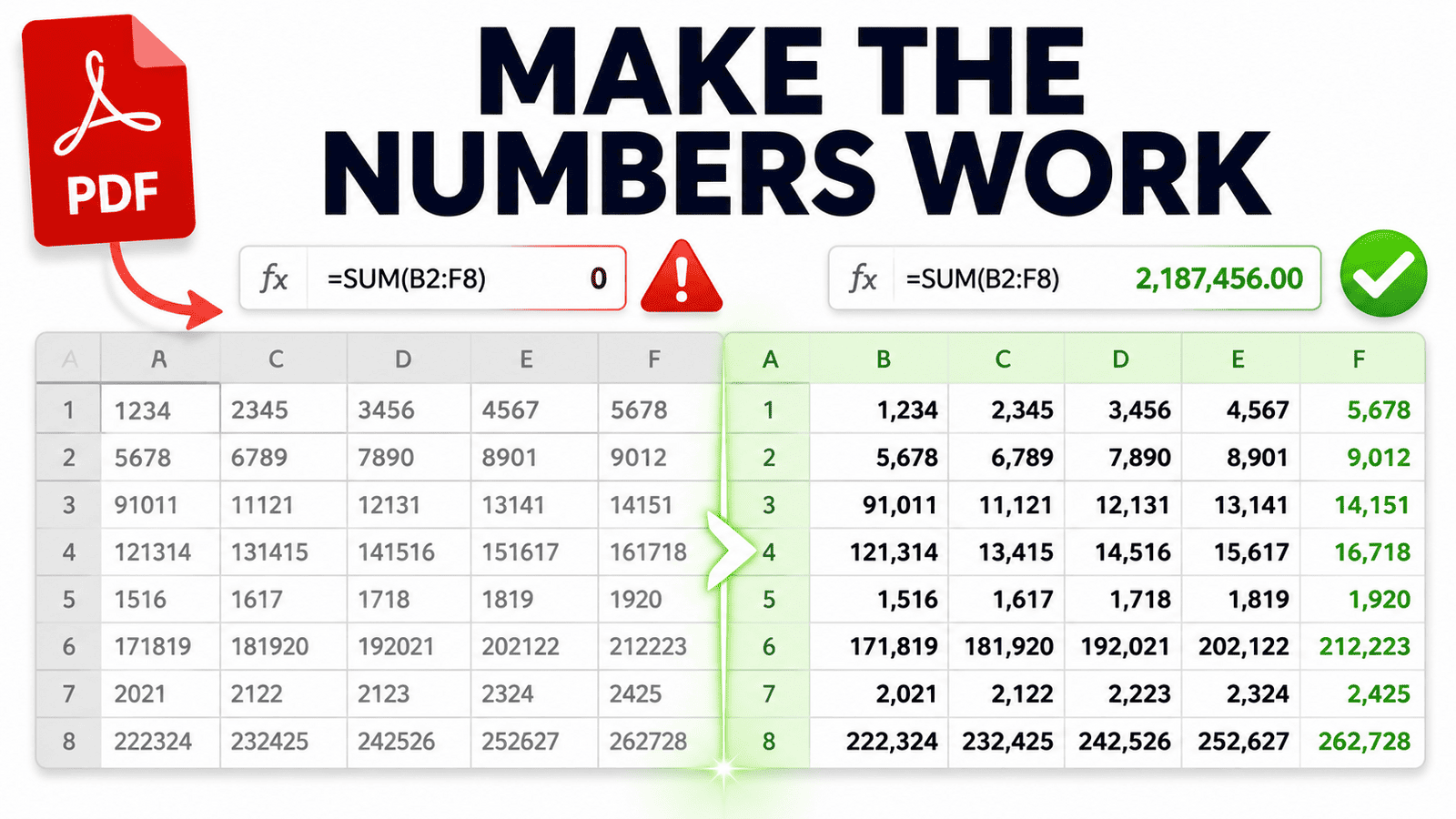
Your table converts. The columns line up. The numbers are in the right cells. Everything looks perfect. Then you select a column of figures and Excel shows no total at the bottom. Or you write a SUM formula and get zero.
Your numbers arrived as text. They look like numbers, but Excel sees words. Nothing you build on top of them will work until you fix it.
That silent failure — plus a handful of loud ones — is what this guide is about. Converting the file is the easy part. Knowing what to check afterwards is what actually saves your time.
First, why tables break at all
Web pages tell a browser exactly where a table is, using tags that mark the table, each row, and each cell. A PDF has nothing like that. It stores text at fixed positions on the page, and a table is only a table because the spacing looks like one to your eye.
So a converter has to work backwards: study the gaps between words, find the invisible grid, and rebuild rows and columns that were never actually recorded. When the layout is clean, it gets it right. When the layout is unusual, it guesses — and guesses can be wrong.
This is why the same tool handles one file perfectly and struggles with the next. It isn't the tool being unreliable; it's how much structure the PDF gave it to work with.
Step 1: Convert your PDF
- Upload your PDF to the PDF to Excel tool.
- Let it detect the tables and rebuild them.
- Download the XLSX file and open it in Excel, Google Sheets, or LibreOffice.
If your PDF is a scan — a photo of a printed page rather than a digital export — it needs OCR first so the text can be recognised. You can check quickly: try to select a line of text in your PDF. If it highlights, it's a digital file. If your cursor just draws a box, it's a scan.
Need the raw data more than the spreadsheet? If you only want the values to import somewhere else, converting to CSV is often simpler — and that tool offers an AI extraction mode that handles awkward layouts better than rule-based detection.
Step 2: Check these five things (takes one minute)
Do this before you build anything on the data. Fixing problems now is far quicker than discovering them in a finished report.
1. Are your numbers actually numbers? Click a cell with a figure in it. If the value sits on the left side of the cell, it's text. Numbers align right by default. You can also select a column of figures and look at the bottom of the Excel window — if no sum appears, they're text.
2. Did any rows split in two? A cell that held two lines of text in the PDF sometimes becomes two separate rows. Scan for rows where most columns are empty.
3. Did a table continue onto another page? A table spanning pages often arrives as two separate blocks, sometimes with the header repeated in the middle of your data.
4. Are the column headers intact? Headers that spanned several columns in the original (merged cells) are the most common thing to break.
5. Do the totals match? If the PDF showed a total, check yours matches. It's the fastest way to catch a value that landed in the wrong column.
Step 3: Fix what went wrong
Each problem has a quick fix. None of these require retyping anything.
Numbers stored as text
The most important one to fix, and the easiest.
- The fast way: select the affected cells. A small warning icon appears — click it and choose Convert to Number.
- If that doesn't appear: the cells probably contain hidden spaces or currency symbols. Select the column, open Data → Text to Columns, and click Finish without changing any settings. This forces Excel to re-read the values, and it usually solves it instantly.
- Still stuck? Use Find and Replace to strip out currency symbols, spaces, or thousands separators, then try again.
Merged columns (everything crammed into one cell)
Select the column, then Data → Text to Columns. Choose Delimited if the values are separated by a consistent character like a comma or tab, or Fixed width if they're separated by spacing. The preview shows exactly where the splits will land before you commit.
Split rows
Sort or filter to bring the fragments together, merge the text back into one cell, then delete the empty leftovers. If it happened many times, it's often faster to reconvert and see whether the problem is limited to one section.
Tables split across pages
Delete the repeated header rows sitting inside your data, then move the second block up beneath the first. Check that the columns line up before joining them.
Wrong decimal or thousands separators
If your source used a different regional format — 1.000,50 where you expect 1,000.50 — the numbers may be misread entirely. Fix this with Find and Replace before converting the text to numbers, or adjust your spreadsheet's regional settings to match the source document.
Getting a cleaner conversion in the first place
A few habits reduce how much repair work you face:
- Convert one table at a time where you can. Several tables on one page make column detection much harder.
- Use the clearest source available. A digital PDF exported from a system beats a scan of a printout, every time.
- Watch out for borderless tables. Tables laid out with spacing rather than visible lines give the converter less to work with, so check those results carefully.
- Save the converted file straight away as XLSX before editing, so you always have the original conversion to return to.
XLSX or XLS?
XLSX is the modern Excel format and the right choice in almost every case — it handles far more rows, produces smaller files, and works in Excel, Google Sheets, LibreOffice and Numbers. XLS is the pre-2007 format, worth choosing only if you have to open the file in very old software.
The short version
Converting a PDF to Excel is quick. Making the result usable means one minute of checking afterwards: confirm your numbers are numbers, look for split rows and split tables, and make sure your totals match. Fix those, and you have a spreadsheet you can actually work with — not one that looks right and quietly returns zero.