How to Convert Word to PDF (and Why Your Layout Sometimes Shifts)
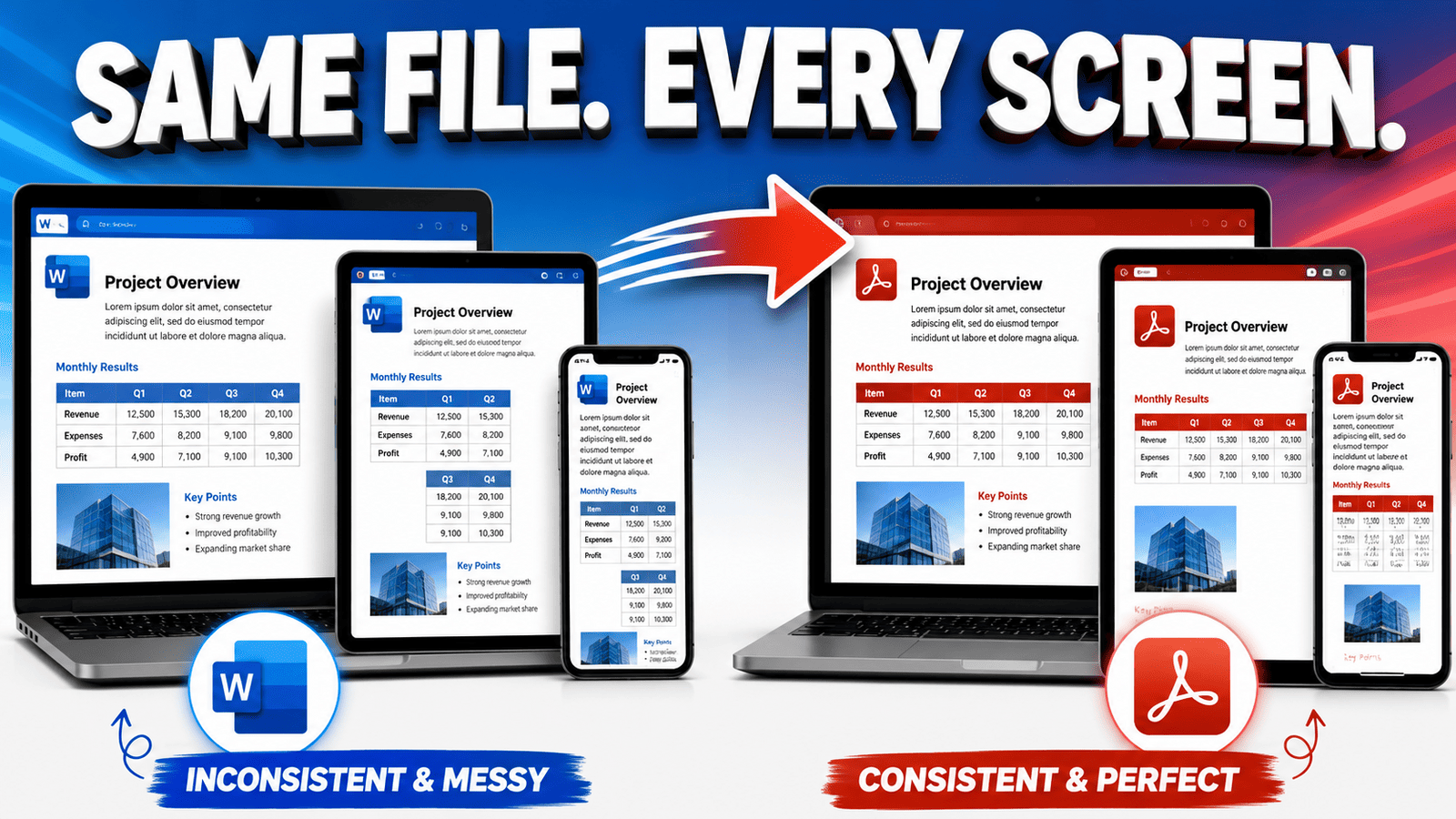
You've finished a document in Word — a CV, a contract, a report, an assignment — and now you need to send it. Sending the .docx itself is risky: the recipient's version of Word (or Google Docs, or their phone) may reflow your carefully arranged pages, swap fonts, and shift your layout. Converting Word to PDF locks the document into a fixed form that looks identical everywhere.
This guide covers how to convert DOCX or DOC to PDF online, why PDF is the right format for sharing, and the handful of things that can shift during conversion — so you can catch them before your reader does.
Why convert Word to PDF at all?
Word and PDF serve opposite purposes, and knowing the difference explains when to convert:
- Word (DOCX/DOC) is for editing. The document reflows freely — text, images, and tables adjust as you work. But that flexibility means it can also reflow on someone else's machine, where different fonts, margins, or software versions produce a different-looking document.
- PDF is for delivering. It fixes every character, image, and line exactly in place. What you see is what every recipient sees — on any device, in any viewer, printed or on screen.
That's why PDF is the standard for CVs, invoices, contracts, official forms, and anything where the layout is part of the message. A common workflow is simply: edit in Word, deliver in PDF.
Other practical reasons to convert:
- Universal opening — recipients don't need Microsoft Word or any particular app.
- Print-ready output — pages print exactly as designed.
- Harder to accidentally edit — recipients read the document rather than unintentionally changing it.
- Smaller, cleaner attachment — one fixed file with fonts and images baked in.
How to convert Word to PDF
- Open the Word to PDF tool and upload your DOC or DOCX file.
- Let the conversion run. The document's layout, fonts, tables, and images are rendered into a fixed PDF.
- Download your PDF and check it before sending.
No software to install — the conversion happens in the browser, which also means it works the same whether you wrote the document in Word, Google Docs (downloaded as .docx), or LibreOffice.
What can shift in conversion — and how to prevent it
Word-to-PDF is the reliable direction of conversion (far more so than PDF-to-Word), because the structure already exists in the Word file — it just needs to be rendered. Still, a few things can move, and they're worth knowing:
Fonts are the number one cause of shifted layouts. If your document uses a font that isn't available during conversion, a substitute font is used — and even a slightly wider substitute changes line breaks and page flow. Prevention: stick to widely available fonts (Arial, Calibri, Times New Roman, and similar), and always review the PDF before sending.
Manual formatting is fragile. Layouts positioned with repeated spaces, empty lines, or tab-stacking can land differently than they look in Word. Prevention: use Word's real structure — page breaks instead of stacked empty lines, tables or indents instead of runs of spaces.
Automatic fields freeze at their current value. A date field that shows "today's date" becomes the conversion day's date, permanently. Table-of-contents page numbers freeze as-is — so update all fields in Word before converting.
Tracked changes and comments. Make sure revisions are accepted or rejected and comments are resolved before converting, so review markup doesn't end up in the delivered file.
Links and bookmarks. Hyperlinks in the text generally carry into the PDF as clickable links — but test them in the output, especially internal cross-references.
DOCX vs. DOC input: does it matter?
Both convert. DOCX is the modern format and converts most predictably; DOC is the legacy pre-2007 format and still works, though very old files with unusual legacy formatting deserve an extra check of the output. If you have a choice, work in DOCX.
Quick pre-conversion checklist
Thirty seconds in Word saves a resend later:
- Update all fields (dates, table of contents, page numbers)
- Accept/reject tracked changes, resolve comments
- Check page breaks fall where you intend
- Confirm fonts are standard, or verify the output carefully if not
- Spell-check — a PDF locks the typos in too
Frequently asked questions
Will my Word formatting be preserved in the PDF? Yes — this is the reliable direction of conversion, since the structure already exists in the Word file and only needs rendering. The main exception is unavailable fonts, which get substituted; using common fonts avoids it.
Can I convert Google Docs to PDF this way? Yes — download your Google Doc as .docx first, then convert it like any Word file. (Google Docs can also export PDF directly; converting the .docx is useful when you want one consistent pipeline for all your documents.)
Do hyperlinks survive the conversion? Generally yes — links in the text become clickable links in the PDF. Verify them in the output, particularly internal cross-references and table-of-contents links.
Can the PDF be edited afterward? PDFs are designed for reading rather than editing, but they aren't locked — a recipient with a PDF editor can still make changes. If you need to prevent edits, that's a job for PDF permissions/protection, not the conversion itself.
DOC or DOCX — which converts better? Both work; DOCX is the modern format and behaves most predictably. Convert whichever you have and review the output.
Convert your Word document now
Upload your DOCX or DOC and get a fixed, share-ready PDF that looks the same on every device.