How to Save a Web Page as a PDF (Even a Whole List of Them)
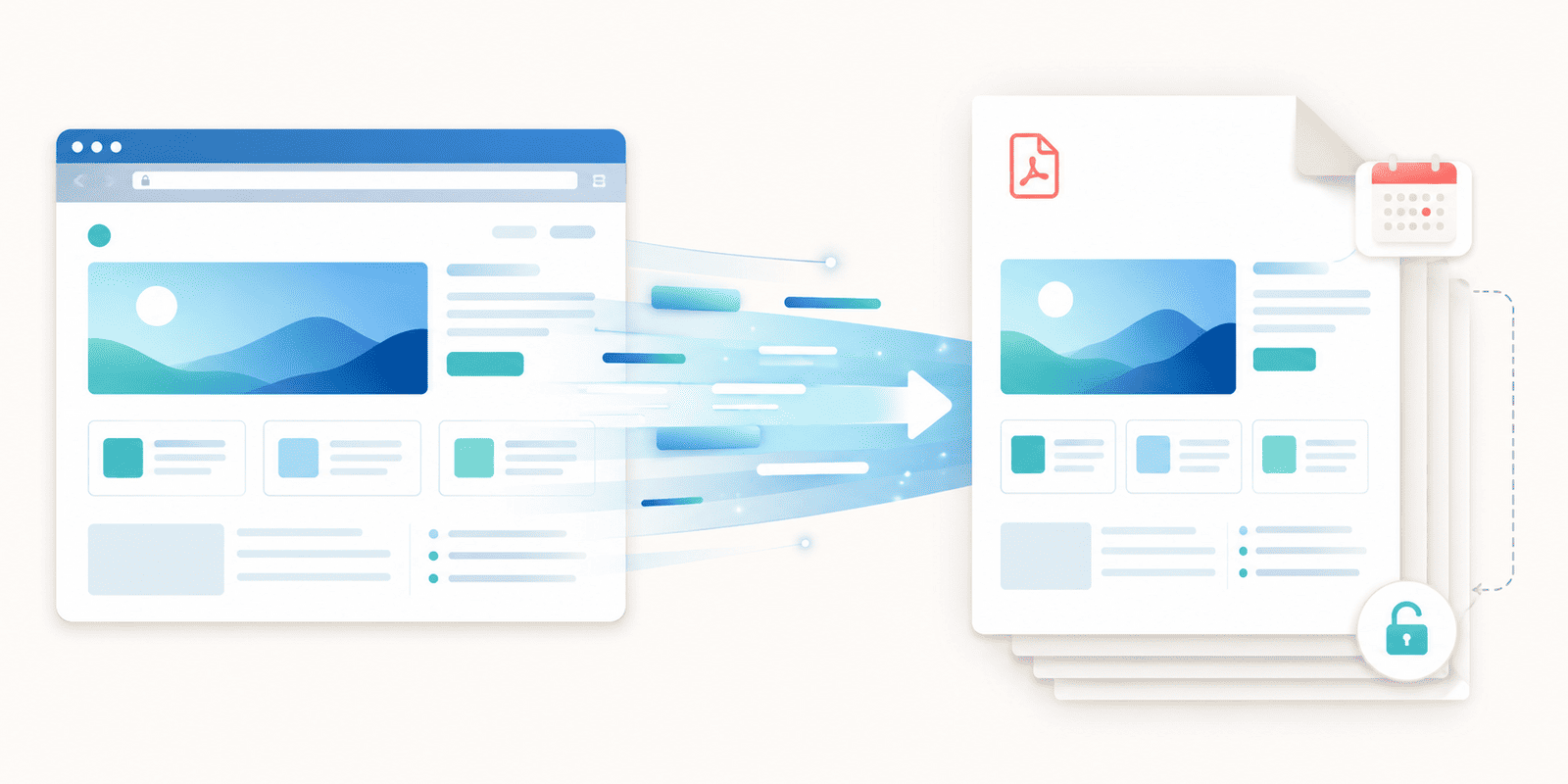
A web page can change or vanish at any moment. The article you want to keep, the order confirmation you need for your records, the booking details, the page you have to submit as proof of something: all of it lives at a URL that someone else controls, and it can be edited or taken down without warning. Saving it as a PDF freezes it. You get a fixed, dated, self-contained copy that is yours, that opens on anything, and that nobody can quietly change.
This guide covers how to turn a web page into a PDF from its address, how to do a whole list of them at once, and the one type of page that needs a different approach.
Why save a web page as a PDF
The common reasons all come down to wanting a permanent, portable copy of something that currently only exists online.
You might be keeping a record: a receipt, an order confirmation, a booking, a bill, anything you may need to refer back to after the live page is gone. You might be archiving a page before it changes, capturing exactly how it looked on a certain date. You might be saving an article to read offline or to keep even if it is later paywalled or deleted. Or you might need to submit or share a web page as a document, because a PDF is a clean, fixed thing you can attach and send, and a live link is not.
In all of these, the point is the same: the PDF is stable and yours, while the web page is neither.
How to save a single web page as a PDF
- Open the web to PDF tool.
- Paste the address of the page you want to save.
- Optionally adjust the settings (covered below).
- Convert and download your PDF.
That is the whole process for one page. Paste, convert, done.
Converting a whole list of pages at once
If you have many pages to save, you do not have to do them one at a time. Alongside the single-URL option there is a bulk mode: instead of pasting one address, you provide a txt or csv file containing a list of URLs, and the tool works through all of them.
Each page becomes its own PDF, and they all come back together in a single zip you download in one go. This is what turns "I need to archive forty pages" from an afternoon of copy, paste, repeat into one job. Put your URLs in a plain text or spreadsheet file, one per line, hand it over, and collect the zip.
The settings, and what they do
The conversion works fine on defaults, but a few optional settings let you shape the result, and a couple of them solve real annoyances.
Page format and orientation. Set the page size, with A4 as the standard default, and switch to landscape if the page is wide.
Margins and scale. Control the white space around the content, and scale the page up or down so it fits the way you want.
Automatically hide cookie notices. This one is genuinely useful. Web pages are often covered by a cookie banner or consent popup, and without this, that banner can end up baked into your PDF, sitting over the content you actually wanted. Turning it on strips those notices out so your PDF captures the page, not the popup.
Print background graphics. Web pages often hide background colors and images when printed. Turn this on to keep the page looking the way it does in the browser, with its backgrounds intact, rather than stripped to plain white.
Display header and footer. Adds a header and footer to the PDF, useful when you want the source and date recorded on the page itself for a proper archive.
The one page type that will not convert: anything behind a login
This is the honest limitation, and it is worth understanding rather than being surprised by. A web to PDF tool fetches a page the way a fresh visitor would, with no account and no session. So any page that requires you to be logged in, your email inbox, a private dashboard, a bank statement, a page inside an account, cannot be reached automatically. The tool arrives at the door, finds a login wall, and has nothing to capture. This is not a bug. It is the tool respecting that private pages need a real, authenticated person to see them.
There is a simple way around it, though. For a page only you can see behind a login, take a screenshot of it yourself, then convert that screenshot to a PDF with the image to PDF tool. You are the authenticated person, so you can see the page; the screenshot captures it; and the image tool turns it into the PDF you wanted. It is a two-step version of the same result for the pages an automatic fetch cannot reach.
A couple of things to expect
Two quick realities so the result does not surprise you. Very long pages become long, multi-page PDFs, which is normal, since the whole page has to fit somewhere. And highly interactive or dynamic pages, ones that load content as you scroll or depend on you clicking things, may capture only what was present at load time rather than every possible state, because a PDF is a snapshot, not a live copy. For ordinary articles, receipts, and content pages, none of this is an issue.
Save your web page as a PDF
Turning a web page into a PDF gives you a fixed, portable, dated copy of something that otherwise lives on someone else's server and can change or disappear. Paste a URL for one page, or hand over a txt or csv list to convert many at once and get them back as a zip. Use the cookie-notice and background-graphics settings to make the capture clean, and for anything behind a login, screenshot it and run it through the image tool instead. Whatever you needed to keep, you now have a copy that is genuinely yours.