How to Convert GIF to PDF (What Happens to the Animation)
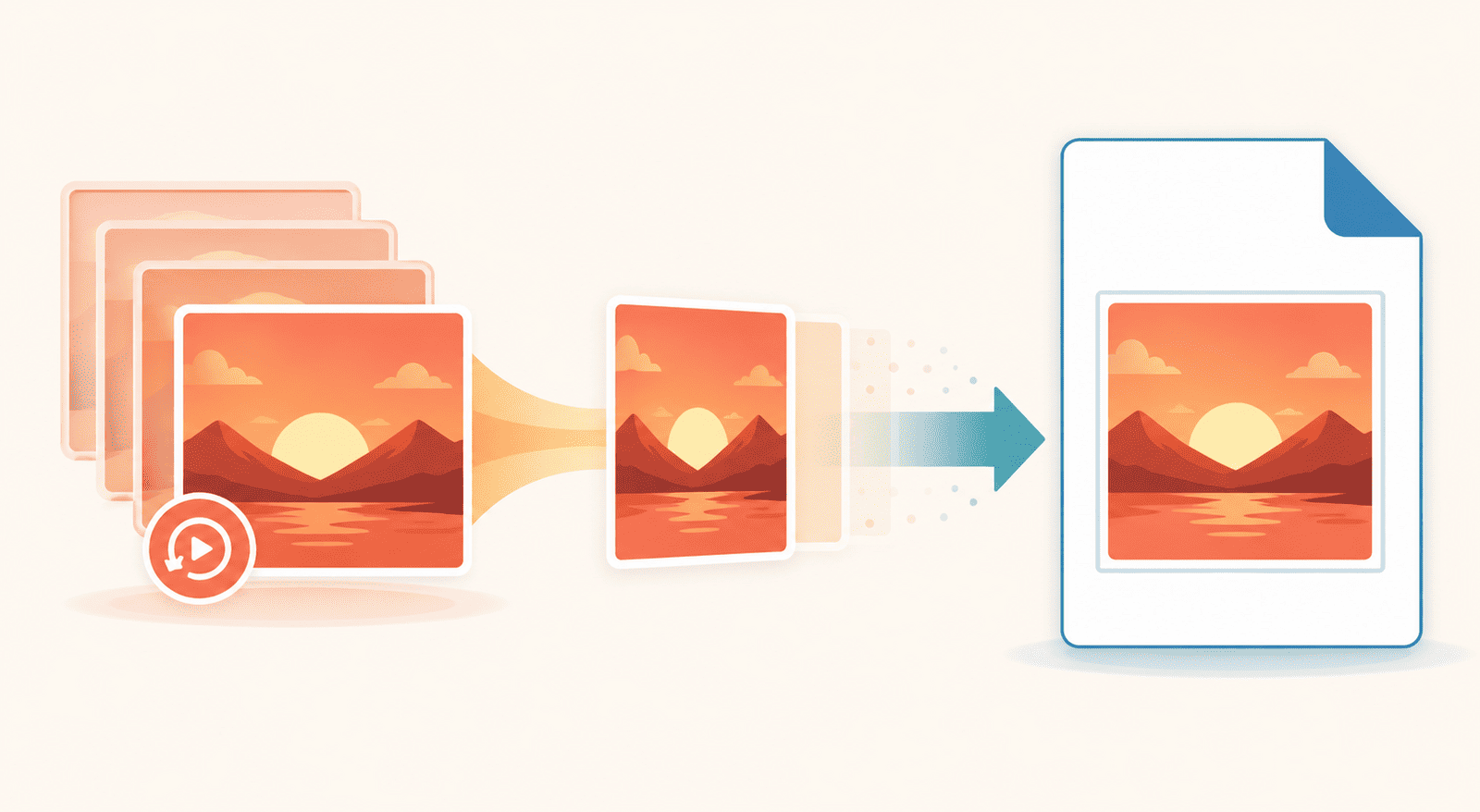
Before you convert a GIF to a PDF, there is one question worth answering: is your GIF animated or not? Because the answer changes what you get, and it is the thing most people do not think about until the result surprises them.
A GIF is unusual among image formats. It can be a plain still picture, exactly like any other image, or it can be a short looping animation, the moving clips that fill group chats and social feeds. A PDF page, on the other hand, is static by nature. It does not move. So converting a still GIF is straightforward and does exactly what you expect, while converting an animated GIF forces a choice that the tool has to make for you. Understanding that upfront is the whole trick to not being caught out.
What happens to an animated GIF
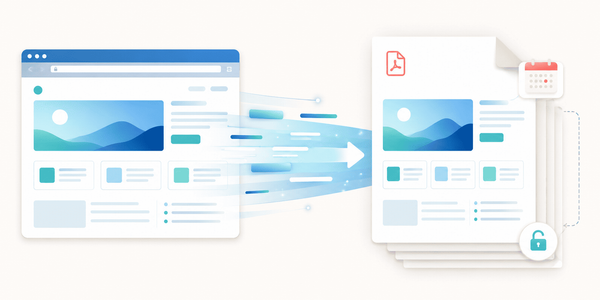
Here is the part to be clear about. A PDF page cannot play an animation. There is no motion in a printed or standard PDF page, so when an animated GIF becomes a PDF, the animation does not come along. What you get instead is a single frame from it, captured as a still image on the page.
This is not a flaw in the conversion. It is simply what it means to move something that moves into a format that does not. If your GIF was a still image to begin with, none of this affects you at all. But if it was animated and you were hoping the movement would somehow survive, it cannot, and it helps to know that before rather than after.
So if the animation itself is the point, a PDF is the wrong destination. A PDF is the right destination when you want a still image of the GIF fixed onto a page: to print it, to file it as a document, to drop it into something that expects a PDF, or to combine several images into one tidy file.
Why turn a GIF into a PDF at all
Once you are past the animation question, the reasons to convert are the same practical ones that apply to any image.
A PDF is the format nothing refuses. Every device and app can open one, with no special software, which makes it the safe way to send an image to someone when you do not know what they will open it on. A PDF is also built for printing and filing in a way a loose image file is not, and it lets you combine several images into a single document, which a plain GIF cannot do on its own. If any of those is what you are after, converting is the right move.
How to convert a GIF to PDF
- Open the GIF to PDF tool.
- Select your GIF, or several images at once.
- Optionally set the page options, covered just below.
- Convert and download your PDF.
Sensible defaults are already set, so converting and downloading straight away gives you a clean result. The options are there for when you want the page to come out a specific way.
Setting up the page
Because a PDF is built around pages and an image is not, the conversion places your GIF onto a page, and a few optional settings control how that page looks.
Set the orientation to portrait or landscape to match the shape of your image, so it sits naturally instead of stranded in the wrong shape. Choose the page size, with A4 as the sensible default for most uses. Pick a margin, from none for an image that runs to the edge of the sheet, to a small or larger border for a cleaner, more deliberate look. And give the output a file name if you want it to download with a clear title rather than a generic one.
None of these are required. They shape the result when you care how it looks, and stay out of the way when you do not.
Combining several images into one PDF
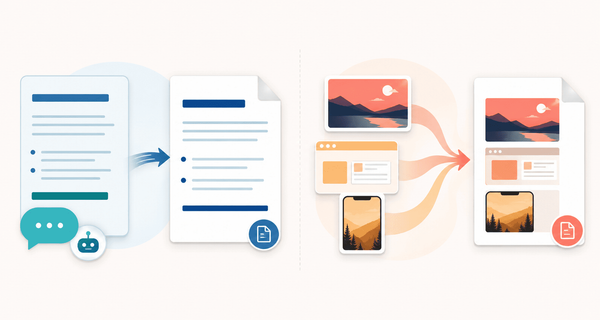
If you are converting more than one image, there is an option to merge all of them into a single PDF instead of getting a separate file for each. Turn it on and your images become one document, one image per page, in order.
This is what turns a set of separate images into something tidy and shareable: several graphics gathered into one file, a group of images sent as a single attachment rather than a scattered handful. When the images belong together, merging is usually what you want.
Working with other image formats
If your images are not all GIFs, or you are working with a mix of formats, there is a broader tool for that. The image to PDF tool accepts every image type the platform supports and handles the page in exactly the same way, so reach for it when you have a mixture on your hands rather than converting each type separately.
Convert your GIF to PDF
Converting a GIF to a PDF is simple once you know the one catch: a still GIF converts exactly as you would expect, and an animated one becomes a single still frame, because a PDF page does not move. Past that, it is about placing your image on a page and deciding how it should look, matching the orientation, keeping A4 unless you have a reason not to, and merging several images when they belong together. Know what happens to the animation and there are no surprises.