How to Put Multiple PDF Pages on One Sheet (2, 4, or More)
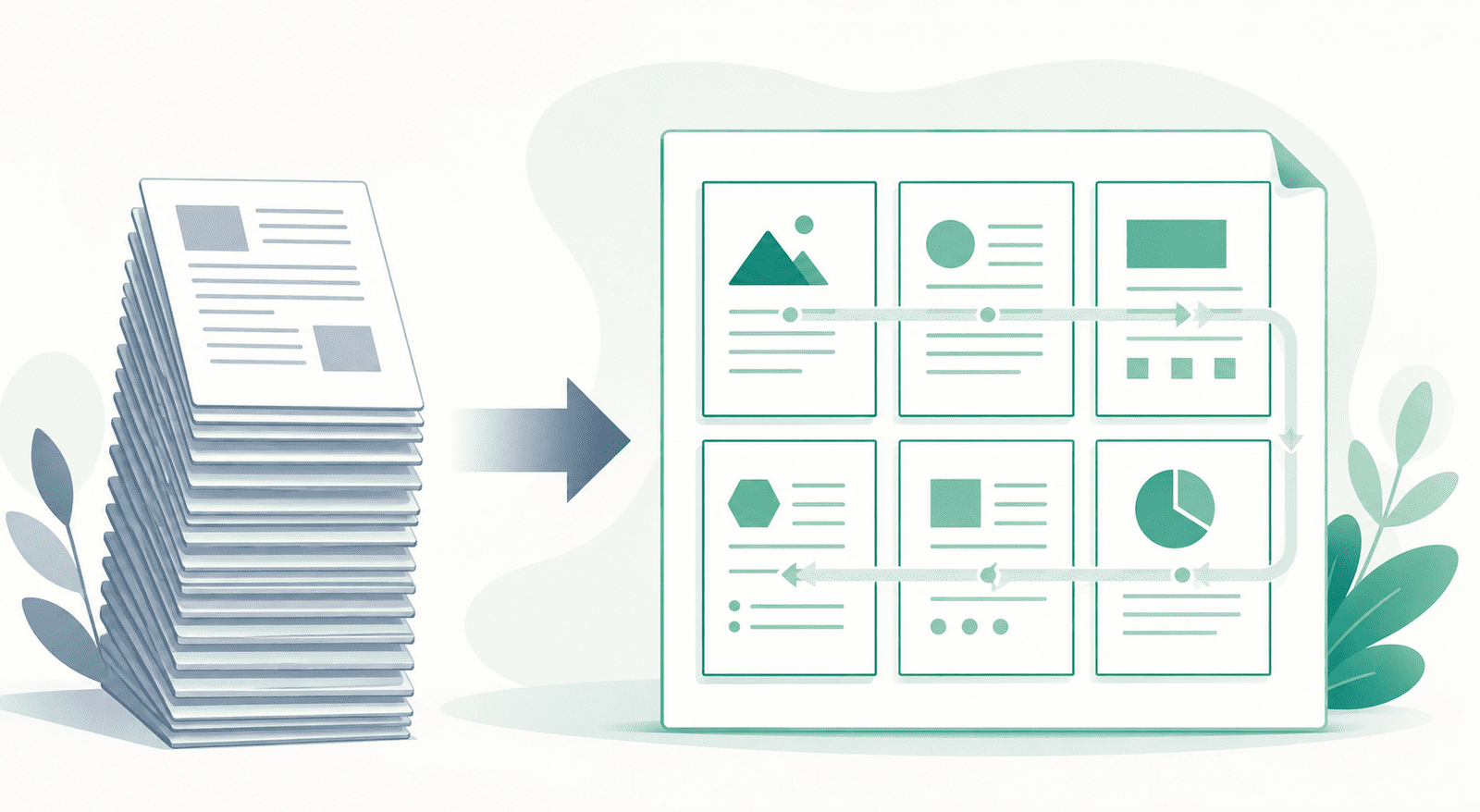
There's a printing feature almost nobody knows the name of, even though half the people reading this have wanted it. Putting several PDF pages onto one physical sheet — two, four, six, more — is called "N-up" in print shops. Everyone else searches for it as multiple pages per sheet, print 4 pages on one page, or fit more pages on less paper.
The name doesn't matter. What matters is that the right arrangement depends entirely on why you're doing it, and picking the wrong one gives you a sheet that's technically correct and practically useless. So this is organised by reason, not by number.
To hand out slides without killing a forest
The classic case. A 40-slide deck printed one-per-page is 40 sheets nobody wanted. At 6 pages per sheet it's about 7 sheets, and the slides are still perfectly readable because slides are big, simple, and low-detail to begin with.
This is the arrangement that made the feature famous — handout versions of presentations. Slides survive shrinking better than almost anything, because they were designed to be seen from across a room. Reading them at a third of the size on paper costs you nothing.
Go 6-up for slides, and only drop to 4-up if the deck is text-heavy.
To save paper on a document you'll actually read
Different goal, different limit. Here the text has to stay comfortably readable, and that's a much harder constraint than a slide handout.
2 pages per sheet is the safe, everyday choice — it roughly halves your paper and the text only shrinks a little, so a normal document stays easy to read. 4-up works for large-print or lightly-set pages but starts to strain on dense body text.
The honest rule: the smaller you go, the more readability you trade. If you'll genuinely sit and read it, 2-up is usually as far as you want to push it. Beyond that you're saving paper you'll regret when you try to read the thing.
To proof or review a whole document at a glance
Sometimes the point isn't reading every word — it's seeing the shape of the whole thing. A designer checking that page layouts feel consistent, someone verifying a long document's structure, a teacher scanning a set of worksheets.
For this, go high — 6-up or more — because you're looking at layout, not reading text. Seeing many pages together on one sheet reveals rhythm and inconsistency that's invisible when you flip through one page at a time. You're using the sheet as a contact sheet, not a document.
The one thing that quietly ruins the result: margins
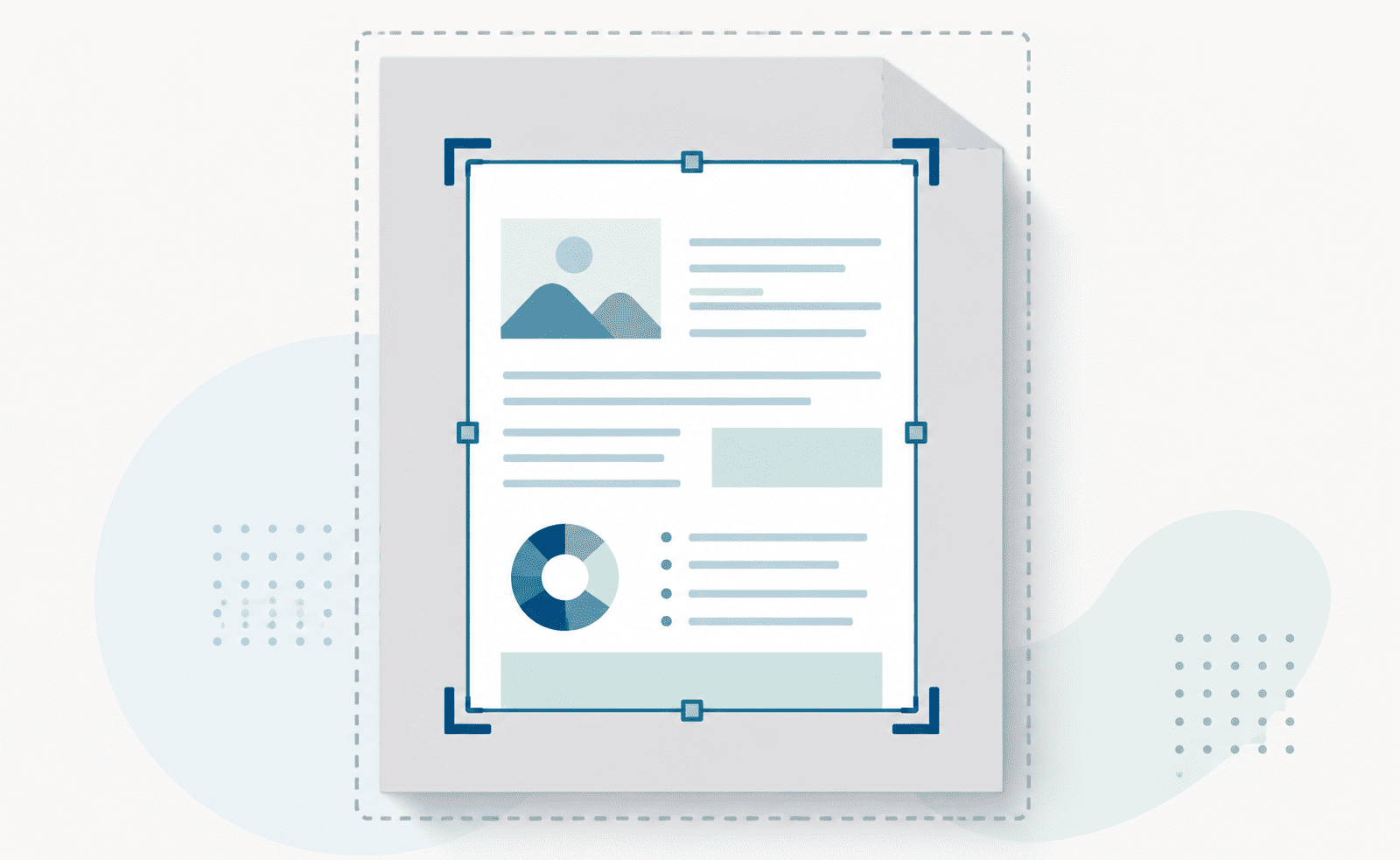
Here's what catches people out. When you shrink several pages onto one sheet, each little page keeps its own margins — and then the sheet adds its own margin around the whole grid. Those margins stack. Put four already-margined pages on a sheet and the actual content can end up floating in a surprising amount of white space, smaller than it needed to be.
It's not a bug; it's margins doing exactly what margins do, twice over. The practical effect is that the content shrinks a bit more than the raw arithmetic suggests. If readability is tight, this is usually the reason — and it's worth knowing before you decide 4-up isn't good enough and blame the feature.
Reading order: across, then down
One small thing worth a glance. When pages are placed in a grid, they normally fill left-to-right, then top-to-bottom — page 1 top-left, page 2 top-right, page 3 below page 1, and so on. That's what you'd expect, and it's what makes a printed handout follow in sequence.
It only matters if you're printing something that will be read in strict order, or cut up afterwards. Check the first sheet follows the sequence you expect before committing a long print run to paper.
How to do it
- Open the merge pages tool.
- Select your PDF.
- Choose how many pages you want per sheet.
- Download the new PDF and print it — or keep it as a compact digital copy.
That last point is easy to overlook: the result is a normal PDF. You don't have to print it. A slide deck condensed to 6-up is also a tidy file to read on a screen or attach to an email, not just a way to save paper.
Before you print the whole batch
- Print one sheet first. Text that looks fine on screen at 4-up can be smaller than expected on paper. One test sheet saves a wasted ream.
- Match the arrangement to the source. Slides take 6-up easily; dense text rarely survives past 2-up.
- Mind the double margins if content is coming out smaller than you hoped — that's usually the cause, not the page count.
- Keep the original. Save the multi-up version as a separate file so you still have the full-size PDF for anything that needs it.
Fit more pages on one sheet
The feature has an intimidating name and a simple job: fit several PDF pages onto one, so you print less paper or see more at once. Match the count to the purpose — 2-up for reading, 6-up for slides and proofing — watch the edges for stacked margins, and print a single test sheet before the whole run.