How to Edit a PDF Online (Without Sending It Back to Whoever Made It)
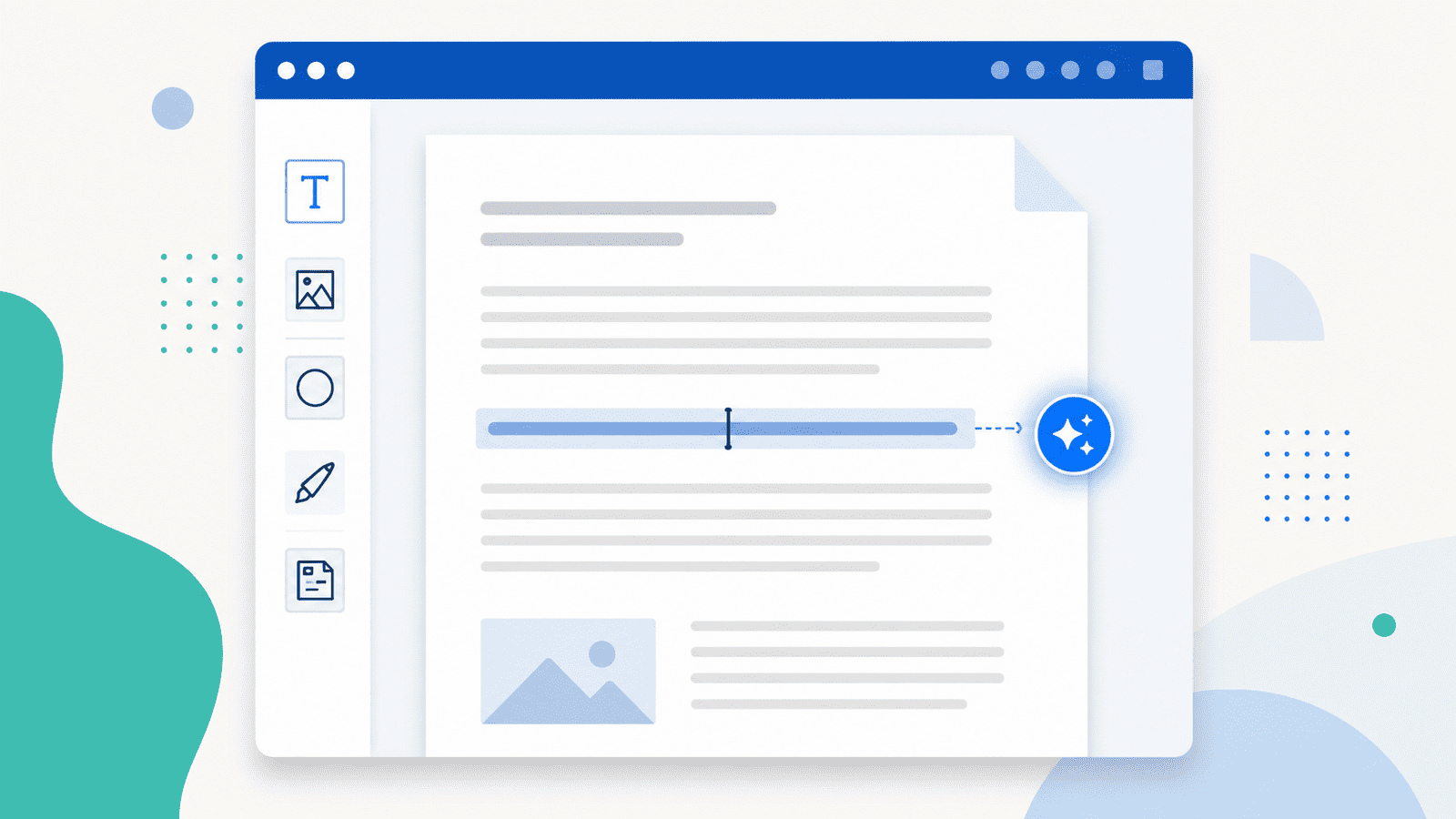
There is a wrong typo in a PDF, and fixing one letter means emailing the person who made it, waiting for them to open the source file, and hoping they still have it.
That is the situation most "edit PDF" tools do not actually solve. Plenty of them let you annotate — draw a box, add a sticky note, stamp a comment on top of the page. None of that changes the document. The typo is still there, now with a note pointing at it.
Editing a PDF means changing the content itself. Clicking on the wrong word and typing the right one. That is what this guide is about, and the whole thing rests on a single move.
The one move that matters
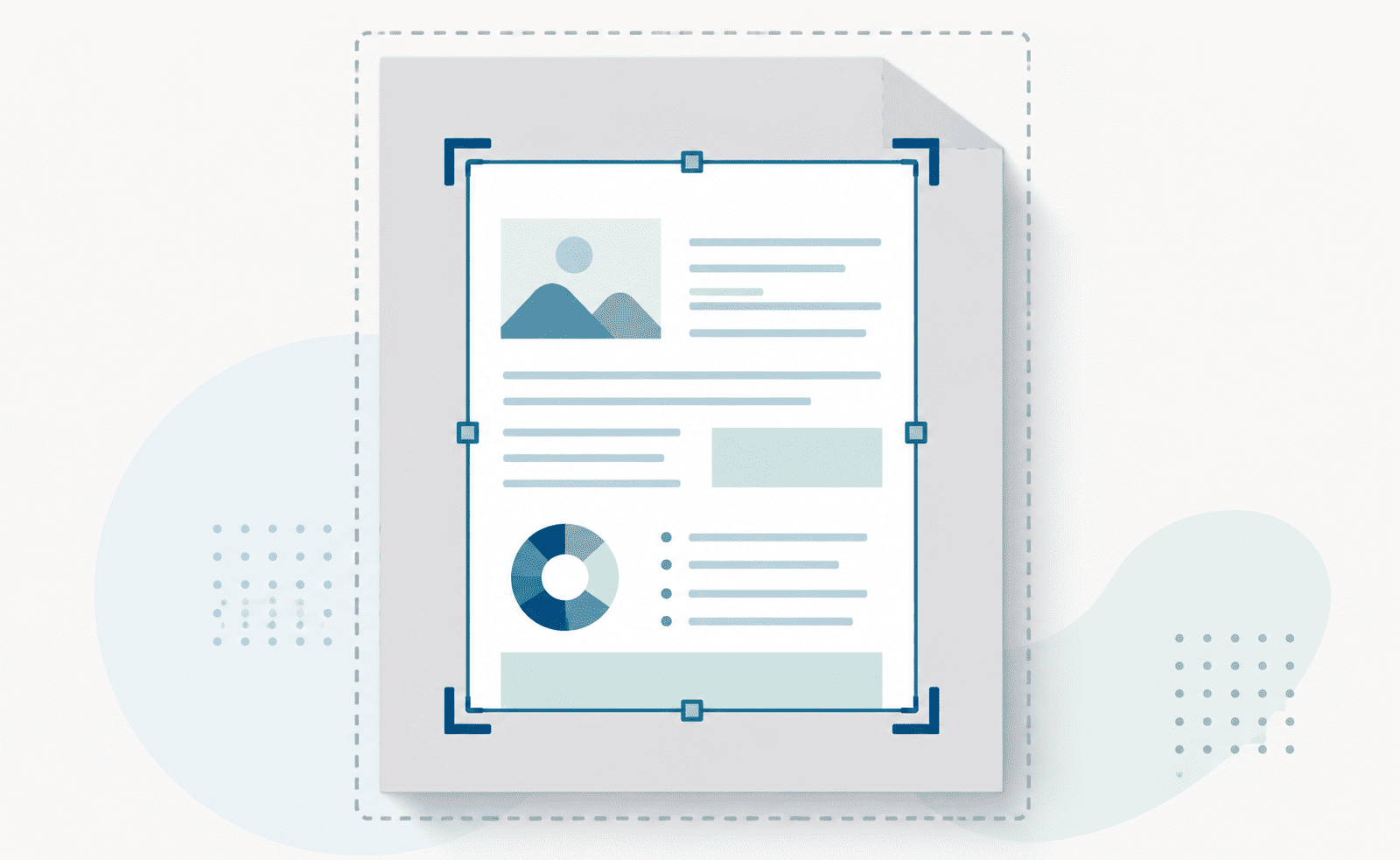
Click on any text in the page and start typing.
That is the core of the entire editor. Not a menu, not a mode you switch into — you click the line with the typo, and you retype it. The rest of the page stays exactly where it is. Everything else the editor does is built around that one action.
To start: open the PDF editor, click Select PDF files, and choose your document. It loads page by page, looking exactly as it does now. Then click the thing you want to change.
Everything you can add or change
Down the left side sits a toolbar, and each button is one kind of change you can make.
Text. Beyond retyping what's already there, you can drop a fresh text box anywhere on the page and type into it — a new paragraph, a label, a caption. Sizes and styles are yours to pick, or you can take one of the ready-made font pairings.
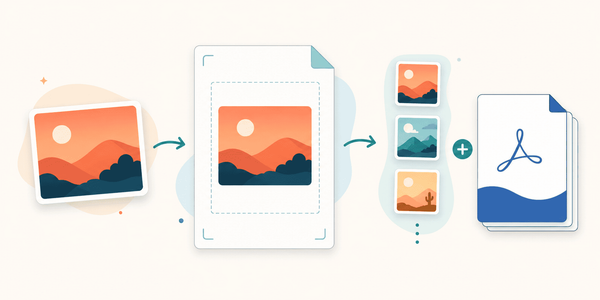
Uploads. Place an image into the document. Choose a picture from your computer and drag it where it belongs — a logo onto a letterhead, a photo into a report.
Shapes. Circles, lines, boxes and other ready-made shapes, useful for boxing off a section or drawing attention to one part of the page.
Draw. Freehand, with three brushes — a pen for clean lines, a highlighter for marking passages, and an eraser for taking strokes back. Each has its own sizes and colours. This is how you sign a printed-then-scanned form, or circle the figure that matters.
Pages. Every page shown as a thumbnail. From here you reorder pages with the arrow buttons, delete one you do not need, or add a fresh blank page. Each thumbnail also opens a page manager with more options — including a page-level AI tool we will come to shortly.
File. Rename the document, save your progress, start something new, or download the finished PDF. Two words here mean different things: Save keeps your work inside the editor so you can return to it later; Download writes a finished PDF onto your computer.
The controls that appear when you select something
Click any element and a bar of controls slides in along the top — the same set you would expect from a word processor, and worth knowing because it is where most of the fine work happens.
Font and size. Text colour and background colour. Bold, italic, underline, strikethrough. Letter case, to flip a heading between uppercase, lowercase and title case without retyping it. Alignment and lists. Line spacing and letter spacing. Transparency, to fade an element up or down.
Two of them are easy to miss and genuinely useful. Text direction flows the text right-to-left for Arabic, Hebrew and other RTL scripts, so those languages sit correctly instead of running the wrong way. And add link turns any text into a clickable link — handy when you are building something people will read on screen.
Handing the tedious parts to AI
Some edits are not about clicking and typing — they are about rewriting, shortening, or translating. The editor has an AI assistant for exactly those, and it works at two different scopes depending on how much you want to change at once.
On a single element
Select any text and a small blue button appears beside it. Click it and you can hand that piece of text to the assistant. You may choose which model to use first — the editor tells you what each is suited to — though that step is optional and you can simply go straight to the task:
- Rephrase — rewrite the text in a different tone, so a blunt sentence becomes a diplomatic one, or a stiff one becomes plain.
- Summarize — condense a long passage into something tighter.
- Translate — put the selected text into another language.
- Custom instruction — describe anything else in your own words and let the assistant do it.
The change comes back in place, in the same spot on the page, keeping the layout around it.
On a whole page
The blue button acts on one element at a time. When you want the same treatment applied to an entire page — translating a full page in one pass, say, rather than paragraph by paragraph — open the page manager from the Pages panel and use AI Edit there. Same idea, wider scope.
The rule of thumb is simple: one paragraph, use the blue button on the element; the whole page, use AI Edit from the page manager.
Starting from a blank page instead
Not every job begins with an existing file. If you are building a document from nothing, Create PDF opens a blank page with the very same toolbar — pick a standard size like A4 and start adding text, images and shapes.
There is also a faster route in: describe the document you want as a prompt, and it is generated and loaded straight into the editor. From there it is an ordinary editable document — click any line to change it, restyle it, or run a piece of it through the AI assistant. You get a first draft to shape rather than a blank page to fill.
What a scanned PDF will and won't let you do
One honest limit. If your PDF is a scan — a photograph of a printed page — there is no text underneath to click on. The words you see are part of an image, so you cannot retype them the way you would on a normal PDF.
You are not stuck, though. You can still draw on the scan, lay new text boxes over it, and add images — enough to fill in a scanned form, sign it, or mark it up. You just cannot edit the scanned text itself, because as far as the file is concerned, it is a picture.
Putting it together: updating an old flyer
Say you have last year's event flyer as a PDF and need this year's version.
Open it in the editor. Click the date and retype it. Click the venue line and fix it the same way. The old sponsor logo comes out by selecting it and deleting it; the new one goes in through Uploads, dragged into the gap. The blurb at the bottom reads a little flat, so you select it, click the blue AI button, choose Rephrase, and pick a livelier tone. One page needs to go out in Spanish as well — so you open the Pages panel, use AI Edit on the page, and translate the whole thing at once. Then File, Download, done.
None of that involved the original design file, and none of it needed anything installed.
Edit your PDF now
A real PDF editor lets you change the document, not just decorate it. Click any text to retype it, add images and shapes and freehand marks, rearrange the pages, and lean on the AI assistant for the rewriting and translating you would rather not do by hand — element by element, or a whole page at a time. And when there is no file to start from, the same tools build one from a blank page or from a prompt.