How to Convert PDF to PowerPoint Without Losing Formatting
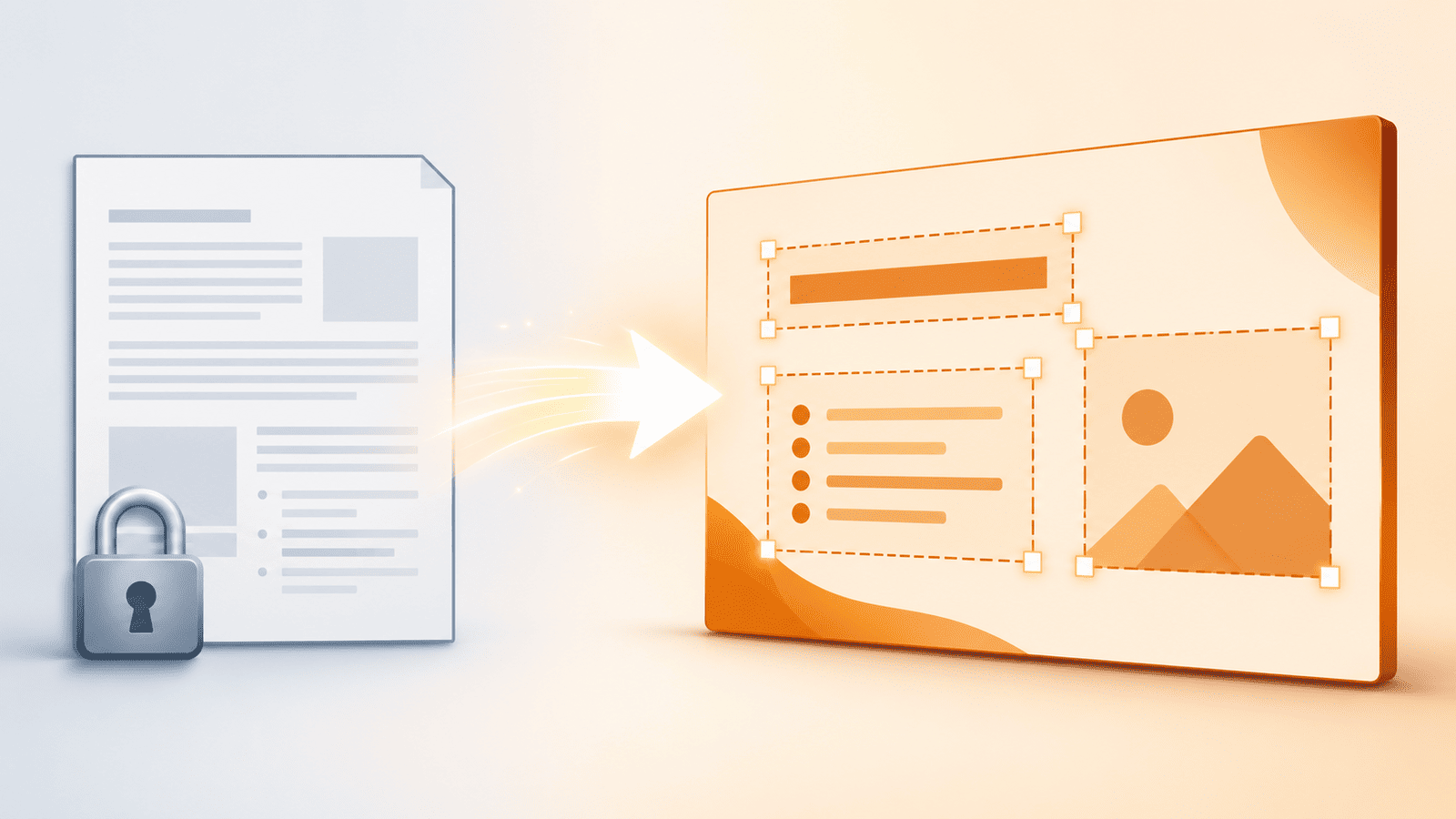
Almost every PDF that gets converted to PowerPoint started life as a PowerPoint file.
Someone built a deck, exported it to PDF to share it, and the original .pptx is now gone — on a former colleague's laptop, in a dead Dropbox link, or simply lost. What you have is the flattened version. What you need is something you can edit.
That is the real job here: not converting a document, but reversing a flattening. Understanding what got flattened tells you exactly what you can expect to get back, and what you will need to rebuild yourself.
First, check the shape of your PDF
This single check determines whether your converted deck looks like a presentation or like a stack of oddly shaped pages, and most people skip it.
A converter turns each PDF page into one slide. Whatever proportions the page has, the slide inherits. So:
- If your PDF was exported from a deck, its pages are already 16:9 or 4:3. The conversion will look right immediately.
- If your PDF is an A4 or Letter report, its pages are tall and portrait. Every slide will come out tall and portrait too.
Neither case is a conversion failure — the tool is faithfully reproducing what it was given. But the second case needs a decision before you start. You can either accept portrait slides, or convert and then reshape the deck afterwards in PowerPoint under Design → Slide Size, accepting that content will need repositioning.
Open your PDF and look at the page proportions before you do anything else. If they are wide, you are in good shape.
How to convert a PDF to PowerPoint
- Open the PDF to PowerPoint tool.
- Select your PDF file, or drag it into the upload area.
- Run the conversion.
- Download the PPTX file.
Open the result in PowerPoint before you do anything else with it, and page through every slide. The next three sections tell you what you are looking at.
Bucket one: what comes back editable
The conversion reconstructs the visible layer of each page, and this part usually goes well.
Text. Words come back as real, editable text you can retype, restyle, and spell-check — not as a picture of words. This is the main reason to convert rather than screenshot.
Images and logos. Embedded graphics are carried across as image objects. You can move them, resize them, and delete them.
Colours and backgrounds. Fills, coloured blocks, and background panels generally survive as shapes or as background images.
Position. Everything lands roughly where it sat on the original page, which is what makes the deck recognisable at a glance.
One caveat worth knowing: text does not come back in the original placeholders. The converter rebuilds it as free-floating text boxes based on where the characters were positioned. A single paragraph may arrive split across several boxes, and a bulleted list may lose its list structure and become separate lines. Everything is editable — it is just assembled differently from how the original author built it.
Bucket two: what is gone and is not coming back
No converter can recover these, because a PDF never carried them in the first place. Any tool that claims otherwise is overpromising.
Speaker notes. PDF export drops the notes pane entirely. Unless the original was exported specifically as notes pages, the notes do not exist anywhere in the file.
Animations and transitions. A PDF is static. Build sequences, entrance effects, and slide transitions are not stored and cannot be reconstructed.
Editable charts. A chart exported to PDF becomes lines and shapes. It comes back looking correct but with no underlying data — you cannot click it and change the numbers. If you need the figures, extracting the table separately with a PDF to Excel conversion is usually faster than reading them off the slide.
Slide masters and theme. The converted deck typically arrives without a working master. Each slide is independent, so changing the theme will not restyle the deck the way it would in a normally built presentation.
Embedded video and audio. Media does not survive PDF export. You may find a still frame where a video used to be.
Hyperlinks. These sometimes survive and sometimes do not, depending on how the PDF was produced. Check any slide that had a link on it.
Bucket three: what you can rebuild quickly
The gap between "converted" and "genuinely usable" is usually thirty minutes of work, and it is worth doing in this order.
Fix the fonts first. Font substitution is the single biggest cause of a deck that looks wrong — if the original font is not installed on your machine, PowerPoint swaps it, and the replacement almost never has identical spacing. Text then overflows its box or wraps to a new line. Either install the original font, or use Home → Replace → Replace Fonts to switch everything to one you do have, then fix the boxes that shifted.
Merge the fragmented text boxes. Where a paragraph has been split across several boxes, consolidate it into one and reapply the list formatting. This is tedious on a long deck, so do it only on slides you actually intend to edit.
Apply a master. If you plan to keep working in this deck long-term, create a new presentation with the theme you want and paste the content in, rather than fighting a deck with no master.
Rebuild charts you need to update. For a chart that will change, insert a fresh PowerPoint chart with the real data and delete the flattened image. For a chart that is final, leave the image alone.
The scanned-PDF case
If your PDF is a scan or a photo of printed slides, the page contains one flat image and no text data at all. A standard conversion will give you slides containing a picture — accurate, but nothing you can edit.
You need OCR in that situation, which reads the characters out of the image and produces real text. Expect good results on clean, straight, high-resolution scans and weaker results on anything skewed, shadowed, or low-contrast. Handwriting on the slides will not convert reliably.
When converting is the wrong move
Worth saying plainly: if you need a polished deck to present next week and your PDF is a dense portrait report, converting it will cost you more time than it saves. You will spend longer fighting reflowed text boxes than you would building fifteen clean slides from scratch, using the PDF as your source material.
Converting is the right call when the PDF genuinely was a deck, when you need most of the original content preserved, or when you only need to change a handful of slides. Rebuilding is the right call when the shape is wrong or when the design needs to change anyway.
Getting the cleanest possible result
- Use the original export, not a scan or a re-print. A PDF generated directly from PowerPoint converts far better than a scanned copy.
- Check the source before you convert. If you can still find the original .pptx anywhere, use it — no conversion will ever beat the real file.
- Convert the whole deck at once rather than page by page, so slide order stays intact.
- Keep the downloaded PPTX untouched and work in a copy, so you can always return to the raw conversion.
- Review every slide, not a sample. Layout problems cluster on the most complex slides, which are exactly the ones a quick skim skips.
Convert your PDF to PowerPoint
Set your expectations by what a PDF can actually carry: text, images, colour and position come back, while notes, animation and chart data do not. Check your page shape before you start, fix the fonts before anything else, and decide honestly whether editing the conversion beats rebuilding from it.