How to Convert Multiple Files at Once (Batch Processing, Done Right)
The task itself takes ten seconds. Doing it forty times is what ruins your afternoon.
Anyone who has had to convert a folder of files knows the specific tedium: upload one, wait, download, upload the next, wait, download, and repeat until you've lost the will to work. The conversion was never the problem. The repetition was. Every file means the same clicks over again, and the only thing that changes is which file you're staring at while it processes.
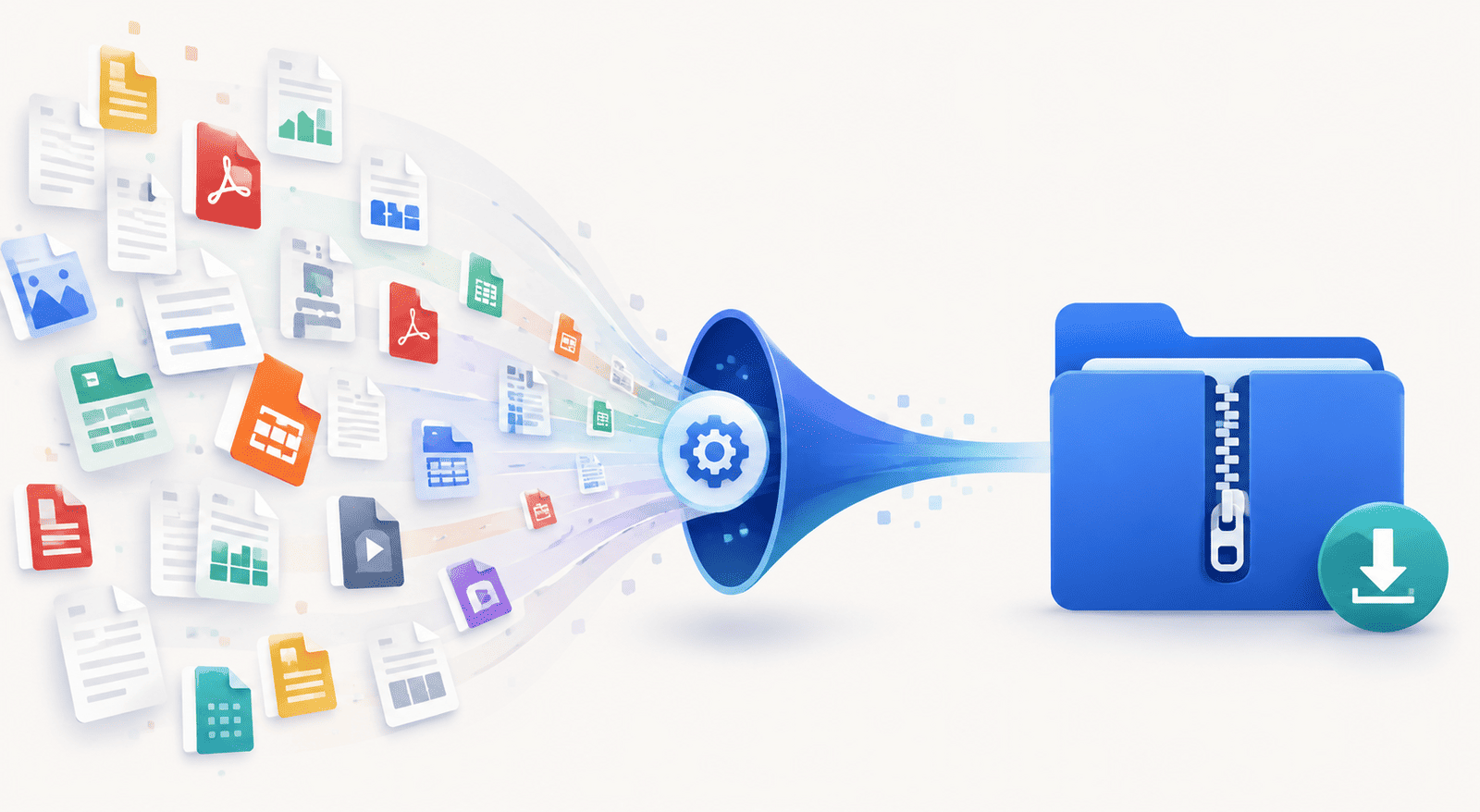
Batch processing removes the repetition. You hand over all the files at once, the work happens in one pass, and everything comes back together. This guide covers how it works, the one feature that makes it genuinely powerful for scanned documents, and when batching is the right call.
The idea: the folder, not the file
Normal conversion is built around a single file. Batch processing is built around the whole set.
Instead of feeding files in one at a time, you select all of them together — the entire folder's worth — and run the conversion once. The tool works through every file in the group and hands the results back as a single zip you download in one click. One upload, one wait, one download, however many files are inside.
The saving isn't just time, it's attention. You're not babysitting a queue, clicking through the same three steps on repeat. You set it going and come back to a finished zip.
How to batch convert files
- Open the tool you need — say PDF to Word.
- Select all the files you want to convert, not just one.
- Run the conversion.
- Download the zip containing every converted file.
That's the whole flow, and it's the same shape across the tools: pick many, run once, download the zip. Unzip it and your converted files are all there, named to match the originals so you can tell what's what.
Nearly every tool works this way
Batch processing isn't a separate feature bolted onto one converter — it runs across the tools. Converting formats, merging, compressing, and the rest all accept a whole set of files rather than making you go one by one.
There's one sensible exception: the PDF editor. Editing is a hands-on, visual task — you're clicking text and moving things on a specific page — and you can't meaningfully open a stack of documents in a single visual editor at once. Everything that runs as a process rather than a hands-on edit takes a batch; the editor, by its nature, works on one document at a time.
The part that saves the most time: scanned files in the batch
Here's where batch processing goes from convenient to genuinely powerful, and it's the bit most people don't expect.
If some of the files in your batch are scanned PDFs, you'd normally hit a wall — scanned pages are images, so a straight conversion has no text to work with, and the usual fix is to OCR each scan individually before converting. That's a whole second round of one-at-a-time tedium on top of the first.
You don't have to. When a scanned file turns up in your batch, a language selector appears above that file in the list, so you can set the document's language right there. The recognition then runs as part of the same job — the scan is read and converted in one pass, alongside all your other files. No separate OCR step, no pulling the scans out to handle them apart from the rest.
Setting the language matters because it sharpens accuracy: telling the recognition which language to expect helps it read the characters correctly, especially for anything beyond plain English. So when you see that selector appear, take the second to set it — mixed batches of digital and scanned files then just work, all in the one download.
When batching is the right move — and when it isn't
Batch processing is the obvious choice whenever you have more than a couple of files heading for the same treatment: a folder of invoices to convert, a set of scans to make usable, a pile of documents to compress before archiving. The more files, the bigger the win.
It's less relevant when you genuinely have one file, or when each file needs different handling — different output settings, different tools, individual attention. Batching applies the same operation to the whole group, which is its strength when the files belong together and its limit when they don't. And editing, as covered, is always a one-file-at-a-time job.
The rule of thumb: same job, many files — batch it. Different jobs, or hands-on editing — handle them individually.
A quick run-through: a folder of mixed documents
Say you've got fifteen documents to turn into Word files, and three of them are scans.
Open the PDF to Word tool and select all fifteen at once. The twelve digital PDFs are ready to go. On the three scans, a language selector appears above each — set the language for each one. Run the job. The tool converts the digital files and OCRs-and-converts the scanned ones in the same pass, and hands you a single zip with all fifteen Word documents inside. What would have been fifteen conversions plus three separate OCR steps becomes one upload and one download.
Convert your files in one batch
Batch processing is the answer to death-by-repetition: give the tool the whole folder, let it work through everything in one pass, and download the lot as a zip. It runs across the conversion and processing tools, it folds OCR for scanned files into the same job with a per-file language selector, and it turns an afternoon of clicking into a single run. When you've got many files headed for the same result, there's no reason to do them one at a time.