PDF to Word Converter: Convert PDFs to Editable Documents Online [2026]
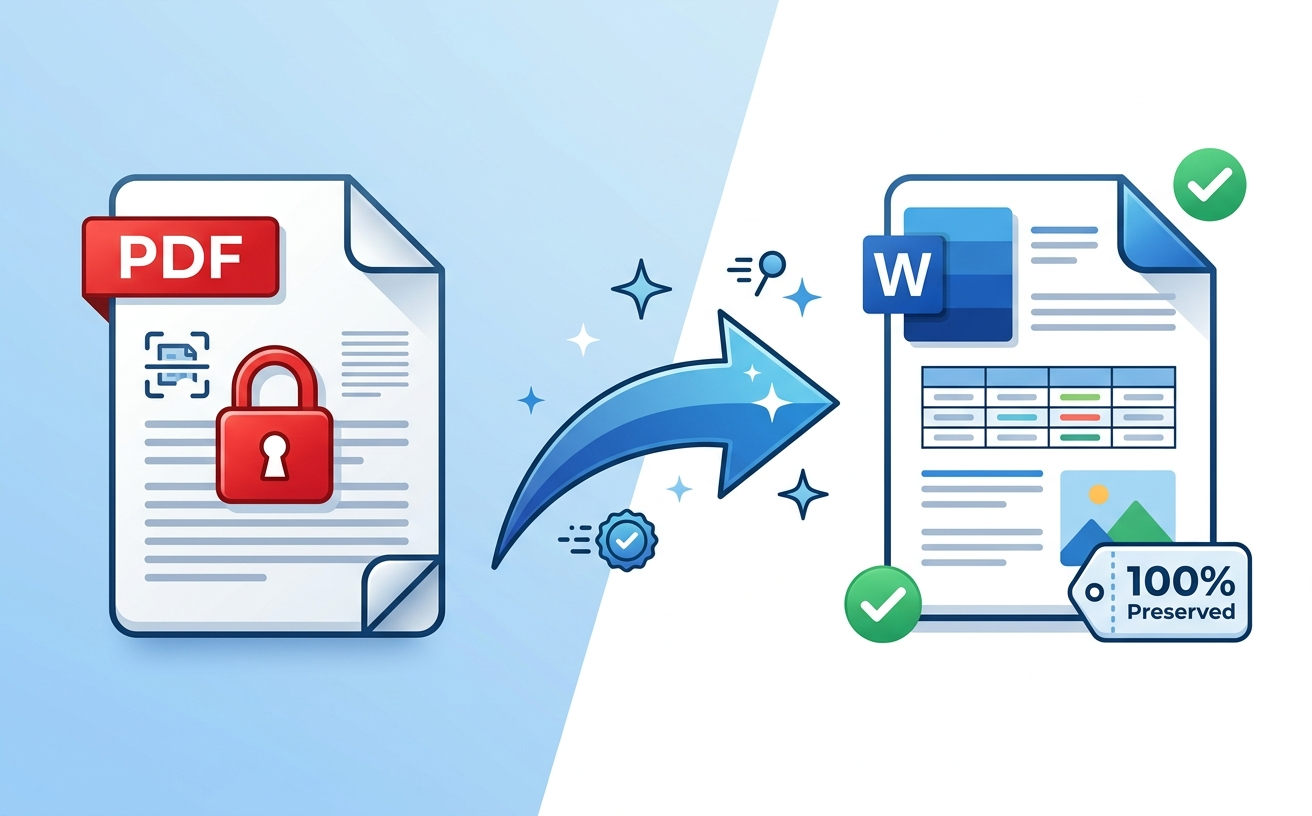
You've got a PDF that needs editing—maybe it's a proposal, contract, report, or form—but editing in PDF format is a nightmare. You need it as a Word document so you can make changes, add comments, update information, and share edits with your team.
The problem: Most PDF-to-Word converters lose formatting. Your carefully designed PDF becomes a jumbled mess in Word with broken tables, missing images, and text all over the place.
The good news: With the right converter, you can transform PDFs to Word while perfectly preserving layout, formatting, colors, and design. PDFEquips offers exactly that—plus special tools for handling locked and scanned PDFs that other converters can't touch.
In this guide, we'll walk you through converting PDFs to Word, explain the difference between basic and premium converters, and show you how to handle tricky PDFs like scanned documents and locked files.
Why Convert PDF to Word in 2026?
Edit Without Restrictions PDFs prevent editing. Word documents enable it. Once converted, you can edit text, update numbers, revise sections, and reconstruct content without PDF's limitations.
Enable Team Collaboration In 2026's distributed workforce, collaboration is everything. Word supports Track Changes, comments, version control, and real-time editing with cloud integration. PDFs don't. Converting PDF to Word transforms static documents into collaborative assets.
Preserve Professional Formatting Unlike inferior converters, quality PDF-to-Word conversion maintains tables, columns, images, fonts, colors, and layout exactly. Your Word document looks identical to your original PDF.
Reuse Content at Scale Enterprises with thousands of documents can't rebuild from scratch. Converting PDF to Word lets you extract, adapt, and reuse content—critical for templates, standards documentation, and policy management.
Extract & Analyze Data Structured PDFs (forms, invoices, contracts) convert to Word for data extraction, analysis, and integration into business systems.
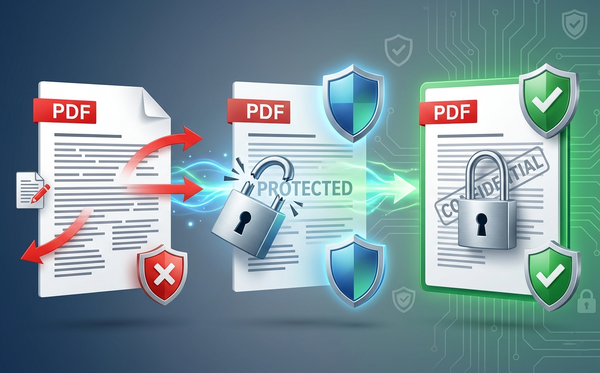
Handle Complex Document Types Locked PDFs, password-protected documents, scanned archives—premium converters tackle what basic tools can't.
Create Accessible & Searchable Documents Converted Word documents are more accessible than PDFs. Text is easily searchable, copyable, and adaptable for different uses and accessibility requirements.
How to Convert PDF to Word: Step-by-Step (2026 Edition)
What You'll Need
- One PDF file on your computer
- A modern web browser (Chrome, Firefox, Safari, Edge)
- 2-5 minutes total (varies by complexity)
No software installation. Enterprise-grade security.
Step 1: Assess Your PDF Before Converting
Simple PDF (Text-Based):
- Mostly text, minimal formatting
- No tables or complex layouts
- No images or graphics
- No password protection
- Basic converter works fine
Complex PDF (Professional Document):
- Detailed layouts with multiple columns
- Tables, charts, or graphics
- Images or photos
- Specific font styling and colors
- Requires premium converter
Locked or Scanned PDF:
- Password-protected or editing-restricted
- Scanned images (not editable text)
- Always requires premium converter
When in doubt, use premium. The cost is minimal compared to manually fixing a botched conversion.
Step 2: Choose Your Converter
Two Conversion Methods:
Basic Converter (Free)
- ✓ Best for: Simple text documents
- ✓ No cost
- ✗ Limited formatting preservation
- ✗ Can't handle locked PDFs
- ✗ Can't convert scanned documents
Premium Converter (Professional Grade)
- ✓ Preserves 100% formatting and layout
- ✓ Handles locked & password-protected PDFs
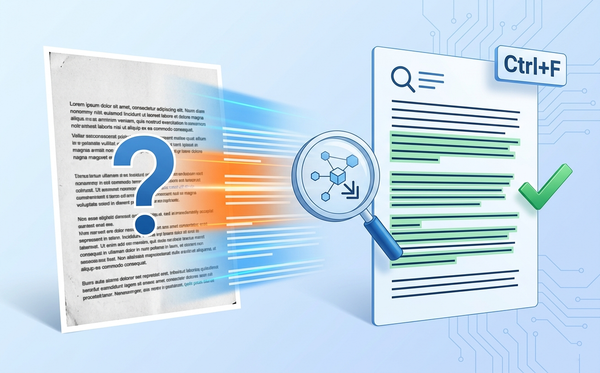
- ✓ Converts scanned documents with OCR
- ✓ Perfect for complex, enterprise-grade documents
- ✓ Fastest processing
- Most reliable choice for quality results
Recommendation: For professional documents (contracts, proposals, reports), premium converter is essential. Basic converter is free but often requires manual cleanup afterward, costing time.
Step 3: Access PDFEquips PDF to Word Converter
- Open your web browser
- Navigate to PDFEquips PDF to Word Tool
- PDFEquips is trusted by thousands globally—your documents processed with enterprise-grade security
Step 4: Upload Your PDF
Drag and Drop:
- Click and drag your PDF directly into upload area
- Instant upload
Browse Upload:
- Click upload area
- Select your PDF file
- Click "Open"
Step 5: Select Your Converter
For basic text PDFs:
- Click "Use Basic Converter" (free option)
For professional documents (recommended):
- Click "Use Premium Converter"
- Handles all complexity levels
- Worth the investment for quality results
Step 6: Handle Special Cases
Password-Protected PDF:
- Premium converter prompts for password
- Enter your password
- Click "Unlock and Convert"
- Conversion proceeds normally
Scanned PDF Documents:
- Choose premium converter (includes OCR)
- Upload scanned PDF
- OCR technology reads scanned images
- Result: Fully editable, searchable Word document
Step 7: Wait for Processing
Basic Converter: 10-30 seconds (simple processing) Premium Converter: 20-60 seconds (sophisticated formatting preservation)
Both provide progress indicators.
Step 8: Download Your Word Document
After conversion:
- Download button appears
- Click "Download Word Document"
- File saves to Downloads folder as .docx
- Name clearly:
Contract_Draft_2026.docx,Proposal_Final.docx, etc.
Step 9: Verify Conversion Quality
Critical verification step:
- Open .docx file in Microsoft Word
- Check every element:
- All text present and readable
- Formatting preserved (bold, italics, colors)
- Tables intact and properly formatted
- Images and graphics present
- Page layout matches original
- Columns maintained
- Font styles and sizes correct
- If perfect, you're done
- If formatting issues, re-convert with premium converter
PDFEquips Basic vs. Premium Converter: Complete Comparison
| Feature | Basic Converter | Premium Converter |
|---|---|---|
| Cost | FREE | Paid per conversion |
| Formatting Preservation | Partial (basic text) | ✓ 100% Preserved |
| Tables & Columns | May break | ✓ Perfect preservation |
| Images & Graphics | Often lost | ✓ Always preserved |
| Colors & Fonts | May degrade | ✓ Perfectly maintained |
| Layout Preservation | Basic structure | ✓ Exact layout preserved |
| Locked PDFs | ✗ Can't convert | ✓ Handles effortlessly |
| Password-Protected | ✗ Can't convert | ✓ Full support |
| Scanned Documents | ✗ No OCR | ✓ OCR included |
| Complex Layouts | ✗ Struggles | ✓ Handles perfectly |
| Processing Speed | 10-30 seconds | 20-60 seconds |
| File Size Limit | Standard | Unlimited |
| Enterprise Reliability | Limited | ✓ Enterprise-grade |
| Ideal For | Simple text docs | Professional use |
Which Should You Choose?
Use Basic If:
- Document is mostly text
- No tables, images, complex formatting
- Simple articles or email-based documents
- Formatting perfection isn't critical
- Cost is primary concern
Use Premium If:
- Any complex formatting
- Tables, columns, images present
- PDF is locked or password-protected
- Scanned document requiring OCR
- Professional use (contracts, proposals, reports)
- Converting enterprise documents
- Formatting must be 100% preserved
- Time is valuable (manual cleanup costs more than conversion)
Professional Verdict: For 2026 enterprise workflows, premium converter is the standard choice. The investment in quality conversion prevents hours of manual reconstruction.
Professional Tips: PDF to Word Conversion Best Practices (2026)
Tip 1: Test Basic Converter First for Cost Savings
If you're unsure:
- Try basic converter (it's free)
- Open Word document immediately
- Scan for formatting issues
- If quality is acceptable, done
- If formatting is broken, re-convert with premium
Saves money on simple documents while protecting quality on complex ones.
Tip 2: Always Unlock Locked PDFs With Premium
Password-protected PDFs:
- Basic converter can't touch them
- Premium converter handles password protection
- No need to manually unlock first
- Conversion handles everything
Tip 3: Scanned Documents Require OCR Conversion
Converting scanned images to Word:
- Only premium converter includes OCR
- OCR reads scanned images and generates editable text
- Result: Fully editable, searchable Word document
- Critical for digitizing archives, contracts, paperwork
Tip 4: Enable Track Changes Immediately After Conversion
For collaborative workflows:
- Convert PDF to Word
- Open in Word
- Go to Review tab → Track Changes
- Make edits (all changes recorded)
- Share with team for review and approval
- Much superior to PDF collaboration
Tip 5: Preserve Original PDF as Master Copy
Best practice:
- Keep original PDF as reference
- Convert to Word for editing
- Having both ensures data isn't lost
- Original remains unmodified
Tip 6: Handle Batch Conversions Efficiently
Converting multiple PDFs:
- Convert one at a time (current process)
- Name outputs clearly:
Document_01_2026.docx,Document_02_2026.docx - For enterprise batches, contact support about volume pricing
Tip 7: Use Post-Conversion Optimization
After converting PDF to Word:
- Remove unnecessary blank pages (select page → Delete)
- Check for [OLE Object] errors (embedded objects may not transfer)
- Update table of contents if present
- Verify hyperlinks still work
- Save as .docx to ensure compatibility
Comparing PDF to Word Converters: 2026 Market
| Feature | PDFEquips Premium | Adobe Acrobat | Other Online Tools | Desktop Software |
|---|---|---|---|---|
| Cost | Paid per conversion | $15/month | Varies (often low) | $20-100 |
| Formatting Preservation | ✓ 100% | ✓ Excellent | Variable | Good |
| Locked PDF Support | ✓ Yes | ✓ Yes | Limited | Varies |
| Scanned Document Handling | ✓ OCR included | ✓ Good | Variable | Varies |
| Setup Required | None | Download + install | None | Download + install |
| Processing Speed | 20-60 sec | 1-2 min | Varies | 1-3 min |
| File Size Limit | Unlimited | Typically limited | Often limited | Varies |
| Enterprise Reliability | ✓ Trusted by thousands | ✓ Industry standard | Varies | ✓ Reliable |
| Works Offline | No | Yes | No | Yes |
| Global Availability | ✓ Yes | ✓ Yes | Varies | ✓ Yes |
2026 Market Verdict
Use PDFEquips Premium if:
- Need fast, reliable conversion without subscriptions
- Want enterprise-grade security without complex setup
- Converting complex, professional documents
- Prefer pay-per-conversion over monthly subscriptions
- Value speed and quality equally
Use Adobe Acrobat if:
- Work offline frequently
- Have subscription budget
- Need additional PDF editing beyond conversion
- Require extensive professional PDF tools
For most professional workflows in 2026, PDFEquips premium converter offers the best balance of quality, speed, cost, and reliability.
Troubleshooting PDF to Word Conversion Issues
"PDF Won't Upload"
Solutions:
- Verify file is actually .pdf
- Check file isn't corrupted (open it first)
- Clear browser cache
- Try different browser (Chrome preferred)
- Check internet connection
"Formatting Is Completely Wrong"
Solutions:
- If you used basic converter, switch to premium
- Premium handles complex layouts
- Re-upload and reconvert
- Some unusual PDFs require manual cleanup afterward
"Converted Document Has Extra Blank Pages"
Solutions:
- Common with PDFs having unusual page breaks
- Open in Word, select blank pages, Delete
- Remove manually (takes seconds)
"Images or Graphics Are Missing"
Solutions:
- Switch to premium converter (handles images better)
- Some PDFs embed images in unusual ways
- Try reconverting
- If still missing, contact support
"Text Shows As Garbled or Strange Characters"
Solutions:
- PDF might have unusual text encoding
- Try premium converter (handles complex encoding)
- Reconvert
- Contact support if still issues
"Password-Protected PDF Won't Convert"
Solutions:
- Use premium converter
- Enter correct password when prompted
- If you don't know password, can't proceed
- Once unlocked, conversion should work
"Scanned PDF Didn't Convert to Editable Text"
Solutions:
- Basic scanned conversion creates images, not editable text
- Use premium converter with OCR
- OCR reads scanned images and creates editable text
- Result: Fully editable, searchable Word document
"[OLE Object] or Error Codes Appear"
Solutions:
- Means embedded objects didn't transfer properly
- Try premium converter
- Some complex objects may not transfer perfectly
- Manual fixes in Word might be needed
Why PDFEquips Premium is the Best PDF to Word Converter
How It Differs From Competitors
Problem with most converters: They're designed for quick, basic conversions. They strip formatting, lose images, misalign tables, and create documents you have to rebuild.
PDFEquips Premium is different:
✓ 100% Formatting Preservation — Not approximate. Every format choice—fonts, colors, spacing, layout—transferred exactly.
✓ Handles Locked PDFs — While others fail on password-protected files, premium converter unlocks and converts effortlessly.
✓ Scanned Document OCR — Converts image-based PDFs to fully editable, searchable text.
✓ Complex Layout Mastery — Multi-column documents, nested tables, graphics, unusual layouts—handled perfectly.
✓ Enterprise-Grade Reliability — Trusted by thousands globally. Used by enterprises, legal firms, financial institutions, healthcare organizations.
✓ Fast Processing — Under 60 seconds even for complex documents.
✓ Security First — Enterprise-grade encryption. Files auto-delete after 24 hours. No data retention.
This is why PDFEquips premium converter is the industry standard for professional PDF to Word conversion.
Related PDFEquips Tools for Document Workflows
After converting PDF to Word:
1. Convert Word Back to PDF
Need to redistribute as PDF? Convert Word to PDF here.
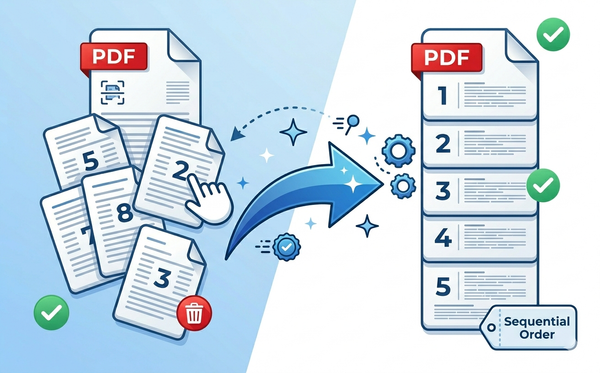
2. Merge Multiple PDFs Before Converting
Need several PDFs in one Word doc? Merge PDFs first, then convert.
3. Extract Specific Pages
Only need pages 5-10? Split PDF first, then convert.
4. Extract Images
Need images from PDF? Extract as images here.
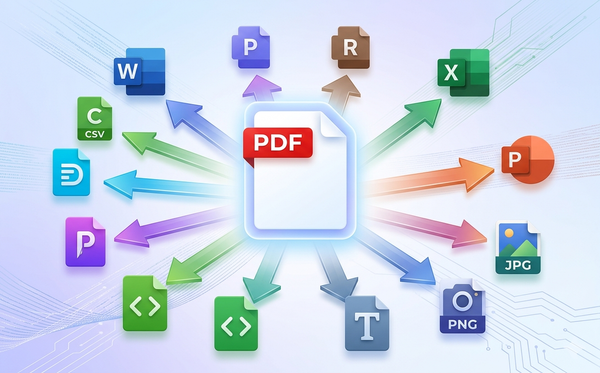
5. Convert to Other Formats
Need Excel instead of Word?
- PDF to Excel — Extract tables to spreadsheets
- PDF to PowerPoint — Create presentations
- PDF to Text — Plain text extraction
6. Unlock Locked PDFs First
Having trouble? Unlock PDF first, then convert.
The Bottom Line
Converting PDF to Word in 2026 should be reliable, fast, and produce perfect results. With PDFEquips PDF to Word Converter, you get exactly that:
- Basic Converter: Free option for simple text documents
- Premium Converter: Industry standard for professional formatting, locked PDFs, and scanned documents
Trusted by thousands globally. Used by enterprises, legal firms, financial institutions. Enterprise-grade security. Zero compromise on quality.
Ready to convert your PDF to Word? Start now on PDFEquips—convert in minutes with formatting perfectly preserved.
FAQs: PDF to Word Conversion
Q: Will my formatting be preserved? A: Basic converter preserves simple text. Premium converter preserves 100% of formatting, layout, tables, images, colors, and fonts.
Q: Can I convert password-protected PDFs? A: Only with premium converter. Basic can't handle locked PDFs. Premium handles it automatically.
Q: What about scanned PDFs? A: Premium converter includes OCR. Reads scanned images and creates editable, searchable text.
Q: How long does conversion take? A: Basic: 10-30 seconds. Premium: 20-60 seconds (longer because it does more sophisticated processing).
Q: Can I convert multiple PDFs at once? A: Currently one at a time. For enterprise batch conversions, contact support.
Q: Is the converted Word document fully editable? A: Yes. Standard .docx file, editable in Word, Google Docs, or any compatible software.
Q: What file size limit? A: Premium handles unlimited file sizes. Basic converter has standard limits.
Q: Do I need an account? A: No. Upload, convert, download—no account required.
Q: Is my data secure? A: Yes. Enterprise-grade encryption. Files auto-delete after 24 hours.
Updated: March 2026. PDFEquips serves thousands globally with enterprise-grade reliability. Contact us with questions.