How to Secure PDF Files: Lock, Password Protect & Watermark [Complete Guide]
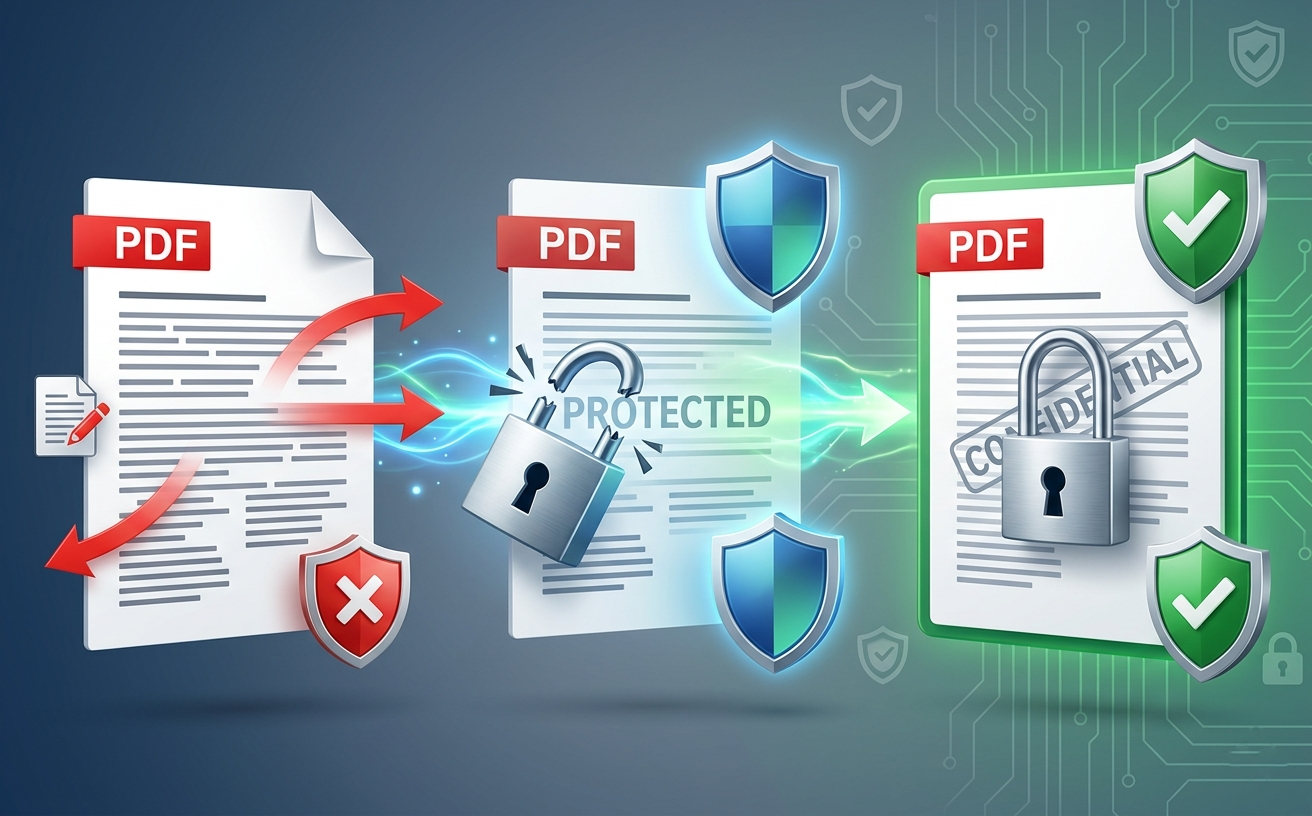
You've created an important document—a proposal, contract, financial report, or sensitive proposal. Now you need to protect it. But how?
The challenge: PDFs are easily shared, copied, and forwarded uncontrollably. Once a PDF leaves your control, you can't track it, modify it, or prevent unauthorized distribution. For businesses handling confidential information, this is a critical vulnerability.
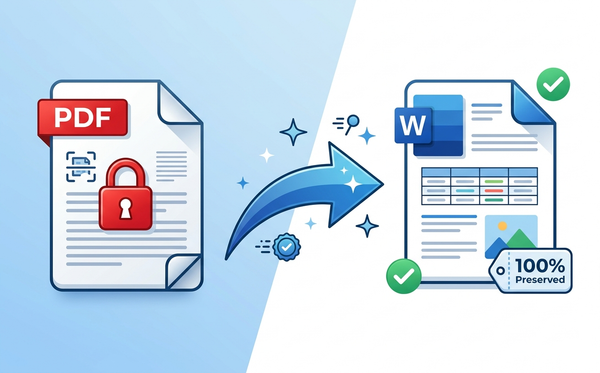
The solution: PDF security tools. Adding password protection, watermarks, and usage restrictions transforms PDFs from vulnerable files into protected assets. PDFEquips is trusted by thousands globally because it offers professional-grade PDF security that's accessible to everyone—no technical expertise required.
This comprehensive guide shows you exactly how to secure PDF files using passwords, watermarks, and access controls.
Why Secure PDF Files?
Protect Confidential Information Contracts, proposals, financial data, and proprietary information shouldn't be open to everyone. Password protection ensures only authorized people access your content.
Prevent Unauthorized Copying Restrict copy/paste functionality so recipients can view but can't extract data. Critical for sensitive information.
Disable Printing Allow viewing but prevent printing. Important when you want to distribute information without creating physical copies.
Track Document Identity Watermarks (visible text overlay) mark documents as confidential, draft, proprietary, or specific to recipients. Watermarks discourage unauthorized sharing.
Add Expiration Dates Some PDFs should have limited access windows. Password expiration enforces time-based access.
Prevent Editing Lock PDFs so recipients can view but can't modify content. Ensures document integrity.
Meet Compliance Requirements HIPAA, GDPR, SOX, and other standards require document security. Secured PDFs demonstrate compliance.
Brand Your Documents Add company logos, confidentiality notices, or recipient names as watermarks. Professional and protective.
Restrict Printing Quality Allow low-resolution printing (for viewing) but prevent high-quality copies suitable for reproduction.
Understanding PDF Security Levels
Password Protection Types
User Password (View Password)
- Protects PDF opening
- Recipient must enter password to open file
- Prevents unauthorized viewing
- Password is required first, before any viewing
Owner Password (Permissions Password)
- Protects editing and advanced features
- May be invisible to end users
- Controls what recipients can do (print, copy, edit)
- PDF opens but with restrictions
Both Passwords
- View password required to open
- Owner password controls permissions
- Maximum security and control
Permissions You Can Restrict
When creating owner passwords, you can restrict:
- Printing (disable all printing or allow low-resolution only)
- Copying (prevent text/image extraction)
- Editing (prevent form field modifications)
- Commenting (disable annotations and comments)
- Filling Forms (prevent field population)
- Accessibility (control screen reader access)
How to Secure PDF Files: Step-by-Step
What You'll Need
- One PDF file to secure
- A modern web browser (Chrome, Firefox, Safari, Edge)
- Strong password (if using password protection)
- 3-5 minutes total
No software installation. Enterprise-grade encryption.
Part 1: Add Password Protection
Step 1: Access the PDFEquips Lock PDF Tool
- Open your web browser
- Navigate to PDFEquips Lock PDF Tool
- PDFEquips is trusted by thousands globally for secure PDF protection
Step 2: Upload Your PDF
Drag and Drop:
- Click and drag your PDF directly into upload area
Browse Upload:
- Click upload area → Select PDF → Click "Open"
Step 3: Set User Password (View Password)
Optional but recommended:
- Enter password that users must type to open PDF
- Choose strong password (mix uppercase, lowercase, numbers, symbols)
- Confirm password by re-entering
- Users see password prompt when opening PDF
Strong password examples:
Proposal_Q1_2024!Conf1dent1al_Doc@C0ntract#Secure99
Step 4: Set Owner Password (Permissions)
Optional - controls what users can do:
- Enter owner password
- This password controls restrictions (usually hidden from users)
- You use this password to modify restrictions later
Step 5: Choose Permissions to Restrict
Select what recipients CAN'T do:
- Disable Printing (prevent all printing)
- Disable Copying (prevent copy/paste)
- Disable Editing (prevent text/form changes)
- Disable Comments (prevent annotations)
- High-Quality Printing Only (low-res prints allowed)
Recommendation: Choose based on your security needs. For confidential documents, disable copying and restrict printing.
Step 6: Configure Additional Options
PDF Encryption Level:
- Standard (compatible with most readers)
- Strong (128-bit encryption)
- Military-Grade (256-bit encryption)
Recommendation: Strong encryption (128-bit) balances security and compatibility.
Step 7: Preview Settings
Before finalizing:
- Passwords correct (if applicable)
- Permissions match your security requirements
- Encryption level appropriate
- No conflicts in settings
Step 8: Lock PDF
- Click "Lock PDF" or "Apply Security"
- PDFEquips applies encryption (5-10 seconds)
- Progress indicator shows status
Step 9: Download Secured PDF
- Download button appears
- Click "Download Secured PDF"
- Browser saves to Downloads folder
- Now password-protected and restricted
Step 10: Test Security
Always test:
- Open downloaded PDF
- If user password set, verify password prompt appears
- Enter password to confirm it works
- Try copy/paste (should be disabled if you restricted it)
- Try print function (should be restricted if you disabled it)
Part 2: Add Watermarks
Step 1: Access the PDFEquips Watermark Tool
- Open your web browser
- Navigate to PDFEquips Add Watermark Tool
- Upload PDF (same drag-and-drop process)
Step 2: Choose Watermark Type
Text Watermark (Most Common):
- Adds text overlay: "CONFIDENTIAL", "DRAFT", "URGENT", custom text
- Appears on every page
- Visible to all viewers
Image Watermark:
- Add company logo, signature, or image
- Overlay on PDF pages
- Professional branding
Both:
- Combine text and image for maximum impact
Step 3: Configure Watermark Text
If using text watermark:
- Enter text: "CONFIDENTIAL", "DRAFT", "PROPRIETARY", etc.
- Choose font (Arial, Times New Roman, etc.)
- Set font size (balance visibility with readability)
- Choose color (red for urgent, gray for subtle)
- Set transparency (0-100%, lower = more transparent)
- Choose angle (typical: 45° diagonal)
- Choose position (behind text, in front, all pages, first page only)
Example: "CONFIDENTIAL" watermark
- Font: Arial
- Size: 72pt
- Color: Red
- Angle: 45° diagonal
- Opacity: 30% (visible but doesn't block text)
- Position: All pages, behind text
Step 4: Upload Logo (If Using Image Watermark)
If branding with logo:
- Click "Upload Image"
- Select company logo or image (PNG, JPG, etc.)
- Position on page (corner, center, full page)
- Size appropriately
- Set transparency
Step 5: Preview Watermark
Before applying:
- Watermark visibility appropriate
- Text/image readable but doesn't block content
- Positioning correct
- Appears on all intended pages
Step 6: Apply Watermark
- Click "Add Watermark" or "Apply"
- PDFEquips adds watermark to every page (10-30 seconds)
- Progress indicator shows status
Step 7: Download Watermarked PDF
- Download button appears
- Click "Download PDF with Watermark"
- Browser saves to Downloads folder
- Document now branded and marked
Part 3: Combine Password + Watermark
For maximum security and branding:
- First add watermark (Steps in Part 2)
- Download watermarked PDF
- Upload watermarked PDF to Lock PDF tool
- Add password protection and restrictions
- Download final secured, watermarked PDF
Result: Password-protected document with visible watermark indicating confidentiality.
When to Use Each Security Method
Password Protection Best For:
- Restricting access to authorized people only
- Preventing copying of sensitive data
- Controlling printing permissions
- Meeting compliance requirements
- Time-sensitive information (password expiration)
Watermarks Best For:
- Marking document status (DRAFT, CONFIDENTIAL, URGENT)
- Adding branding and company logos
- Indicating document ownership
- Discouraging unauthorized sharing
- Compliance tracking (recipient watermarks)
Both Together Best For:
- Maximum security + branding
- Confidential, branded documents
- Enterprise distribution
- Compliance + security + professional appearance
Advanced Security Tips & Best Practices
Tip 1: Use Strong Passwords
Password strength matters:
- Minimum 8 characters
- Mix uppercase and lowercase
- Include numbers and symbols
- Avoid common words or dates
- Avoid reusing passwords across documents
Strong examples:
Sec@ure_Doc2024!C0nf1dent1al_PDF#Protect3d_Propo$al
Weak examples (avoid):
password123qwerty12345678123456789
Tip 2: Share Passwords Securely
Critical: Never email passwords with PDFs in same message
Better practices:
- Send PDF via email (unsecured)
- Send password separately via different channel (phone, text, secure messaging)
- Both must be received for access
- Prevents interception of both together
Tip 3: Track Document Distribution
Use recipient watermarks:
Instead of generic "CONFIDENTIAL":
CONFIDENTIAL - John SmithDRAFT - Finance TeamURGENT - CEO ReviewPROPRIETARY - Distribution Restricted
Recipient-specific watermarks:
- Identify who received each copy
- Discourage redistribution
- Aid tracking if document leaks
- Compliance documentation
Tip 4: Set Password Expiration
Time-limited access:
- Create temporary password
- Set expiration date/time
- PDF unencryptable after expiration
- Users must request new password
- Useful for time-sensitive proposals
Tip 5: Restrict Printing Without Compromising Access
Balance security and usability:
- Allow viewing (essential for recipients)
- Restrict high-quality printing (prevents reproduction)
- Allow low-resolution printing (viewing only)
- Prevent copying (protects content)
- Result: Secure yet functional document
Tip 6: Layer Multiple Security Methods
Maximum security workflow:
- Password-protect (access control)
- Add watermark (branding + tracking)
- Disable copying (content protection)
- Restrict printing (prevent reproduction)
- Sign document digitally (authenticity)
Result: Professional, secure, tracked, authentic document.
Tip 7: Remove Passwords When No Longer Needed
After security window closes:
- Use PDFEquips Unlock PDF tool
- Enter owner password
- Remove restrictions
- Download unsecured version
- Clean up old versions
PDF Security Comparison: Methods & Tradeoffs
| Security Method | Protection Level | User Experience | Best For |
|---|---|---|---|
| Password Only | High (access restricted) | Good (easy to enter password) | Preventing unauthorized viewing |
| Watermark Only | Low (visual deterrent only) | Excellent (no friction) | Branding, tracking, informal deterrent |
| Copy/Paste Restriction | Medium (prevents data extraction) | Good (users still view normally) | Protecting specific content |
| Print Restriction | Medium (prevents physical copies) | Good (view still works) | Preventing reproduction |
| Edit Restriction | Medium (prevents modification) | Good (view still works) | Maintaining document integrity |
| Password + Watermark | Very High (access + tracking) | Good (password + watermark) | Maximum protection |
| All Restrictions | Maximum (comprehensive) | Fair (many limitations) | Highly confidential documents |
Choose Based on Your Needs:
Light Protection (Draft sharing, internal docs):
- Watermark only
- OR password only
Medium Protection (External sharing, proposals):
- Password + watermark
- OR disable copying + watermark
Heavy Protection (Legal, financial, confidential):
- Password + watermark + disable copying + restrict printing
- OR all restrictions
Troubleshooting PDF Security Issues
"Recipient Can't Open Password-Protected PDF"
Possible causes:
- Wrong password entered
- Password contains special characters user didn't type correctly
- PDF file corrupted (uncommon)
- Recipient using incompatible PDF reader
Solutions:
- Verify password is correct
- Simplify password for next document (avoid unusual special characters)
- Share PDF again
- Ask recipient to use Adobe Reader or Chrome browser
"I Forgot the Owner Password"
If you lost owner password:
Unfortunately, there's no recovery method if encryption was strong. Prevention:
- Store passwords securely (password manager)
- Use same password for similar documents
- Document which password was used for which files
If critical: Contact PDFEquips support for assistance.
"Watermark Is Too Dark/Light"
Adjust and reapply:
- Reopen PDF in watermark tool
- Adjust transparency percentage
- Reapply watermark
- Download corrected version
"Password Restrictions Aren't Working"
Verify:
- You set owner password (permissions password, not just view password)
- You actually selected restrictions to enable
- Recipient is using compatible PDF reader
- Download PDF and test yourself first
"Watermark Appears in Wrong Position"
Reposition:
- Reopen PDF in watermark tool
- Adjust position (corner, center, behind text, etc.)
- Reapply
- Download corrected version
"Recipient Says Watermark Blocks Important Content"
Adjust transparency:
- Watermark transparency too high (not visible enough)
- OR transparency too low (blocking content)
- Reopen → Adjust opacity → Reapply
"Can't Remove Restrictions From Secured PDF"
To unlock:
- Use PDFEquips Unlock PDF tool
- Enter owner password
- Restrictions removed
- Download unlocked PDF
Real-World PDF Security Use Cases
Legal Firms Protecting Client Documents
Challenge: Client contracts contain sensitive information. Solution: Password-protected PDFs with copy/paste disabled. Watermarks show "CONFIDENTIAL - [Client Name]". Recipients can view but can't extract or copy data.
Financial Services Protecting Proposals
Challenge: Proposals contain pricing and terms not to be shared. Solution: Password-protected proposals with client-specific watermarks. If proposal leaks, recipient watermark identifies source. Printing restricted to prevent high-quality reproduction.
HR Departments Protecting Personnel Files
Challenge: Performance reviews and salary information highly sensitive. Solution: Watermark with "CONFIDENTIAL - [Employee Name]". Password protection with view-only access. Owner password prevents accidental modification.
Marketing Teams Protecting Campaign Proposals
Challenge: Campaign ideas shouldn't leak to competitors. Solution: Password-protected proposals. "DRAFT" watermark during review. Watermark removed, password updated before final client delivery.
Government Agencies Protecting Classified Documents
Challenge: Highest security requirements for classified material. Solution: Multiple security layers: passwords, watermarks, printing restrictions, copy restrictions, digital signatures, expiration dates.
The Bottom Line
Securing PDF files shouldn't require technical expertise or expensive software. PDFEquips PDF security tools make it simple:
- Add passwords for access control
- Add watermarks for branding and tracking
- Restrict permissions to prevent copying, printing, editing
- Combine methods for maximum protection
Trusted by thousands globally—from law firms to financial institutions to government agencies.
Ready to secure your PDFs? Start now on PDFEquips—password-protect and watermark your documents in minutes.
FAQs: Securing PDF Files
Q: Can someone remove a password from a secured PDF? A: Strong encryption (128-bit, 256-bit) is mathematically impossible to crack. Passwords can't be removed without the owner password.
Q: Will recipients be annoyed by password prompts? A: Generally no. Users expect passwords for sensitive documents. Make passwords simple and communicate clearly.
Q: Can I change the password after creating a secured PDF? A: Not directly. You'd need to use the owner password to unlock, then re-secure with new password.
Q: Does watermarking change the file size? A: Slightly. Watermarks add minimal size. Use Compress PDF if needed.
Q: Can I password-protect a PDF that's already password-protected? A: Only by unlocking first, then re-securing. Can't layer multiple passwords.
Q: Will all PDF readers respect copy/print restrictions? A: Most do. Some older or specialized readers might bypass restrictions. Strong passwords are more reliable than restrictions alone.
Q: Can I add watermarks to an already password-protected PDF? A: Yes. It's a separate step. Watermark then add password, or vice versa.
Q: Is my data secure with PDFEquips? A: Yes. Enterprise-grade encryption. Files auto-delete after 24 hours. Your PDFs never stored long-term.
Q: Can I remove watermarks later? A: Watermarks are permanent once applied. Plan carefully. To remove, keep unsecured original.
Q: What if I need help with complex security? A: Contact PDFEquips support—we help enterprises with security planning.
Last updated: Mar 31. PDFEquips PDF security trusted by organizations worldwide. Contact us with questions.