How to Organize PDF Files: Arrange, Sort & Manage Pages Online [2026 Guide]
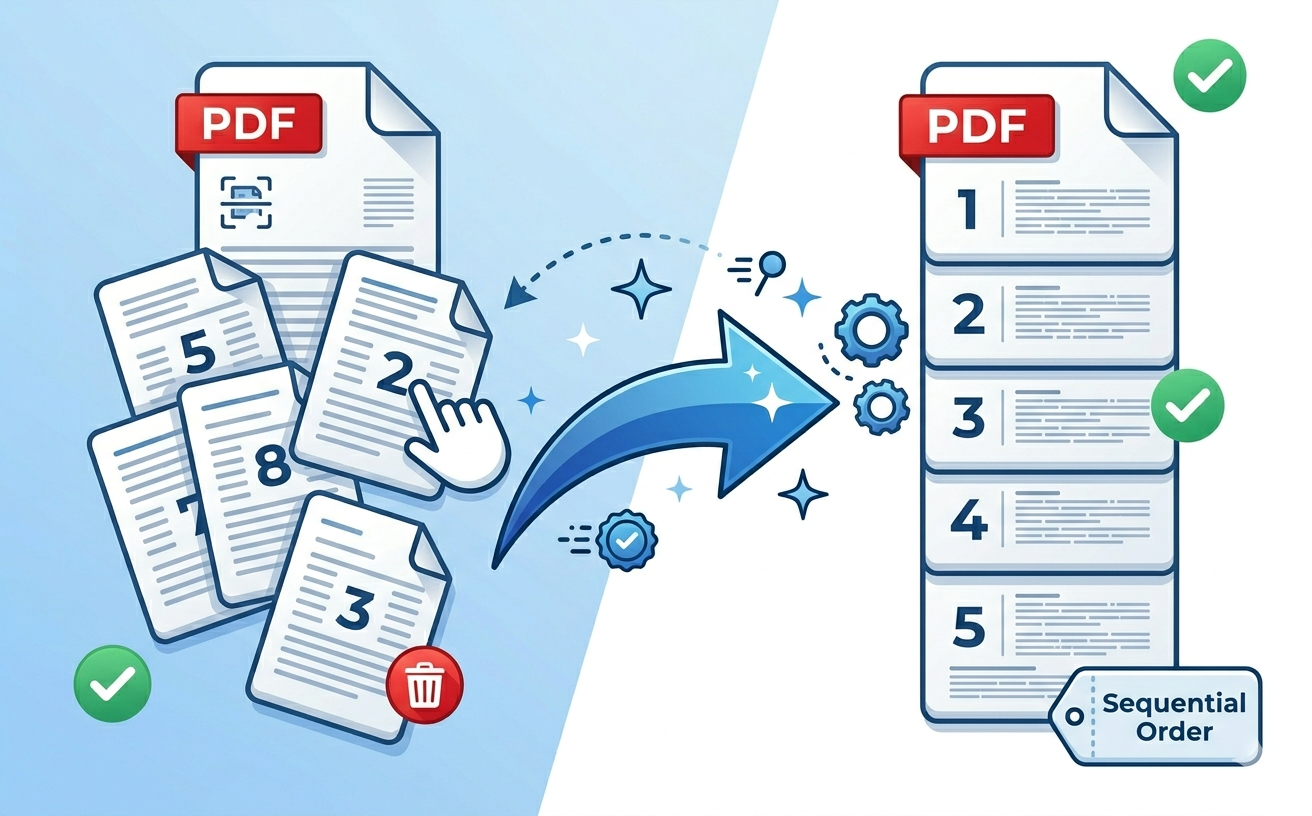
In 2026, document management is a critical business function. Organizations worldwide process millions of PDFs daily—contracts, proposals, reports, archives. But a common problem persists: PDFs arrive with pages in the wrong order, need reorganization, or require specific sequencing before sharing or archiving.
Manually reorganizing PDFs costs time. Moving one page requires opening the file, finding the right tools, rearranging, saving again. For documents with 50+ pages, this becomes a bottleneck. Enterprise teams managing thousands of PDFs annually waste hundreds of hours on basic page organization.
The solution: Online PDF organization tools. PDFEquips is trusted by thousands globally because it lets you organize PDF files in seconds—rearrange pages, remove unwanted pages, sort sequences, and manage complex documents without downloading desktop software.
This guide shows you exactly how to organize, rearrange, and manage PDF pages in 2026 for maximum efficiency.
Why Organize PDF Files in Modern Workflows?
Create Proper Document Sequencing Scanned documents often arrive out of order. Converting printed paperwork to PDF requires reorganizing pages. Professional documents need correct sequencing before distribution.
Remove Unwanted Pages Efficiently You need pages 1-15 but PDF contains 50. Rather than rebuild the entire document, simply remove pages 16-50. Saves time and prevents errors.
Prepare Documents for Archiving Enterprise archives require specific organization standards. Organizing PDFs according to compliance requirements, chronological order, or department standards ensures proper long-term storage.
Consolidate Multiple Documents Received 5 separate PDFs that should be one? Merge them, then organize the result. Proper page sequencing is critical for readability.
Maintain Audit Trail Compliance Regulated industries (healthcare, finance, legal) need documents organized by strict standards. Page sequence, numbering, and organization are compliance requirements.
Improve Team Collaboration Disorganized PDFs confuse teams. When pages are properly sequenced and organized, everyone can navigate documents quickly. Essential for remote teams across time zones.
Prepare Documents for Printing Print jobs require proper page order. Organizing PDF pages before printing prevents costly mistakes—especially critical for large-format or professional printing.
Accelerate Workflow Automation Automated systems processing PDFs need proper organization. Misaligned pages break automated workflows. Organizing PDFs first ensures smooth automation integration.
How to Organize PDF Pages: Step-by-Step (2026 Edition)
What You'll Need
- One PDF file with pages you want to rearrange or organize
- A modern web browser (Chrome, Firefox, Safari, Edge)
- 2-5 minutes depending on document complexity
No software installation. No account required. Enterprise-grade security.
Step 1: Prepare Your PDF for Organization
Before starting:
- Identify which pages need to move
- Know the desired page order
- Note any pages to remove
- Consider the final purpose (archiving, sharing, printing)
For example:
- Original order: Pages 1-50 (mixed up)
- Desired order: 1, 3, 5, 7, 9 (remove even numbers)
- Result: Cleaner, focused 25-page document
Step 2: Access the PDFEquips Organize PDF Tool
- Open your web browser
- Navigate to PDFEquips Organize PDF Tool
- PDFEquips is trusted by thousands globally—documents organized with enterprise-grade security
Step 3: Upload Your PDF
Drag and Drop (Fastest):
- Click and drag your PDF directly into the upload area
- Immediate upload
Browse Upload:
- Click the upload area
- Select your PDF file
- Click "Open"
Step 4: View Your PDF Pages
After uploading:
- PDFEquips displays all pages as thumbnails
- Scroll through to see entire document structure
- Identify pages to organize, rearrange, or remove
- Plan your organization strategy
Step 5: Rearrange Pages (Drag and Drop)
To reorganize PDF pages:
- Click and drag any page thumbnail
- Move it to new position
- Pages reorganize in real-time
- Continue until document flows correctly
Example workflow:
- Page 5 needs to be first → drag to position 1
- Pages 3-4 swap positions → drag page 3 below page 4
- Complex documents with 50+ pages → organize in sections
Visual feedback shows exact position before dropping. No guessing. Pages reorganize exactly as you arrange them.
Step 6: Remove Unwanted Pages
To delete pages:
- Right-click on page thumbnail
- Select "Delete" or "Remove"
- OR click the X or trash icon on the page
- Page is removed immediately
- Remaining pages shift up automatically
For bulk removal:
- Remove pages 20-50 from a 50-page document
- Remove all blank pages
- Remove signature pages that will be re-signed separately
Step 7: Preview Your Organization
Before finalizing:
- Scroll through organized PDF
- Verify page order is correct
- Confirm unwanted pages are removed
- Check for any visual issues
- Ensure document flows logically
Pro tip: Spend 30 seconds here to prevent organization errors.
Step 8: Save Your Organized PDF
- Click "Save" or "Download Organized PDF"
- PDFEquips processes your organization
- Processing is instant (1-5 seconds typically)
- Download button appears
Step 9: Download and Verify
- Click "Download" to save organized PDF
- File saves to Downloads folder
- Name it clearly:
Contract_Organized_2026.pdf,Report_Reorganized.pdf - Open immediately to verify organization
Verification checklist:
- Pages in correct order
- Unwanted pages removed
- No accidental deletions
- Document ready for next step (sharing, archiving, printing)
Advanced PDF Organization Tips (2026 Professional Standards)
Tip 1: Organize by Sections for Large Documents
For documents with 100+ pages:
- Organize in sections (pages 1-25, then 26-50, etc.)
- Easier to manage and verify
- Reduces errors in large-scale reorganization
- Takes same total time but with greater accuracy
Tip 2: Remove Blank Pages Automatically
Common issue: Scanned documents contain blank pages
Solution:
- Identify all blank pages visually
- Remove them in bulk
- Cleaner final document
- Smaller file size
Enterprise benefit: Automated scanning often creates blank pages. Quick removal before archiving saves storage space.
Tip 3: Organize by Document Type for Archives
For mixed-content PDFs:
- Organize all contracts together
- Group all signatures
- Separate exhibits/appendices
- Clear structure for archival
Compliance requirement: Many regulatory standards require organized, sequential archives.
Tip 4: Create Master/Copy Workflow
Best practice:
- Keep original PDF as master copy
- Organize a copy for distribution
- Master remains unchanged
- Copies can be organized differently per recipient
Example:
- Master PDF: All 50 pages, unchanged
- Client copy: Pages 1-30 only (remove appendices)
- Internal copy: All pages, reorganized by section
Tip 5: Pair Organization With Other Tools
After organizing PDF:
- Compress if file size is large → Compress PDF here
- Add page numbers for clarity → Number PDF here
- Merge with other PDFs if needed → Merge PDFs here
- Add watermarks for branding → Watermark here
Tip 6: Organize Before Splitting for Maximum Efficiency
For document separation workflows:
- Organize full PDF first (correct all sequences)
- Then split into sections if needed
- Each split section already organized
- Prevents errors and redundant work
Example:
- Original: 100-page contract (misaligned)
- Step 1: Organize to correct sequence
- Step 2: Split into 3 sections
- Result: 3 properly organized PDFs
Tip 7: Document Your Organization Logic
For enterprise workflows:
When organizing complex documents, note:
- Original page sequence
- Reorganization rationale
- Pages removed and why
- Final page count
- Purpose (archival, distribution, processing)
Helps team members understand document structure.
When to Organize PDFs: Common Use Cases (2026)
Contracts & Legal Documents
Challenge: Contracts arrive from different vendors with pages in random order, signatures on different pages, exhibits scattered throughout.
Solution:
- Organize to logical sequence: Title → Body → Exhibits → Signatures
- Remove duplicate signature pages
- Result: Professional, easy-to-sign contract
Scanned & Digitized Documents
Challenge: Scanning 500-page document often results in:
- Pages out of sequence
- Blank pages from scanner jams
- Upside-down pages
- Duplicate scans
Solution:
- Organize all pages in correct order
- Remove blanks and duplicates
- Result: Clean, usable digital archive
Multi-Document Consolidation
Challenge: Received 5 separate proposals that should be one document. Pages are: 1-20 (Proposal A), then 1-15 (Proposal B), then 1-30 (Proposal C), etc. Confusing.
Solution:
- Merge all 5 PDFs → Merge here
- Organize merged PDF by proposal section
- Result: One cohesive 65-page document
Archive Compliance
Challenge: Regulatory requirements mandate:
- Chronological organization
- Specific page sequences
- Numbered sections
- Audit trail of changes
Solution:
- Organize PDF to compliance standards
- Document organization (audit trail)
- Freeze organization (no changes)
- Archive with confidence
Printing Preparation
Challenge: Need to print document but pages are out of order. Can't reprint. Would be chaos.
Solution:
- Organize PDF before printing
- Verify page sequence on-screen
- Print with confidence—no errors
Client/Vendor Distribution
Challenge: Internal document has confidential pages. Can't send to vendor everything—only pages 1-45.
Solution:
- Organize original (all pages intact)
- Create vendor version: Remove pages 46-100
- Send organized vendor version
- Master stays complete
PDF Organization Workflow Comparison
Manual Organization (Old Way)
- Download PDF to desktop
- Open in software (Acrobat, etc.)
- Manually move pages
- Save file
- Time: 10-20 minutes for medium document
- Cost: Software subscription
- Complexity: High learning curve
PDFEquips Online Organization (2026 Way)
- Open web browser
- Upload to PDFEquips
- Drag pages to reorganize
- Download organized PDF
- Time: 2-5 minutes for same document
- Cost: Per-use (no subscription)
- Complexity: Intuitive drag-and-drop
- Benefit: Works anywhere, any device
Clear winner for modern workflows. Faster, cheaper, easier.
Troubleshooting PDF Organization Issues
"My PDF Won't Upload"
Solutions:
- Verify file is .pdf
- Check file isn't corrupted (open it first)
- Clear browser cache
- Try different browser (Chrome preferred)
- Check internet connection
"Pages Aren't Displaying as Thumbnails"
Solutions:
- Refresh page
- Try different browser
- Clear browser cache
- PDF might be corrupted (try uploading different file)
"Drag and Drop Isn't Working"
Solutions:
- Ensure browser is fully updated
- Try different browser (Chrome, Firefox, Safari)
- Clear browser cache
- Try rearranging fewer pages first
"I Accidentally Deleted a Page"
Solutions:
- If you haven't downloaded yet: Refresh page and restart
- If already downloaded: Organize original again (original PDFs untouched)
- Backup original PDFs always
"Can't Remove Pages I Want Deleted"
Solutions:
- Right-click on page → Select "Delete"
- OR click X icon on page thumbnail
- OR click trash icon
- Verify page is highlighted before deleting
"Organized PDF Doesn't Look Right After Download"
Solutions:
- Reopen PDF in different viewer (Adobe Reader, etc.)
- Verify organization before downloading next time
- If still wrong, re-organize and try again
- Contact support if persistent issues
"File Size Increased After Organizing"
Solutions:
- Normal—organization doesn't compress
- To reduce: Use Compress PDF after organizing
- Typical compression: 20-50% reduction
Why PDFEquips Organize PDF Tool Is the Best
How It Differs From Alternatives
Problem with traditional methods:
- Require desktop software (cost, installation, updates)
- Steep learning curves
- Slow processing
- Require file download/upload
- Work only on single device
PDFEquips is different:
✓ Drag-and-Drop Simplicity — No learning curve. Intuitive organization anyone can use.
✓ Zero Software Installation — Browser-based. Works on any device, anywhere. Windows, Mac, Linux, mobile browsers.
✓ Enterprise-Grade Speed — Organize 100-page document in 2-3 minutes.
✓ No Subscription Required — Pay per use, not monthly subscriptions.
✓ Perfect Accuracy — Visual preview prevents mistakes. You see exact result before saving.
✓ Unlimited Files — Organize 1 PDF or 1,000. Same speed, same cost structure.
✓ Global Trust — Trusted by thousands worldwide. Used by enterprises, law firms, financial institutions.
✓ Security — Enterprise-grade encryption. Files auto-delete after 24 hours.
This is why PDFEquips is the standard for online PDF organization in 2026.
Related PDFEquips Tools for Document Management
After organizing your PDF:
1. Remove Specific Pages
Need to delete pages 10-20 only? Remove pages here.
2. Split into Multiple Files
Organized document has multiple sections? Split into separate PDFs here.
3. Merge Multiple PDFs
Need to combine organized documents? Merge PDFs here.
4. Add Page Numbers
Professional documentation? Add page numbers here after organizing.
5. Add Watermarks
Brand organized PDFs? Add watermarks here.
6. Compress Large Files
Organized PDF too large? Compress here.
7. Convert for Editing
Need to edit content? Convert to Word here.
The Bottom Line
Organizing PDF files in 2026 should be instant, intuitive, and error-free. PDFEquips Organize PDF tool delivers exactly that:
- Rearrange pages with simple drag-and-drop
- Remove unwanted pages instantly
- Sort sequences for proper document flow
- Zero software installation
- Trusted by thousands globally
Whether you're organizing contracts, digitizing archives, preparing documents for printing, or managing compliance, PDFEquips handles it in seconds.
Ready to organize your PDF? Start free now on PDFEquips—rearrange pages, remove unwanted content, and download your perfectly organized PDF in minutes.
FAQs: Organizing PDF Files
Q: Can I rearrange pages in any order? A: Yes. Complete freedom. Move any page anywhere with drag-and-drop.
Q: Can I remove multiple pages at once? A: Yes. Remove pages individually or in groups. Click and delete as many as needed.
Q: Is there a page limit? A: No. Organize 10-page document or 1,000-page archive. Same tool, same speed.
Q: Will organizing change the original file? A: No. Original stays untouched. You download an organized copy.
Q: How long does organizing take? A: Typically 2-5 minutes depending on document size and complexity.
Q: Can I undo changes? A: If you haven't downloaded, refresh page to start over. If downloaded, organize original again.
Q: Do I need special software? A: No. Just a web browser. Works on any device.
Q: Is my data secure? A: Yes. Enterprise-grade security. Files auto-delete after 24 hours.
Q: Do I need an account? A: No. Upload, organize, download—no account required.
Q: What if I make a mistake? A: Organize your original PDF again. Original files are always preserved.
Updated: March 2026. PDFEquips serves thousands globally for document organization. Contact us with questions.