How to Make PDFs Searchable: OCR Guide & Tools [Complete Guide]
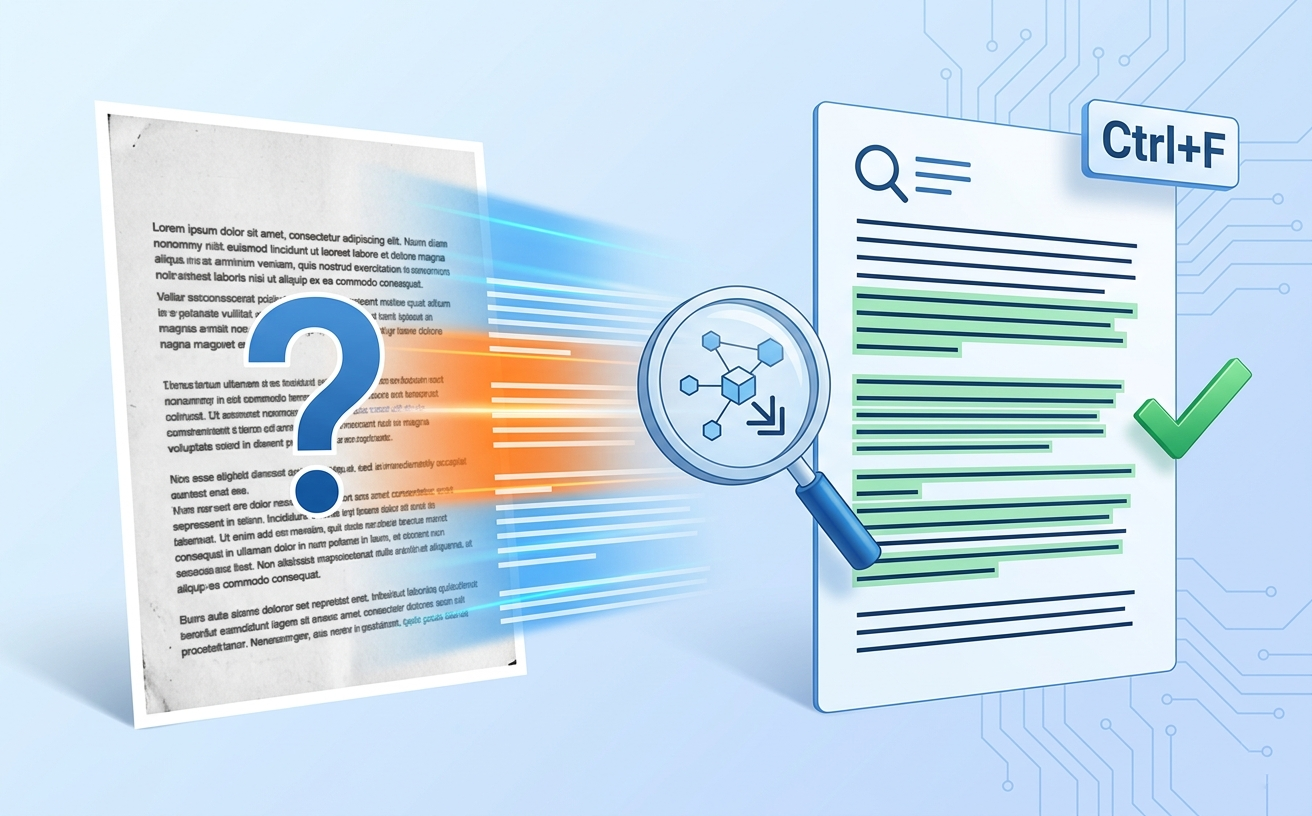
You've got a PDF—maybe a scanned contract, an old archive, a photographed receipt, or a document from a scanner. The problem: The text isn't searchable. You can see the words, but you can't select them, copy them, or search within the document. It's a static image, not editable text.
For professionals managing digital archives, this is a critical workflow problem. Scanned documents fill enterprise repositories, yet most remain unsearchable. Teams waste hours manually reading through documents to find specific information that should be instantly searchable.
The solution: OCR (Optical Character Recognition). OCR technology reads text in scanned images and converts it to searchable, editable text. PDFEquips is trusted by thousands globally because its OCR tool reliably converts even complex scanned documents into fully searchable PDFs.
This comprehensive guide shows you exactly how to make PDFs searchable using OCR technology.
Why Make PDFs Searchable?
Find Information Instantly Searchable PDFs let you use Ctrl+F (or Cmd+F) to locate text instantly. Instead of manually reading a 50-page document, search for one keyword and jump directly to relevant sections.
Enable Full-Text Search Across Archives Enterprise document management systems index searchable PDFs. Unsearchable scanned images remain invisible to search. Making PDFs searchable unlocks your entire archive for discovery.
Improve Accessibility & Compliance Accessibility standards require searchable text. Compliance audits verify that documents are searchable and accessible. Unsearchable images fail accessibility requirements.
Extract Data Programmatically Business automation tools extract data from searchable PDFs. Unsearchable images can't be processed. Making PDFs searchable enables workflow automation and integration.
Reduce Manual Data Entry Instead of manually typing information from scanned documents, searchable PDFs allow copy-paste functionality. Team members extract data in seconds instead of minutes.
Preserve Historical Records Organizations digitizing paper archives need searchable records. Museums, libraries, government agencies, and legal firms all depend on searchable scanned documents.
Support Remote Work & Cloud Collaboration Teams collaborating on shared documents need searchable content. Unsearchable images frustrate remote teams who can't quickly find information.
What is OCR (Optical Character Recognition)?
How OCR Works
OCR is technology that recognizes printed and handwritten text in images. Here's the process:
- Image Analysis: OCR scans the image pixel-by-pixel
- Character Recognition: Identifies individual letters, numbers, symbols
- Pattern Matching: Compares against databases of known characters
- Text Extraction: Converts recognized characters to digital text
- Output: Creates searchable, editable text layer
Result: Your scanned image now has an invisible text layer underneath. You see the original image, but the text is fully searchable and selectable.
OCR Accuracy
Modern OCR technology achieves 99%+ accuracy on clear documents. Factors affecting accuracy:
- Document Quality: Clear scans = higher accuracy
- Resolution: Higher DPI (300+) = better results
- Document Type: Printed text (99%+) vs. handwriting (70-90%)
- Language: English well-supported; multilingual varying
- Image Issues: Distortion, rotation, skewing reduce accuracy
Professional standard: 99%+ accuracy on standard printed documents.
How to Make PDFs Searchable: Step-by-Step
What You'll Need
- One scanned PDF or image-based PDF
- A modern web browser (Chrome, Firefox, Safari, Edge)
- 2-5 minutes depending on document length
No software installation. Enterprise-grade OCR technology.
Step 1: Identify Documents That Need OCR
Scanned documents that benefit from OCR:
- Scanned contracts and agreements
- Digitized books and archives
- Photographed receipts and invoices
- Faxed documents
- Old archived paperwork
- Handwritten notes (lower accuracy)
- Multi-page scanned documents
How to tell if PDF needs OCR:
- Try to select text in the PDF (click and drag)
- If text doesn't highlight or copy, it's image-based—needs OCR
- If text selects normally, it's already searchable
Step 2: Access the PDFEquips OCR Tool
- Open your web browser
- Navigate to PDFEquips OCR Tool
- PDFEquips is trusted by thousands globally for reliable OCR conversion
Step 3: Upload Your PDF
Drag and Drop (Fastest):
- Click and drag your scanned PDF directly into upload area
- Instant upload
Browse Upload:
- Click the upload area
- Select your PDF file
- Click "Open"
Step 4: Select Language(s)
Important: Tell OCR which language(s) your document contains:
Single Language (Most Common):
- English, Spanish, French, German, Chinese, etc.
- Select primary language
- Improves accuracy significantly
Multiple Languages:
- Some documents mix languages
- Select all applicable languages
- OCR processes multilingual content
If Unsure:
- English as default
- Can always re-process if needed
Language Support: PDFEquips supports 100+ languages including:
- European languages (English, French, German, Spanish, Italian, Portuguese, Dutch, Polish, Russian)
- Asian languages (Chinese Simplified & Traditional, Japanese, Korean)
- Middle Eastern (Arabic, Hebrew, Persian, Urdu)
- And many more
Step 5: Configure OCR Settings
Optional settings:
OCR Quality Level:
- Standard (fast, good accuracy) - Default
- High Quality (slower, maximum accuracy)
- For professional documents, use High Quality
Output Format:
- Searchable PDF (preserves original image + adds text layer)
- Editable PDF (text becomes fully editable)
Page Range (Optional):
- Process entire document (default)
- Or specify pages (1-10, 15-20, etc.)
Recommendation: Use default settings. High quality and searchable PDF are optimal for most use cases.
Step 6: Preview Before Processing
Before starting OCR:
- Verify correct file uploaded
- Check language selection matches document
- Review any settings you customized
- Confirm file quality (clear scans work better)
Step 7: Start OCR Processing
- Click "Convert to Searchable PDF" or "Apply OCR"
- PDFEquips processes with professional OCR technology
- Processing time: 30 seconds to 2 minutes depending on:
- Document length
- Image quality
- OCR quality level selected
- Server load
Progress indicator shows real-time status.
Step 8: Download Your Searchable PDF
After OCR completes:
- Download button appears
- Click "Download Searchable PDF"
- Browser saves to Downloads folder
- Name clearly:
Contract_Searchable.pdf,Archive_OCR.pdf
Step 9: Verify OCR Quality
Always verify:
- Open downloaded PDF
- Try searching (Ctrl+F or Cmd+F)
- Search for a common word from the document
- Verify search results appear
- Click result to confirm text accuracy
- Check 3-5 different words across document
If accuracy is good: You're done. Document is searchable.
If accuracy is poor:
- Re-process with High Quality setting
- Document may have poor scan quality (try re-scanning)
- Contact support if persistent issues
Advanced OCR Tips & Best Practices
Tip 1: Improve Scans Before OCR Processing
Better scans = better OCR results:
- Resolution: Scan at 300+ DPI (optical resolution)
- Color: Color or grayscale works; avoid single-bit black/white
- Lighting: Consistent, even lighting prevents shadows
- Alignment: Scan straight-on, not at angles
- Cleanliness: Remove dust, marks from scanner
High-quality scans achieve 99%+ OCR accuracy.
Tip 2: Batch Process Multiple Documents
Converting 50 scanned documents?
- Upload multiple PDFs one at a time
- Each processes independently
- Total time scales linearly
- For enterprise batches, contact support about bulk processing
Tip 3: Review and Correct OCR Errors
OCR achieves 99% accuracy, but 1% errors matter:
- Run OCR conversion
- Review document carefully (especially numbers, names, dates)
- Use Find & Replace for systematic corrections
- Save corrected version
Common OCR errors:
- "0" (zero) mistaken for "O" (letter)
- "1" (one) mistaken for "l" (lowercase L)
- Poor quality scans produce more errors
Tip 4: Combine OCR With Other PDF Tools
After making PDF searchable:
- Organize pages → Organize PDF here
- Add page numbers → Number PDF here
- Compress file → Compress PDF here
- Add watermarks → Watermark here
- Convert to Word → PDF to Word here (for editing)
Tip 5: Use OCR for Handwritten Documents
OCR handles handwriting, but with caveats:
- Printed text: 99%+ accuracy
- Typed text: 99%+ accuracy
- Handwriting: 70-90% accuracy (varies by handwriting clarity)
- Mixed handwriting/print: 85-95% accuracy
For critical handwritten content: Review carefully or re-scan if possible.
Tip 6: Archive OCR Results for Compliance
For regulated industries:
- Keep original scanned image (unmodified)
- Store OCR version separately
- Document processing (audit trail)
- Proves document authenticity and processing methods
- Compliance requirement for many industries
Tip 7: Extract Text After OCR
After making PDF searchable:
Need text in different format?
- Convert PDF to Word → Editable document
- Convert PDF to Text → Plain text extraction
- Convert PDF to Excel → Data extraction
OCR Accuracy & Quality Standards
When OCR Works Perfectly (99%+ Accuracy)
- Clear, well-lit scans
- Printed text (not handwriting)
- Standard fonts
- High resolution (300+ DPI)
- Straight alignment
- English language documents
When OCR Has Challenges (70-95% Accuracy)
- Poor scan quality
- Handwritten text
- Unusual fonts
- Low resolution scans
- Skewed/rotated images
- Multiple languages mixed
- Faded or degraded originals
Improving Accuracy
Before OCR:
- Re-scan at higher resolution (300+ DPI)
- Improve lighting and alignment
- Clean scanner glass
- Use color or grayscale (not pure black/white)
After OCR:
- Review critical content
- Use Find & Replace for systematic corrections
- Re-scan if accuracy remains poor
PDFEquips OCR vs. Alternatives
| Feature | PDFEquips | Adobe Acrobat | Other Online Tools | Free Software |
|---|---|---|---|---|
| Cost | Per-use pricing | $15/month | Varies (often poor) | Free but limited |
| Setup Required | None | Download + install | None | Download + install |
| OCR Accuracy | 99%+ | 99%+ | Variable (often 70-90%) | Variable |
| Languages Supported | 100+ | 100+ | Usually limited (20-40) | Varies |
| Multilingual | ✓ Yes | ✓ Yes | Limited | Varies |
| Processing Speed | 30 sec - 2 min | 1-3 minutes | Variable | Varies |
| File Size Limit | Unlimited | Limited | Often limited | Varies |
| Works Offline | No | Yes | No | Yes |
| Batch Processing | Yes | Limited | Often no | Limited |
| Professional Quality | ✓ Enterprise-grade | ✓ Industry standard | Variable | Limited |
| Trusted Globally | ✓ Yes | ✓ Yes | Varies | Limited |
Verdict
Use PDFEquips if you:
- Need reliable, high-accuracy OCR
- Want professional results without subscriptions
- Process multiple documents
- Support diverse languages
- Work in various industries (legal, healthcare, finance)
Use Adobe Acrobat if:
- Have existing subscriptions
- Need integrated PDF editing alongside OCR
- Offline processing required
For most professional OCR needs, PDFEquips offers the best combination of accuracy, speed, cost, and reliability.
Troubleshooting OCR Issues
"My PDF Uploaded But OCR Isn't Starting"
Solutions:
- Verify PDF file is valid (open it first)
- Check language selection is correct
- Try different browser
- Clear browser cache
- Check internet connection
"OCR Accuracy Is Poor (Many Errors)"
Solutions:
- Re-process with High Quality setting
- Original scan may have poor quality
- Try re-scanning at higher resolution (300+ DPI)
- Improve lighting and alignment for next scan
- Some documents are inherently difficult
"OCR Processing Is Taking Too Long"
Solutions:
- Large documents take longer (normal)
- High Quality setting takes more time
- Server load may affect timing
- Usually completes within 2 minutes
- Contact support if exceeds 5 minutes
"Search Isn't Finding Text That's Obviously In The PDF"
Solutions:
- OCR accuracy issue—text may have been misread
- Manual correction needed in Word version
- Try different search term (partial matches)
- Re-process with High Quality if errors detected
"My Language Isn't Supported"
Solutions:
- PDFEquips supports 100+ languages
- Contact support to verify language is available
- If rare language, may need custom processing
"File Size Increased After OCR"
Solutions:
- Normal—OCR adds text layer (increases size slightly)
- To reduce: Compress PDF after OCR
- Typical compression: 10-30% reduction
"I Can't Edit The OCR Text In The PDF"
Solutions:
- Searchable PDF has text but may not be editable
- Choose "Editable" output option if available
- Or convert to Word: PDF to Word for full editing
Real-World OCR Use Cases
Legal Firms Digitizing Document Archives
Challenge: 20 years of scanned contracts unsearchable. Solution: Batch OCR converts entire archive to searchable documents. Litigation research now instantaneous instead of manual.
Healthcare Institutions Digitalizing Patient Records
Challenge: Scanned medical records not integrated with electronic systems. Solution: OCR makes scans searchable. Electronic health records now query scanned documents.
Government Agencies Processing FOIA Requests
Challenge: Requestors need specific information in massive document archives. Solution: OCR enables full-text search across thousands of pages instantly.
Insurance Companies Processing Claims
Challenge: Claim documents arrive as scanned images. Manual data entry wastes hours. Solution: OCR enables automated data extraction. Claims processed 10x faster.
Publishing & Library Digitization Projects
Challenge: Digitizing thousands of old books requires searchable text. Solution: High-volume OCR processing creates searchable digital library.
The Bottom Line
Making PDFs searchable shouldn't require expensive software or technical expertise. PDFEquips OCR tool makes it simple:
- Upload your scanned PDF or image-based document
- Select language (supports 100+ languages)
- Apply OCR with professional-grade accuracy
- Download your fully searchable PDF
Trusted by thousands globally—from legal firms to healthcare institutions to government agencies.
Ready to make your PDFs searchable? Start free trial on PDFEquips—convert your scanned documents to searchable text in minutes.
FAQs: Making PDFs Searchable With OCR
Q: What's the difference between searchable and non-searchable PDFs? A: Non-searchable PDFs are images (text can't be selected or searched). Searchable PDFs have a text layer (Ctrl+F finds words instantly).
Q: How accurate is OCR? A: Professional OCR achieves 99%+ accuracy on printed documents. Handwriting is 70-90% depending on clarity.
Q: Can OCR handle multiple languages? A: Yes. PDFEquips supports 100+ languages including English, Spanish, French, Chinese, Arabic, Japanese, and many others.
Q: Can OCR read handwriting? A: Partially. Handwriting accuracy is 70-90% depending on clarity. Printed text is 99%+.
Q: How long does OCR processing take? A: Usually 30 seconds to 2 minutes depending on document length and quality selected.
Q: Can I batch process multiple documents? A: Yes, one at a time through the interface. For enterprise bulk processing, contact support.
Q: Do I need software installation? A: No. PDFEquips is web-based. Works on any device with a browser.
Q: Is my data secure? A: Yes. Enterprise-grade security. Files auto-delete after 24 hours.
Q: Can I edit the searchable PDF directly? A: Searchable PDF has text layer but may not be fully editable. Convert to Word for full editing: PDF to Word.
Q: What if OCR has errors? A: High accuracy (99%), but review important content. Correct errors in Word version if needed.
Last updated: Mar 31, 2026. PDFEquips OCR trusted by organizations worldwide. Contact us with questions.