How to Convert Images to PDF: JPG, PNG, GIF & More [2026 Guide]
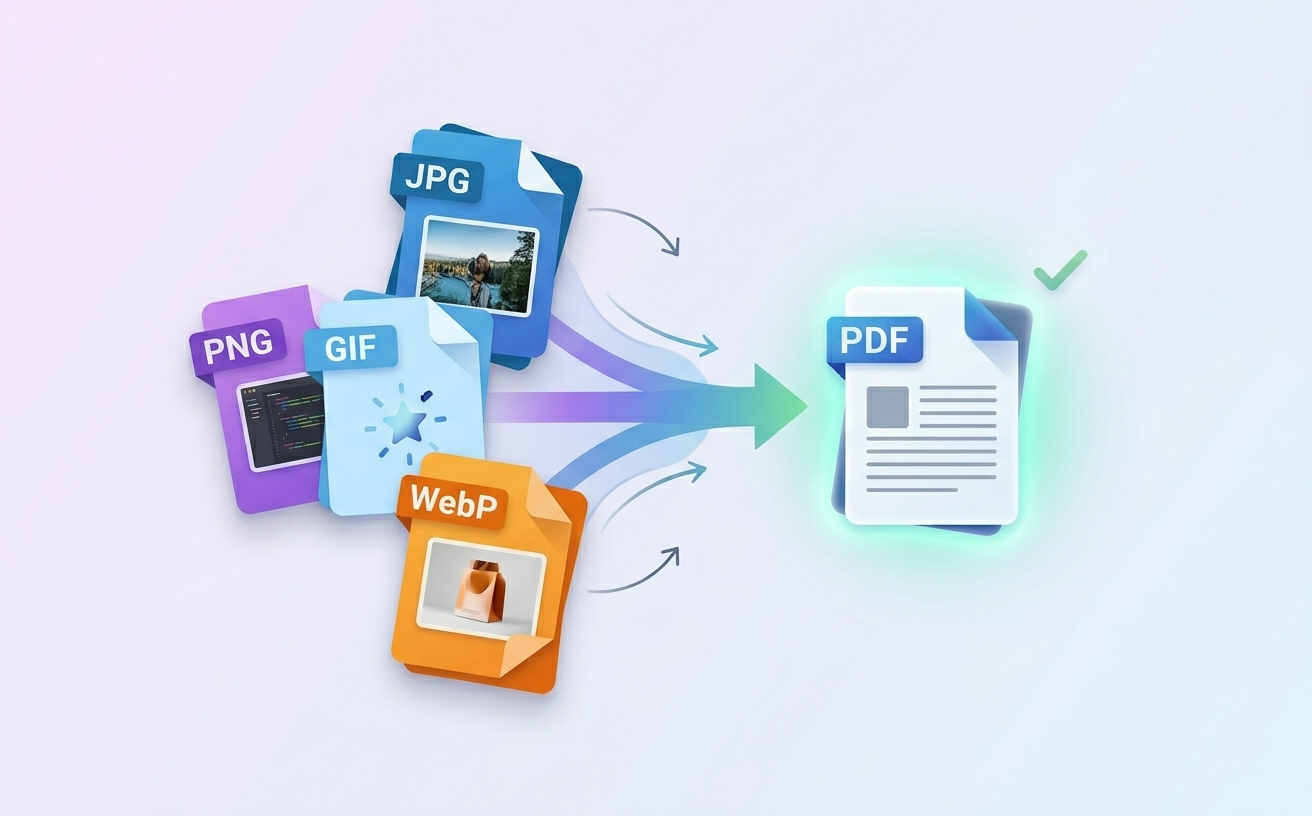
You've got a folder full of images—JPGs from your phone, PNGs from screenshots, GIFs downloaded from the web—and you need them in PDF format. Maybe you're creating a digital portfolio, scanning documents, or preparing images for printing.
The good news: converting images to PDF is one of the easiest document tasks, and it takes just minutes with the right tool.
In this guide, we'll walk you through exactly how to convert any image format to PDF, including JPG, PNG, GIF, WebP, BMP, TIFF, and HEIC. We'll also share pro tips for maintaining image quality, combining multiple images into one PDF, and troubleshooting common issues.
Why Convert Images to PDF in 2026?
Before diving into the process, let's examine why image-to-PDF conversion remains critical for modern workflows:
Preserve Professional Quality In 2026, image quality matters more than ever. Converting JPG to PDF, PNG to PDF, and other formats preserves resolution perfectly. Unlike email compression or cloud storage recompression, PDF maintains your original image quality—critical for professional photography, product catalogs, and visual documentation.
Consolidate Documents Across Global Teams Teams distributed across time zones and continents need unified document formats. Converting multiple images to PDF creates one consolidated file that everyone can access, annotate, and share without compatibility issues.
Create Print-Ready Archives Organizations managing thousands of documents (contracts, permits, certifications) need reliable archives. PDF image format is print-ready, preserves colors accurately, and meets ISO standards for long-term storage.
Streamline Compliance & Legal Documentation Regulated industries (finance, healthcare, legal) require audit trails. Converting scanned documents and images to searchable PDF with OCR technology ensures compliance with document retention policies.
Batch Process at Scale Converting 100 images individually is inefficient. Modern image-to-PDF tools handle batch conversions, allowing teams to process thousands of files simultaneously.
Ensure Cross-Platform Compatibility PDF works everywhere—Windows, Mac, Linux, iOS, Android, web browsers. Converting images to PDF guarantees accessibility across all devices and systems.
Enable OCR for Scanned Content Scanned images become searchable, editable text when converted to PDF with OCR. This is essential for digitizing paperwork, contracts, and legacy documents.
How to Convert Images to PDF: Step-by-Step (2026 Edition)
What You'll Need
- One or more image files (JPG, PNG, GIF, WebP, BMP, TIFF, HEIC, PSD)
- A modern web browser (Chrome, Firefox, Safari, Edge)
- 2-3 minutes for single conversions, or more for batch processing
No software installation. No account required. Enterprise-grade security.
Step 1: Prepare Your Images for Conversion
Single Image Conversion:
- Locate your JPG, PNG, GIF, WebP, BMP, TIFF, HEIC, or PSD file
- Verify file integrity by opening it
- Note the location for quick upload
Batch Image-to-PDF Conversion:
- Organize all images in a single folder
- Name files numerically (01_image.jpg, 02_image.jpg) or by sequence
- This ensures PDFs organize in the correct order automatically
- Supports unlimited images—process 10 or 10,000 files
Scanned Documents:
- If converting scanned images to PDF, gather all scans
- Use the OCR option to make text searchable and editable
- Batch processing works perfectly for digitizing physical documents
Step 2: Access the PDFEquips Image to PDF Converter
- Open your web browser and navigate to PDFEquips Image to PDF Tool
- You'll see the professional upload interface
- PDFEquips is trusted by thousands globally—your images are processed with enterprise-grade security
Step 3: Upload Your Images
Drag-and-Drop (Fastest for Batch):
- Click and drag multiple images directly into the upload zone
- Works for converting JPG to PDF, PNG to PDF, GIF to PDF, and all formats simultaneously
- Release to initiate upload
Browse Upload:
- Click the upload area
- Select one image or multiple (Ctrl/Cmd+Click)
- Works for single JPG to PDF, PNG to PDF conversions or batch processing
Supported Formats for Image-to-PDF Conversion:
- JPG / JPEG (photographs, real-world images)
- PNG (screenshots, graphics, transparent images)
- GIF (animated images, simple graphics)
- WebP (modern web optimized images)
- BMP (legacy computer graphics)
- TIFF (professional photography, scanning)
- HEIC / HEIF (iPhone/iPad photos)
- PSD (Photoshop files)
Step 4: Arrange Images for Multi-Image PDF Creation
If converting multiple images to PDF:
- PDFEquips displays all uploaded images in sequence
- Drag images to rearrange order
- Use arrow controls if available
- Order in the list = order in final PDF
For product catalogs, portfolios, or document scanning:
- Proper sequencing is critical
- Verify order before converting
Step 5: Configure Conversion Settings
PDFEquips offers professional-grade conversion options:
Output Size & Orientation:
- Auto (intelligently fits images)
- Portrait (vertical orientation)
- Landscape (horizontal orientation)
- Standard sizes (A4, Letter, custom)
Quality Settings:
- High Quality (preserves maximum resolution, larger file)
- Balanced (optimal quality/file-size ratio)
- Compressed (smaller file for email/cloud sharing)
Margins:
- Professional margins (0.5 inches standard)
- Borderless (full-bleed, image fills entire page)
- Custom margins for specific requirements
Recommendation: Use default settings for standard conversions. Professional users can adjust quality and margins based on output requirements.
Step 6: Preview Your Conversion
Before processing:
- All images uploaded
- Sequence correct (if converting multiple images to PDF)
- No unwanted files included
- Settings match your requirements
Takes 10 seconds and prevents processing errors.
Step 7: Convert Images to PDF
- Click the "Convert to PDF" button
- PDFEquips processes your conversion
- Processing time: 5-30 seconds depending on:
- Number of images (single JPG to PDF = faster)
- Image file sizes
- Conversion quality selected
- Internet connection speed
Enterprise-grade infrastructure ensures reliable processing.
Step 8: Download Your PDF
After successful conversion:
- Download button appears automatically
- Click "Download PDF" to save
- Browser saves to your Downloads folder
- Name your file clearly:
Portfolio_2026.pdfProduct_Catalog_Q1_2026.pdfDocument_Scan_Archive.pdf
Step 9: Verify Conversion Quality
Always verify the output:
- Open the downloaded PDF
- Check completeness:
- All images present
- Correct sequence (for multi-image conversions)
- Image quality meets requirements
- No missing pages or distortions
- If quality is suboptimal, reconvert using different quality settings
Professional Tips: Image to PDF Conversion Best Practices (2026)
Tip 1: Maintain High Resolution for Professional Output
For print or professional use:
- Start with high-resolution source images (300+ DPI)
- Use "High Quality" conversion setting
- PDFs preserve resolution perfectly
- Downsampling in conversion is irreversible
For web/email:
- "Balanced" quality setting is fine
- Reduces file size without significant quality loss
Tip 2: Batch Process Images for Enterprise Efficiency
Converting 50+ images?
- Upload all at once
- Use numbered file names (01.jpg, 02.jpg)
- PDFEquips sorts alphabetically automatically
- One conversion handles unlimited images
- Saves hours vs. individual conversions
For digitizing paper documents:
- Scan all pages to TIFF or PDF
- Use batch conversion to consolidate
- Much faster than manual compilation
Tip 3: Standardize Image Naming for Workflows
Best practice for teams:
Date_ProjectName_Sequence_Description.jpg
2026-03-30_ProjectAlpha_001_Contract.jpg
2026-03-30_ProjectAlpha_002_Signature.jpg
2026-03-30_ProjectAlpha_003_Witness.jpg
Automatic alphabetical sorting creates perfect sequencing.
Tip 4: Convert Screenshots to PDF for Documentation
In 2026 remote work environment:
- Take screenshot (Print Screen or Cmd+Shift+4)
- Convert to PDF immediately
- Professional documentation for:
- Bug reports (screenshot + PDF)
- Process documentation
- Training materials
- System configurations
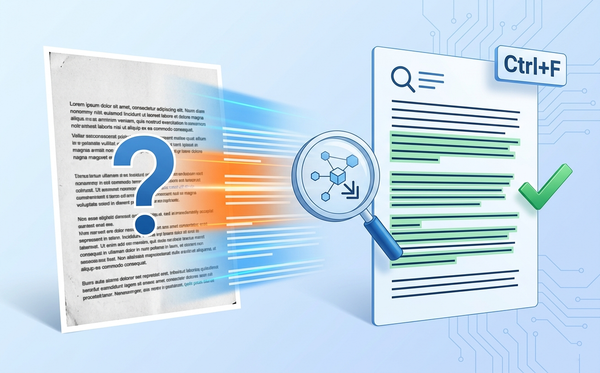
Tip 5: Use OCR for Scanned Image-to-PDF Conversion
After converting scanned images:
- Convert images to PDF (this guide)
- Use PDFEquips OCR Tool immediately after
- OCR makes text searchable and editable
- Result: Fully digitized, searchable document
Perfect for digitizing archives, legacy documents, contracts.
Tip 6: Optimize File Size for Enterprise Distribution
If converted PDF is too large:
- Use "Balanced" or "Compressed" quality setting
- After conversion, use PDFEquips Compress PDF
- Reduces file size 20-50% without visible quality loss
- Critical for enterprise email/cloud distribution
Tip 7: Maintain Image Metadata and EXIF Data
Professional photographers converting images to PDF:
- Note: PDF conversion extracts image content
- Original EXIF data (camera settings, location) isn't transferred
- Keep original image files as master archive
- Use PDF for distribution and client delivery
Image Format Guide: Which Format Should You Convert?
JPG / JPEG
- Best for: Photographs, real-world images, color photos
- Conversion quality: Excellent
- File size after conversion: Medium
- Best use case: Converting JPG to PDF for photo galleries, portfolios, archives
PNG
- Best for: Screenshots, graphics, images with transparent backgrounds
- Conversion quality: Excellent (lossless)
- File size after conversion: Medium to large
- Best use case: Converting PNG to PDF for technical documentation, UI screenshots
GIF
- Best for: Simple graphics, animations, icons
- Conversion quality: Good (converts first frame if animated)
- File size after conversion: Small
- Best use case: Converting GIF to PDF for web graphics, simple illustrations
WebP
- Best for: Modern web-optimized images, compressed images
- Conversion quality: Excellent
- File size after conversion: Small
- Best use case: Converting WebP to PDF for modern web workflows
BMP
- Best for: Legacy computer graphics, Windows system images
- Conversion quality: Good
- File size after conversion: Large (usually uncompressed)
- Best use case: Rare; mostly legacy systems
TIFF
- Best for: Professional photography, scanning, printing
- Conversion quality: Excellent (often uncompressed)
- File size after conversion: Large
- Best use case: Converting TIFF to PDF for professional archives, high-quality scanning
HEIC / HEIF
- Best for: iPhone/iPad photos (modern devices)
- Conversion quality: Excellent
- File size after conversion: Small
- Best use case: Converting HEIC to PDF from Apple devices without quality loss
PSD (Photoshop)
- Best for: Photoshop editable files
- Conversion quality: Varies (flattens to single image)
- File size after conversion: Large
- Best use case: Converting PSD to PDF for final delivery, archives
PDFEquips Image to PDF vs. Alternatives (2026 Comparison)
| Feature | PDFEquips | Adobe Acrobat | Online Tools | Desktop Software |
|---|---|---|---|---|
| Cost | FREE | $15/month | Varies | $20-100 |
| Setup Required | None | Download + install | None | Download + install |
| Convert JPG to PDF Speed | 5-30 sec | 1-2 min | Varies | 1-3 min |
| Batch Processing | Unlimited images | Limited | Usually limited | Limited |
| File Size Limit | Unlimited | Typically limited | Often limited | Varies |
| Works Offline | No | Yes | No | Yes |
| Quality Preservation | Excellent | Excellent | Variable | Good |
| Security (Enterprise) | ✓ Military-grade | ✓ Strong | Varies | ✓ Local |
| Scanned Image Handling | ✓ Excellent | ✓ Good | Variable | ✓ Good |
| Used Globally | ✓ Thousands | ✓ Millions | Variable | ✓ Widespread |
| Trusted by Enterprise | ✓ Yes | ✓ Yes | Varies | ✓ Yes |
Verdict for 2026
Use PDFEquips if you:
- Need to convert images to PDF quickly and free
- Process multiple images (batch conversion)
- Want enterprise-grade security without subscription
- Convert from any device
- Need reliability (trusted by thousands globally)
Use Desktop Software if you:
- Work offline frequently
- Need advanced image editing alongside conversion
- Require local file storage
- Have existing subscriptions
For most professional workflows in 2026, PDFEquips image-to-PDF conversion is the best choice—fast, reliable, secure, and free.
Troubleshooting Image-to-PDF Conversion (2026)
"My Image Won't Upload"
Solutions:
- Verify file format (JPG, PNG, GIF, WebP, BMP, TIFF, HEIC, PSD supported)
- Check file isn't corrupted (open in image viewer first)
- Clear browser cache: Settings → Privacy → Clear Browsing Data
- Try different browser (Chrome has best compatibility)
- Verify internet connection stability
"Image Quality Looks Poor After Conversion"
Solutions:
- Re-convert using "High Quality" setting
- Start with high-resolution source image (300+ DPI minimum)
- Avoid heavily compressed JPGs
- For professional output, use uncompressed source files
"Images Are in Wrong Order in PDF"
Solutions:
- Re-upload and manually rearrange before converting
- Use numbered file names (01_, 02_, etc.) for automatic sorting
- Always verify sequence before converting
"PDF File Size Is Too Large"
Solutions:
- Re-convert using "Compressed" or "Balanced" setting
- After conversion, use PDFEquips Compress PDF
- Typical compression: 20-50% file reduction
"Scanned Document Converted But Text Isn't Editable"
Solution:
- Scanned images convert to PDF, but text isn't searchable
- Use PDFEquips OCR Tool immediately after conversion
- OCR makes text selectable, searchable, and editable
"One Image Didn't Convert Properly"
Solutions:
- File might be corrupted (verify by opening it first)
- Convert that image separately
- Try converting JPG version if original is unusual format
- Contact support if issue persists
Related PDFEquips Tools for Image Workflows
Once you've converted images to PDF:
1. Make Scanned Images Searchable
Converting scanned documents? Use OCR here to make text editable.
2. Compress Large Image PDFs
Large file size? Compress here for easy sharing.
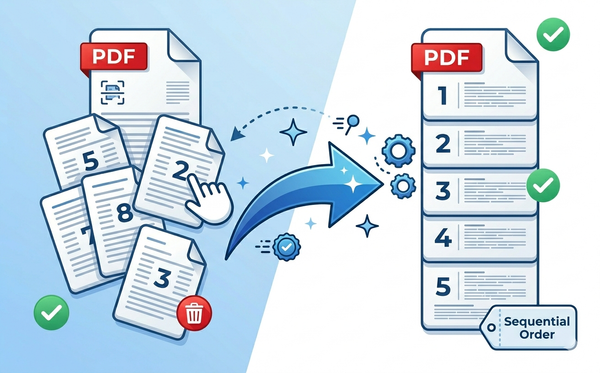
3. Organize Multi-Image PDFs
Need to rearrange pages? Organize here.
4. Add Professional Watermarks
Brand your image PDFs? Add watermark here.
5. Number Pages
Professional documentation? Add page numbers here.
6. Merge With Other PDFs
Combine with documents? Merge PDFs here.
7. Extract Images From PDFs
Need images back out? Extract here.
The Bottom Line
Converting images to PDF—whether JPG to PDF, PNG to PDF, GIF to PDF, or any other format—should be instant, reliable, and free. PDFEquips image-to-PDF converter trusted by thousands globally delivers exactly that:
- Convert any image format (JPG, PNG, GIF, WebP, BMP, TIFF, HEIC, PSD)
- Process unlimited images (batch conversion for efficiency)
- Preserve quality perfectly (high-resolution output)
- Enterprise-grade security (trusted by thousands worldwide)
- Zero software installation (web-based, works everywhere)
Ready to convert images to PDF? Start free now on PDFEquips—convert in seconds with quality preserved.
FAQs: Converting Images to PDF
Q: What image formats does PDFEquips support? A: JPG, PNG, GIF, WebP, BMP, TIFF, HEIC/HEIF, and PSD. Basically every common image format.
Q: Can I convert multiple images into one PDF? A: Yes, unlimited. Upload 2 images or 2,000—all convert to one PDF.
Q: Will image quality suffer when converting to PDF? A: No. PDFEquips preserves original quality perfectly. Use "High Quality" setting for professional output.
Q: How large can images be? A: Unlimited file size. Larger files take slightly longer, but there's no ceiling.
Q: Can I convert scanned images? A: Yes. After conversion, use OCR tool to make text searchable and editable.
Q: Do I need an account? A: No. Upload, convert, download—zero account required.
Q: Is my data secure? A: Yes. Enterprise-grade security. Files auto-delete after 24 hours.
Q: How fast is conversion? A: Typically 5-30 seconds depending on image count and size.
Updated: March 2026. PDFEquips serves thousands globally. Contact us with questions.