Free PDF Converter: Convert PDFs to Any Format Online [Complete Guide]
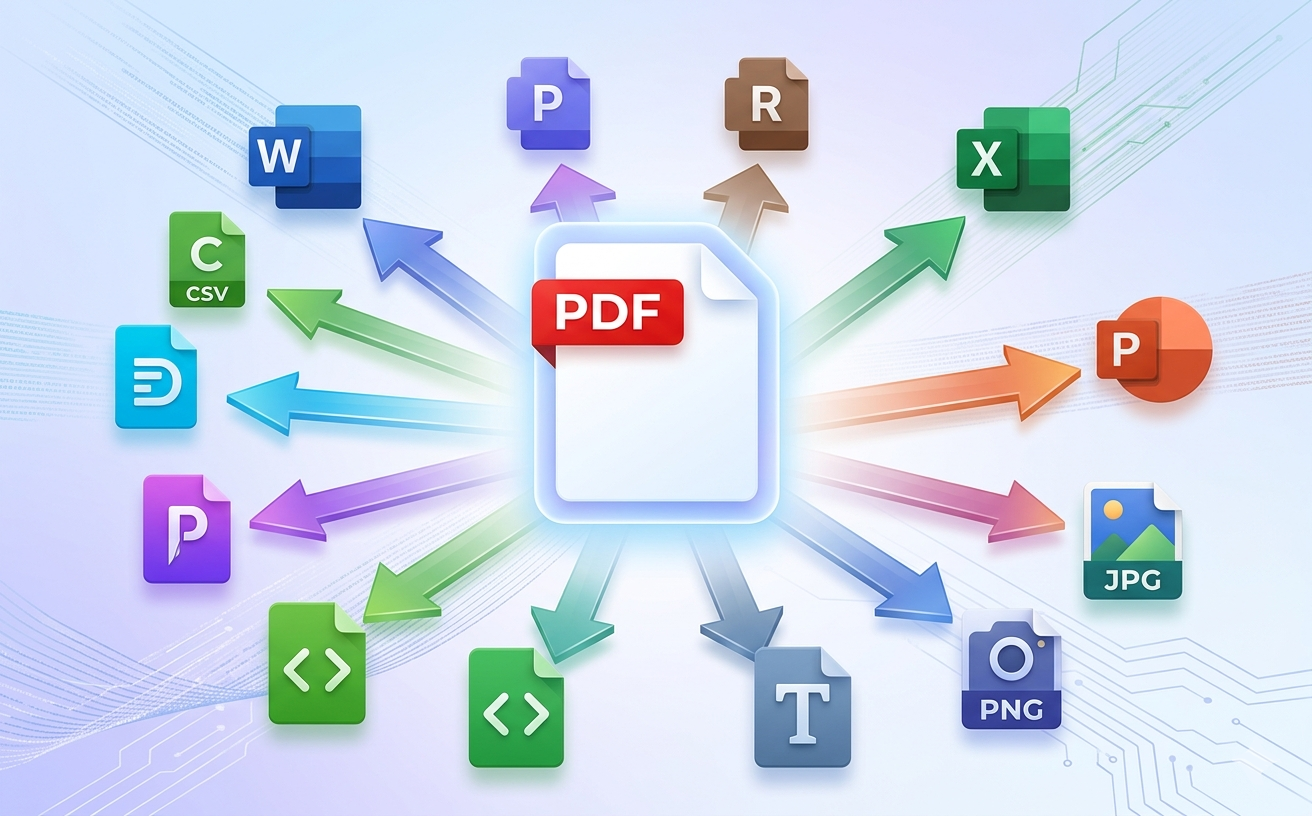
You've got a PDF, but you need it in a different format. Maybe you need to convert PDF to Word for editing, convert PDF to Excel to extract data, convert PDF to image for social media, or convert PDF to PowerPoint for presentations.
The problem: Most PDF converters charge subscriptions or lock features behind paywalls. You're forced to choose between expensive professional tools or unreliable free alternatives that produce low-quality results.
The better solution: PDFEquips. Trusted by thousands globally, PDFEquips offers completely free PDF conversion to virtually any format—Word, Excel, PowerPoint, images, text, and more. No subscriptions. No hidden fees. No compromises on quality.
This comprehensive guide walks you through converting PDFs to every major format, explains when to use each conversion, and shows you which format works best for different situations.
Why Convert PDFs to Other Formats?
Edit Content in Word PDFs prevent editing. Word documents enable full editing capabilities—perfect for updating content, revising text, or redistributing modified versions.
Extract Data to Excel Tables in PDFs are locked. Converting to Excel makes data editable and analyzable. Critical for data teams and analysts.
Create Presentations from PDFs PowerPoint presentations are easier to customize and share than PDFs. Convert content to create dynamic presentations.
Extract Images for Social Media & Web PDFs contain images you need elsewhere. Convert to JPG, PNG, or other image formats for websites, social media, and presentations.
Share in Accessible Formats Different teams work with different tools. Converting to their preferred format improves workflow.
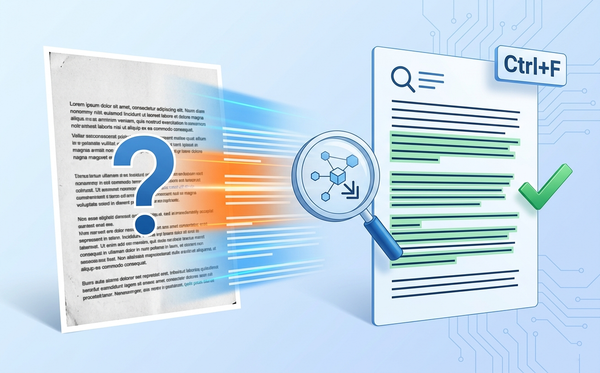
Digitize & Search with OCR Scanned PDFs converted to text become searchable and editable. Essential for archiving.
Print Optimally Some formats print better than others. Converting optimizes for your specific printing needs.
Reduce File Size Converting can reduce file size depending on format and compression.
PDF Conversion Guide: Which Format Should You Convert To?
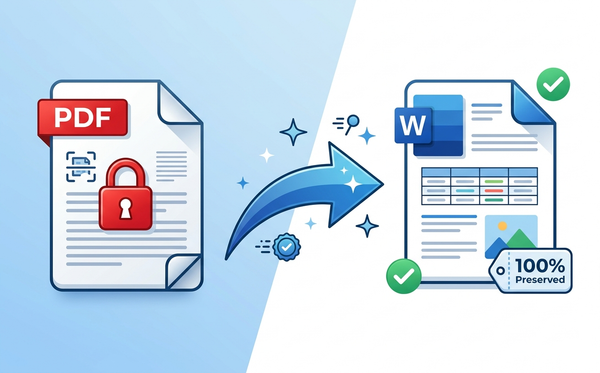
Convert PDF to Word
Best For:
- Editing documents
- Professional reports that need revisions
- Contracts requiring modification
- Any PDF with text you need to edit
Format: .docx (Microsoft Word)
What Happens:
- Text becomes fully editable
- Formatting transfers (mostly)
- Tables and images included
- Ready for revision and collaboration
Try It: PDF to Word Converter
Convert PDF to Excel
Best For:
- Extracting tables from PDFs
- Data analysis and manipulation
- Financial reports and spreadsheets
- Anything with structured data
Format: .xlsx (Microsoft Excel)
What Happens:
- PDF tables convert to Excel rows/columns
- Data becomes queryable and sortable
- Charts may transfer
- Ready for formulas and analysis
Try It: PDF to Excel Converter
Convert PDF to PowerPoint
Best For:
- Creating presentations from PDF content
- Repurposing documents as slides
- Educational materials and training
- Conference presentations
Format: .pptx (Microsoft PowerPoint)
What Happens:
- PDF pages become slides
- Text and images transfer
- Ready for customization and animation
- Editable content throughout
Try It: PDF to PowerPoint Converter
Convert PDF to Images
Best For:
- Extracting images for web/social media
- Creating thumbnails
- Converting pages to individual image files
- Archiving as image files
Formats: JPG, PNG, TIFF, GIF, BMP, WebP
What Happens:
- Each PDF page becomes separate image
- Choose format based on needs
- Image quality adjustable
- Ready for web, print, or editing
Try It: PDF to Image Converter
Convert PDF to Text
Best For:
- Extracting plain text from PDFs
- Text analysis and processing
- Content for different systems
- Removing formatting
Format: .txt (Plain Text)
What Happens:
- All formatting removed
- Pure text extracted
- Ready for text processing
- Simplest possible format
Try It: PDF to Text Converter
Convert PDF to CSV
Best For:
- Spreadsheet data extraction
- Database imports
- Data portability
Format: .csv (Comma Separated Values)
What Happens:
- Tabular data converted to CSV
- Compatible with all spreadsheet programs
- Ready for database imports
- Portable and universal format
Try It: PDF to CSV Converter
Convert PDF to HTML
Best For:
- Converting to web format
- Website content from PDFs
- Preserving formatting for web
- Content management systems
Format: .html (Hypertext Markup Language)
What Happens:
- PDF converts to web-compatible HTML
- Formatting and layout preserved
- Ready for websites
- Editable in HTML editors
Try It: PDF to HTML Converter
Convert PDF to SVG
Best For:
- Converting to vector graphics
- Scalable graphics without quality loss
- Logo/graphic extraction
- Professional graphics work
Format: .svg (Scalable Vector Graphics)
What Happens:
- PDF graphics converted to vectors
- Infinitely scalable without quality loss
- Editable in design software
- Professional output quality
Try It: PDF to SVG Converter
Convert PDF to EPUB
Best For:
- E-book creation
- Digital distribution
- Mobile reading formats
- Publishing content
Format: .epub (Electronic Publication)
What Happens:
- PDF converts to e-book format
- Reflowable text for mobile devices
- Compatible with e-readers
- Professional e-book appearance
Try It: PDF to EPUB Converter
How to Choose the Right Conversion Format
Decision Tree
I need to edit the content: → Convert to Word (.docx)
I need to work with data/tables: → Convert to Excel (.xlsx) or CSV
I need to create a presentation: → Convert to PowerPoint (.pptx)
I need individual image files: → Convert to Image (JPG, PNG, etc.)
I need plain text only: → Convert to Text (.txt)
I need web compatibility: → Convert to HTML
I need vector graphics: → Convert to SVG
I need to publish as e-book: → Convert to EPUB
Step-by-Step: Converting PDFs (General Process)
Step 1: Access PDFEquips Converter
- Choose your desired conversion from above
- Click the converter link
- Go to PDFEquips conversion tool
Step 2: Upload Your PDF
Drag and Drop:
- Click and drag PDF into upload area
- Instant upload
Browse:
- Click upload area
- Select your PDF
- Click "Open"
Step 3: Configure (If Applicable)
Some converters offer options:
- Output quality or format
- Page range selection
- Image resolution for image conversions
- Table handling for data extraction
Use defaults unless you have specific needs.
Step 4: Convert
- Click "Convert" or "Convert to [Format]"
- Processing begins (typically 10-60 seconds)
- Progress indicator shows status
Step 5: Download Result
- Download button appears after conversion
- Click "Download [Format]"
- File saves to Downloads folder
- Ready to use in your target application
Step 6: Verify Quality
Always check the result:
- All content transferred
- Formatting acceptable for your needs
- File opens in target application
- Quality meets requirements
PDF Conversion Scenarios & Solutions
Scenario 1: Received PDF Contract That Needs Editing
Problem: Client sent PDF contract, but it needs modifications before signing.
Solution:
- Convert PDF to Word
- Edit contract in Word
- Make requested changes
- Re-save as PDF for final version
- Send to client
Scenario 2: PDF Contains Table You Need in Excel
Problem: Budget spreadsheet is PDF, but you need to update numbers and create formulas.
Solution:
- Convert PDF to Excel
- Open in Excel
- Edit data and create formulas
- Save as Excel file
Scenario 3: Want to Use PDF Content in Presentation
Problem: Conference paper is PDF, need to repurpose as PowerPoint presentation.
Solution:
- Convert PDF to PowerPoint
- Open in PowerPoint
- Customize slides, add animations
- Add speaker notes
- Present
Scenario 4: Need Images From PDF for Social Media
Problem: PDF contains product photos needed for Instagram posts.
Solution:
- Convert PDF to Images
- Select JPG format
- Download high-quality images
- Crop and post to social media
Scenario 5: Extracting Data From 100-Page PDF
Problem: Must extract specific data from lengthy PDF for analysis.
Solution:
- Convert PDF to Excel
- Open in Excel
- Filter and analyze data
- Run queries and reports
Scenario 6: Publishing Content Online
Problem: PDF document needs to be web-accessible HTML version.
Solution:
- Convert PDF to HTML
- Customize HTML as needed
- Upload to website
- Web-accessible content
Scenario 7: Digitizing Scanned Documents for Archive
Problem: Scanned document images as PDF, need searchable text.
Solution:
- Use OCR Tool first (makes searchable)
- Convert PDF to Text for plain text version
- Or Convert PDF to Word for editable version
Advanced Conversion Tips
Tip 1: Choose Quality Level Before Converting
For Web/Screen Viewing:
- Standard quality is fine
- Smaller file sizes
- Faster conversion
For Printing or Professional Use:
- High quality
- Larger file sizes
- Best visual results
Tip 2: Convert Page Ranges for Large PDFs
If PDF has 100 pages but you only need pages 1-20:
- Select page range (1-20) if available
- Faster conversion
- Smaller output file
- More efficient
Tip 3: Verify Compatibility After Conversion
Always test:
- Open converted file in target application
- Check content transferred correctly
- Verify formatting acceptable
- Test any features you'll use
Tip 4: Keep Original PDF
Best practice:
- Always keep original PDF
- Create converted copy for modification
- If conversion has issues, re-convert
- Master original remains unchanged
Tip 5: Combine Conversions With Other Tools
After converting:
Tip 6: Use Batch Processing for Multiple Files
Converting 10+ PDFs?
- Convert one at a time through PDFEquips
- Or contact support about batch processing options
- For enterprise volume, special rates available
PDF Conversion Format Comparison
| Format | Best For | Editability | Quality | File Size | Compatibility |
|---|---|---|---|---|---|
| Word (.docx) | Editing text | ✓ Full editing | Excellent | Medium | Universal (Office, Google, etc.) |
| Excel (.xlsx) | Data/tables | ✓ Full editing | N/A (data) | Small | Universal (all spreadsheet apps) |
| PowerPoint (.pptx) | Presentations | ✓ Full editing | Excellent | Medium | Universal (Office, Google, etc.) |
| JPG Image | Photos/web | ✗ Images only | Good (adjustable) | Small-Medium | Universal (all systems) |
| PNG Image | Graphics/web | ✗ Images only | Excellent | Medium-Large | Universal (all systems) |
| Text (.txt) | Plain content | ✓ Full editing | N/A (text) | Very Small | Universal |
| CSV | Data import | ✓ Full editing | N/A (data) | Very Small | Universal |
| HTML | Web content | ✓ Full editing | Good | Small-Medium | All web browsers |
| SVG | Vector graphics | ✓ Editable vectors | Excellent (scalable) | Small | Modern browsers |
| EPUB | E-books | ✗ Limited | Good | Small | E-readers, apps |
Common PDF Conversion Questions
"Why Can't I Just Use Google Docs to Convert PDFs?"
Google Docs has basic PDF import, but:
- Limited formatting preservation
- Tables often break
- Images may not transfer
- Complex PDFs fail
- Designed for simple conversions
PDFEquips specialized converters handle complex PDFs reliably.
"Will My Formatting Be Preserved?"
Depends on format:
- Word/PowerPoint: Formatting usually preserved (depends on complexity)
- Excel: Table structure preserved, formatting may vary
- Images: Perfect preservation (it's an image of original)
- Text: No formatting (just text)
- HTML: Formatting preserved for web display
Premium converters preserve better than free online alternatives.
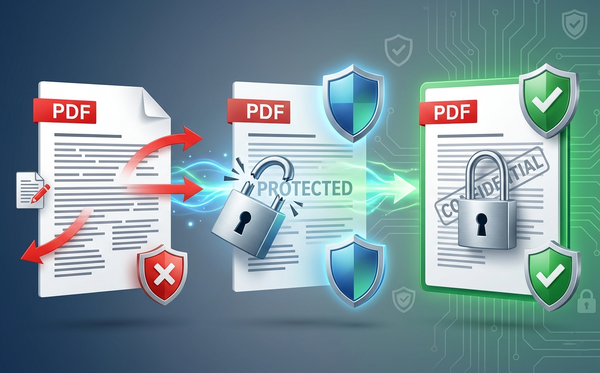
"Can I Convert Passwords-Protected PDFs?"
Not directly. First:
- Use Unlock PDF to remove password
- Then convert to your desired format
- Works even if you don't have the password (sometimes)
"How Long Does Conversion Take?"
Typically:
- Simple conversion: 10-30 seconds
- Complex documents: 30-60 seconds
- Large files: 1-2 minutes
Depends on file size and conversion type.
"Is There a File Size Limit?"
PDFEquips handles unlimited file sizes. Very large files take longer, but no ceiling.
Why PDFEquips Free PDF Converter Is the Best
How It's Different
Problem with most free converters:
- Watermarks on output
- Limited conversions per day
- Ads and spam
- Low quality results
- Slow processing
- Require account creation
PDFEquips is different:
✓ Completely Free — No hidden fees, no watermarks, no upsells ✓ No Account Required — Upload, convert, download immediately ✓ No Limits — Convert unlimited PDFs daily ✓ Professional Quality — Premium-grade conversion results ✓ Multiple Formats — Convert to 15+ different formats ✓ Fast Processing — Most conversions under 60 seconds ✓ Secure — Enterprise-grade security, auto-delete after 24 hours ✓ Trusted Globally — Thousands of users worldwide
For free PDF conversion, PDFEquips has no equal.
Complete PDFEquips Conversion Tools Directory
Convert FROM PDF:
- PDF to Word — For editing
- PDF to Excel — For data extraction
- PDF to PowerPoint — For presentations
- PDF to Image — For images
- PDF to Text — For plain text
- PDF to CSV — For data import
- PDF to HTML — For web
- PDF to SVG — For vector graphics
- PDF to EPUB — For e-books
- PDF to RTF — For rich text
- And more...
Convert TO PDF:
- Image to PDF — Combine images
- Word to PDF — Convert documents
- Excel to PDF — Convert spreadsheets
- PowerPoint to PDF — Convert presentations
- Text to PDF — Convert text files
- HTML to PDF — Convert web pages
- Web to PDF — Capture web pages
- And more...
PDF Utilities:
- Merge PDFs — Combine files
- Split PDF — Separate pages
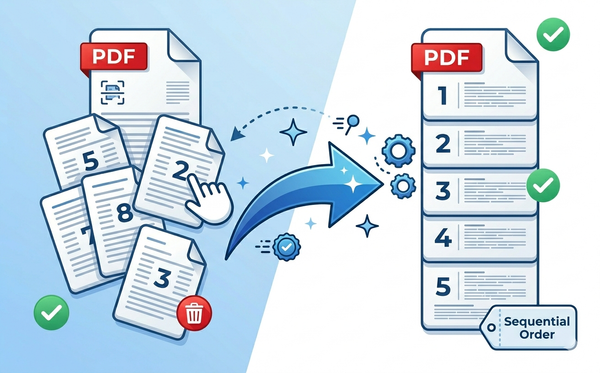
- Organize PDF — Rearrange pages
- Compress PDF — Reduce size
- OCR PDF — Make searchable
- Lock PDF — Password protect
- Watermark PDF — Add branding
- And more...
The Bottom Line
Converting PDFs doesn't have to cost money or compromise quality. PDFEquips Free PDF Converter offers everything:
- Convert to any format (Word, Excel, PowerPoint, images, text, HTML, SVG, EPUB, and more)
- Convert from any format (images, documents, spreadsheets, web pages all convert to PDF)
- Completely free (no subscriptions, no watermarks, no limits)
- Professional quality (trusted by thousands globally)
- Web-based (no software installation needed)
Whether you need to edit, analyze, extract, publish, or archive, PDFEquips has the conversion tool you need.
Ready to convert your PDF? Start free now on PDFEquips—convert in seconds to the format you need.
FAQs: Free PDF Conversion
Q: Is PDFEquips really free? A: Yes, completely free. No hidden fees, no trial limits, no watermarks on output.
Q: Do I need to create an account? A: No. Upload, convert, download—no account required.
Q: Is there a limit to how many PDFs I can convert? A: No. Convert unlimited PDFs daily.
Q: What if the conversion quality is poor? A: Try the specific format converter for your needs. PDFEquips' specialized converters produce better results than generic tools.
Q: Can I convert password-protected PDFs? A: Not directly. First unlock using Unlock PDF tool, then convert.
Q: Is my data secure? A: Yes. Enterprise-grade security. Files auto-delete after 24 hours.
Q: How long does conversion take? A: Usually 10-60 seconds depending on file size and conversion type.
Q: What formats can I convert to? A: Word, Excel, PowerPoint, images (JPG, PNG, etc.), text, CSV, HTML, SVG, EPUB, RTF, and more.
Q: Is there a file size limit? A: No. PDFEquips handles files of any size.
Last updated: Mar 31. PDFEquips free PDF converter trusted by thousands globally. Contact us with questions.