How to Merge Multiple PDFs into One: Free Online Tool [2026]
![How to Merge Multiple PDFs into One: Free Online Tool [2026]](/blog/content/images/size/w1200/2026/03/How-to-Merge-Multiple-PDFs-into-One.png)
Tired of emailing 10 PDF files to clients, colleagues, or partners? Merging PDFs is one of the most common document tasks, yet many people still struggle with it. The good news: combining multiple PDFs into a single file is easier than ever—and it takes just seconds with the right tool.
In this guide, we'll show you exactly how to merge multiple PDFs online for free, plus share pro tips for handling large files, comparisons with desktop software, and troubleshooting solutions.
Why Merge PDFs? Real-World Use Cases
Before we jump into the steps, let's look at why merging PDFs is so useful:
Consolidate Related Documents Managing multiple files is frustrating. When you're working on a project with contracts, addendums, and schedules—merging them into one file makes everything easier to track. One file. One download. One email.
Send One File Instead of Multiple Attachments Nobody wants to download 15 separate PDFs. Merge them into one, and your clients or team members get one professional package. It's faster, cleaner, and looks more polished.
Create Professional Multi-Document Packages Whether you're putting together a resume + cover letter + references, a complete proposal with all exhibits, or a legal contract bundle—merged PDFs look more professional and complete.
Print Everything at Once Instead of printing five separate documents and organizing the pages, just print one merged PDF. Everything comes out in the right order, the first time.
Reduce Overall File Size When you merge multiple PDFs, PDFEquips can automatically compress them slightly, making the final file smaller and easier to share via email or cloud storage.
How to Merge PDFs Online (Step-by-Step)
What You'll Need
- 2 or more PDF files on your computer
- A web browser (Chrome, Firefox, Safari, or Edge)
- About 2 minutes of your time
No software installation. No account required. Completely free.
Step 1: Gather Your PDFs and Open PDFEquips
- Save all the PDF files you want to merge into one folder on your computer
- Open your web browser and go to PDFEquips Merge PDF Tool
- You'll see the upload area right on the screen—it's the big white box that says "Drop your files here or click to browse"
Step 2: Upload Your PDF Files
You have two options:
Option A: Drag and Drop (Fastest)
- Open your file folder alongside your browser
- Click and drag all your PDFs directly into the upload area
- Release, and they'll all upload at once
Option B: Click to Browse
- Click the upload area
- Select multiple files from your computer (hold Ctrl/Cmd to select more than one)
- Click "Open"
Once uploaded, you'll see all your files listed in order. PDFEquips supports unlimited files and unlimited file sizes—merge 2 PDFs or 50 PDFs, it doesn't matter.
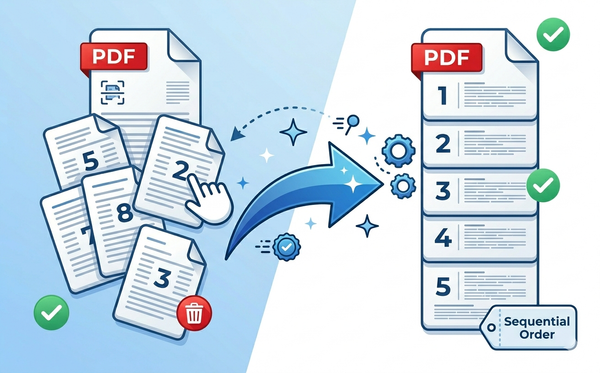
Step 3: Arrange Your Files in the Correct Order
This is important: the order in your list is the order they'll appear in your merged PDF.
- Click and drag files to rearrange them
- Move files up or down using arrow buttons (if available)
- Check that the order matches how you want them combined
For example:
- Cover_Page.pdf
- Section_1.pdf
- Section_2.pdf
- Conclusion.pdf
Step 4: Select Page Ranges (Optional)
Don't want to include every page from every file? No problem.
For each PDF:
- Click on the file to expand options
- You may see a "page range" field
- Enter which pages to include (e.g., "1-10" for the first 10 pages only)
- If you don't touch this, PDFEquips includes all pages by default
This is useful if you only need pages 1-5 from a 50-page document.
Step 5: Preview Your Merge (Before You Commit)
Before hitting that merge button, take 10 seconds to verify:
- All files are included
- Files are in the correct order
- No unwanted PDFs were accidentally added
- Page ranges are set correctly (if you customized any)
Once you click merge, you can't undo it—so a quick check now saves headaches later.
Step 6: Click Merge and Wait
- Click the large blue "Merge PDFs" button
- PDFEquips will process your files
- This usually takes 5-30 seconds, depending on:
- How many files you're merging
- How large each file is
- Your internet connection speed
You'll see a progress bar while it works.
Step 7: Download Your Merged PDF
After the merge completes:
- A download button will appear (usually green or blue)
- Click "Download" to save the merged PDF to your computer
- Your browser will save it to your Downloads folder (or the location you've set)
- Name it something clear, like "ProjectProposal_Final.pdf"
Step 8: Open and Verify Your Merged PDF
This is the final check:
- Open the downloaded PDF on your computer (double-click the file)
- Scroll through and verify:
- All pages from all original PDFs are present
- Pages are in the correct order
- Text and images appear intact
- No pages are cut off or corrupted
If something looks wrong, go back and re-merge (or contact PDFEquips support).
Pro Tips for Merging Large PDFs & Multiple Files
Tip 1: Merge in Batches for Extra-Large Merges
If you're combining 50+ large PDFs and the merge fails or times out:
- First merge PDFs 1-20 together
- Then merge PDFs 21-40 together
- Finally, merge both results together
This is called "batch merging" and works reliably even with thousands of pages.
Tip 2: Organize File Names Before Uploading
Help yourself by naming files clearly before you upload them:
1_Cover.pdf
2_Executive_Summary.pdf
3_Proposal_Section1.pdf
4_Proposal_Section2.pdf
5_Terms_and_Conditions.pdf
6_Signature_Page.pdf
When you upload them all at once, PDFEquips automatically sorts alphabetically, so they're already in the right order.
Tip 3: Remove Password Protection First
If any of your original PDFs are password-protected, you'll need to remove that protection before merging.
Use the PDFEquips Unlock PDF Tool to remove passwords, then merge.
Tip 4: Enhance Your Merged PDF With Other Tools
After merging, your PDF might benefit from additional touches:
- Add page numbers → Use PDFEquips Number PDF to number all pages consecutively
- Add a watermark → Use PDFEquips Watermark PDF to add your company logo or "CONFIDENTIAL" stamp
- Compress the file → Use PDFEquips Compress PDF to reduce file size for email sharing
- Organize pages → Use PDFEquips Organize PDF if you need to rearrange pages after merging
Tip 5: PDFEquips Preserves Document Bookmarks
If your original PDFs included bookmarks (a navigation feature in PDF readers), PDFEquips preserves them in the merged file. This is especially helpful for long documents—readers can jump to sections using the bookmarks panel.
Merge PDFs Online vs. Desktop Software: What's Better?
Thinking about whether to use an online tool like PDFEquips or download desktop software? Here's the comparison:
| Feature | PDFEquips (Online) | Adobe Acrobat | Other Desktop Tools |
|---|---|---|---|
| Cost | FREE | $15/month or $180/year | $20-100 (one-time) |
| Speed | 5-30 seconds | Minutes (install + load) | Varies |
| Setup Required | None | Download + install + account | Download + install |
| File Size Limit | Unlimited | Limited | Often limited |
| Privacy | Secure; files deleted after 24h | Requires Adobe account | On your computer |
| User-Friendly | Yes, designed for beginners | Yes, but complex for simple tasks | Varies |
| Works Offline | No (requires internet) | Yes | Yes |
| Merging Capability | Unlimited files | Yes | Yes |
The Verdict
Use PDFEquips (Online) if you:
- Want to merge PDFs quickly and for free
- Don't want to install software
- Need to merge unlimited files
- Work on multiple computers
- Prefer simple, straightforward tools
- Have a decent internet connection
Use Desktop Software if you:
- Work offline frequently
- Need advanced PDF editing features (signatures, redactions, etc.)
- Want to keep files on your computer
- Manage sensitive documents requiring local storage
- Need professional-grade tools for routine work
For most people merging PDFs, PDFEquips is the smarter choice. It's free, fast, and requires zero setup.
Troubleshooting Common Merge Issues
"My PDF Files Won't Upload"
Solutions:
- Check your internet connection (try WiFi instead of mobile data)
- Make sure files aren't corrupted (try opening them individually first)
- Try a different browser (Chrome often works best)
- Clear your browser cache: Settings → Privacy/History → Clear Browsing Data
- Check file size (PDFEquips handles files of any size, but very large files might need a moment)
"Files Are in the Wrong Order After Merging"
Solutions:
- Re-upload the PDFs and manually arrange them before clicking merge
- Use numbered file names (1_file.pdf, 2_file.pdf) before uploading
- Upload files one at a time and arrange manually if needed
- Double-check the order in the list before clicking merge
"My Merged PDF Is Too Large"
Solutions:
- After merging, use PDFEquips Compress PDF to reduce file size
- Compression removes metadata and optimizes images without losing quality
- Typical compression: 20-50% smaller file
"There's a Watermark or Stamp in My Merged PDF"
Solutions:
- This watermark came from one of your original PDFs, not from PDFEquips
- Use PDFEquips Watermark Remover to strip it out
- Remove the watermark from individual PDFs before merging if you don't want it
"The Merge Took Too Long or Timed Out"
Solutions:
- Try merging fewer files at once (batch merge 20 files at a time)
- Close other browser tabs and applications to free up memory
- Refresh the page and try again
- Compress individual files before merging (smaller files = faster merge)
Other PDF Tools That Work Great With Merged PDFs
Once you've successfully merged your PDFs, here are complementary tools that might be useful:
1. Compress Your Merged PDF
After merging, your file might be large. Compress it here to make it email-friendly while keeping quality.
2. Add Page Numbers
For a professional look, add consecutive page numbers to your merged document—especially important for long files.
3. Add Watermarks or Branding
Want to add your company logo or mark it "CONFIDENTIAL"? Add a watermark here.
4. Rearrange or Remove Pages
Made a mistake in the merge? Reorganize pages or remove unwanted pages after merging.
5. Convert to Other Formats
Need your merged PDF as a Word document, image, or Excel file?
- PDF to Word — Edit in Microsoft Word
- PDF to Image — Save as JPG, PNG, or other formats
- PDF to Excel — Extract tables into a spreadsheet
6. Split Your Merged PDF Back Apart
If you ever need to separate pages again, use the split tool to break one PDF into multiple files.
The Bottom Line
Merging multiple PDFs doesn't have to be complicated. With PDFEquips free online PDF merger, you can combine unlimited PDFs in seconds—no software, no account, no hassle.
Whether you're consolidating proposals, organizing contracts, or packaging documents for clients, the process is simple:
- Upload your PDFs (drag and drop)
- Arrange them in order
- Merge with one click
- Download your combined file
That's it. No more juggling multiple files or confusing email chains.
Ready to merge your PDFs? Start for free now on PDFEquips—it takes 30 seconds, and your PDFs will be combined and ready to download.
FAQs About Merging PDFs
Q: Is PDFEquips free to use? A: Yes, completely free. No ads, no watermarks, no premium tier required.
Q: How many PDFs can I merge at once? A: Unlimited. Merge 2 files or 100 files—PDFEquips handles them all.
Q: Is my data secure? A: Yes. PDFEquips uses secure encryption, and all files are automatically deleted from our servers after 24 hours.
Q: Do I need to create an account? A: No account required. Just upload, merge, and download.
Q: Can I merge password-protected PDFs? A: Not directly. First, use PDFEquips Unlock PDF to remove password protection, then merge.
Q: What if the merge fails? A: Try merging fewer files at once, or refresh and try again. If issues persist, check that PDFs aren't corrupted by opening them individually.
Last updated: Mar 30, 2026. PDFEquips is constantly improving. Questions? Contact us.